
BEFORE YOU OPEN
Your six-point readiness check
- Correct account and physical Store Location
- Pickup address and contact details saved
- Collection, delivery or both selected
- Payment/payout requirements reviewed
- Products, variants and stock checked
- Store open and notifications checked
Opening does not guarantee order availability. Stock, catalogue state, service coverage and payment readiness still matter.
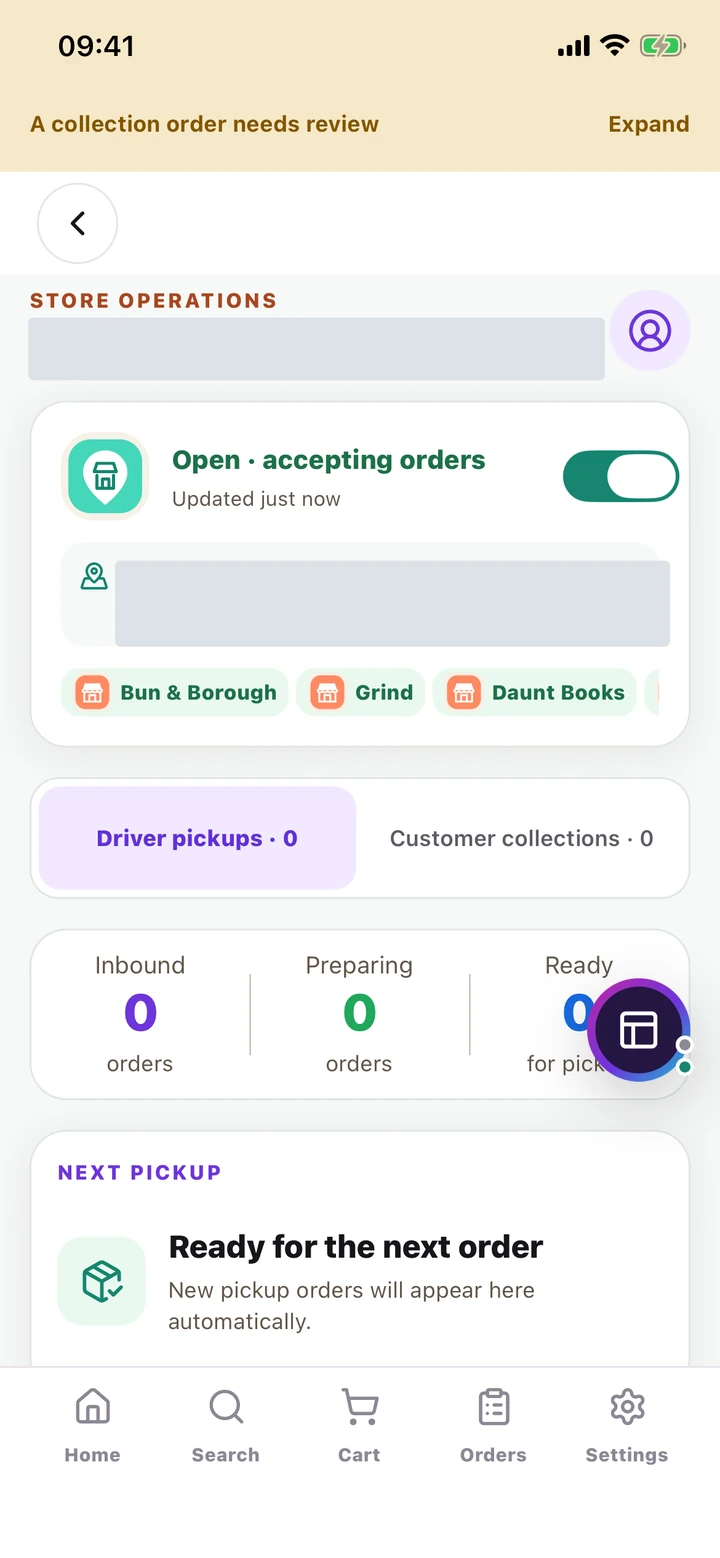
1. Find your Store workspace
#One Hopprfy account can shop, run a store and drive. Store tools only appear when your account has the linked store access.
Where to open thisSettings → Store, or quick menu → Work → Store
- Sign in to the account linked to your physical store. Open Settings, then Store in the Store & driver section. You can also open the floating quick menu, choose Work, then Store.
- Check the store name and pickup address before doing any work. A marketplace (Network) is the shared catalogue; your Store Location is the physical place that fulfils orders. One location can serve several marketplaces or brands.
- The bottom Home, Search, Cart and Orders tabs are shopping tools. Use the Store workspace for merchant order acceptance, preparation and handover—not the customer's Orders screen.
- If Store is missing, open Account or Permissions and check your linked access. Complete Business signup & setup or ask the network owner/support to help link the correct store. A customer account alone does not grant merchant access.
2. Set up your location and contact details
#An accurate physical pickup point and usable contact number help customers and drivers find you.
Where to open thisStore workspace → operations/options → profile and location
- Open the Store workspace's operations/options menu and find the store profile and location controls. Check the store name, contact name and telephone.
- Edit supported profile fields and save. Wait for the success message; if saving fails, retain your entries, read the message and retry instead of assuming the change applied.
- In the location controls, search the pickup address or use the map to choose the exact pickup point. Check the displayed address, then save the location.
- Check that the pickup point represents the actual fulfilment location, not your home address or an unrelated brand's office. Changing the shopping delivery address does not move your store.
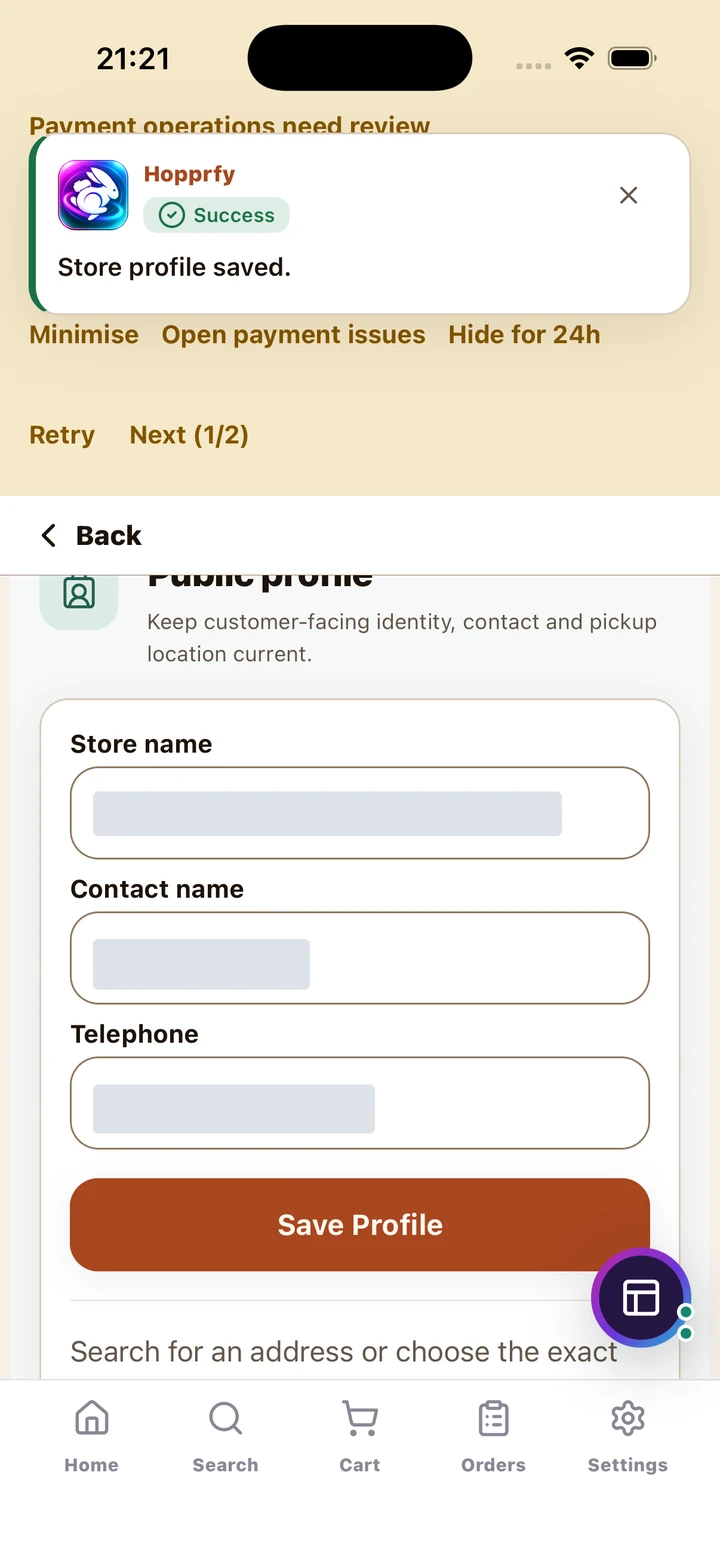
Enter the public store details, then use Save Profile. The success message confirms the save.
Click or tap to enlarge the full screenshot.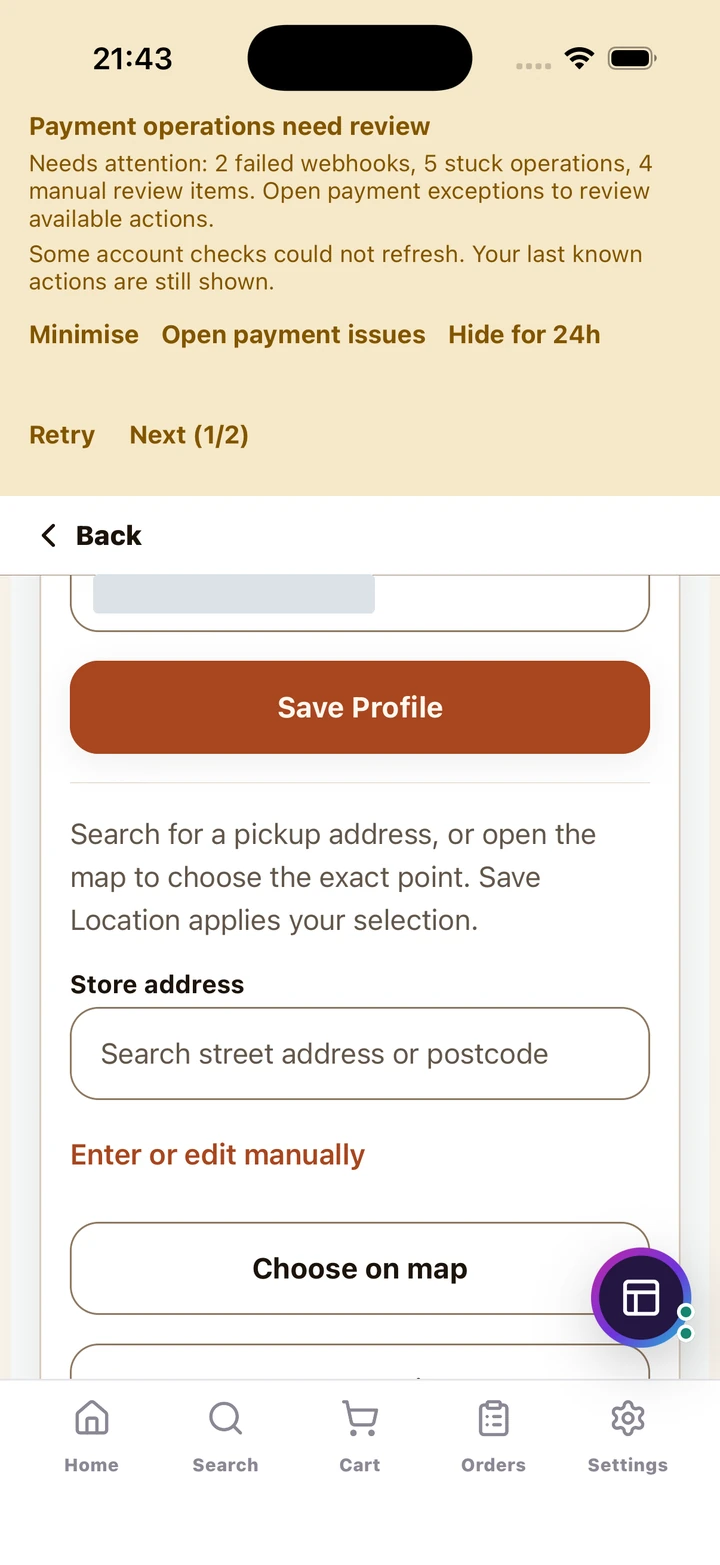
Search the pickup address or choose it on the map. Review the point and save it separately from the contact profile.
Click or tap to enlarge the full screenshot.3. Choose collection, delivery or both
#Fulfilment is configured for the physical store and applies across the marketplaces it serves.
Where to open thisStore operations → How customers receive orders
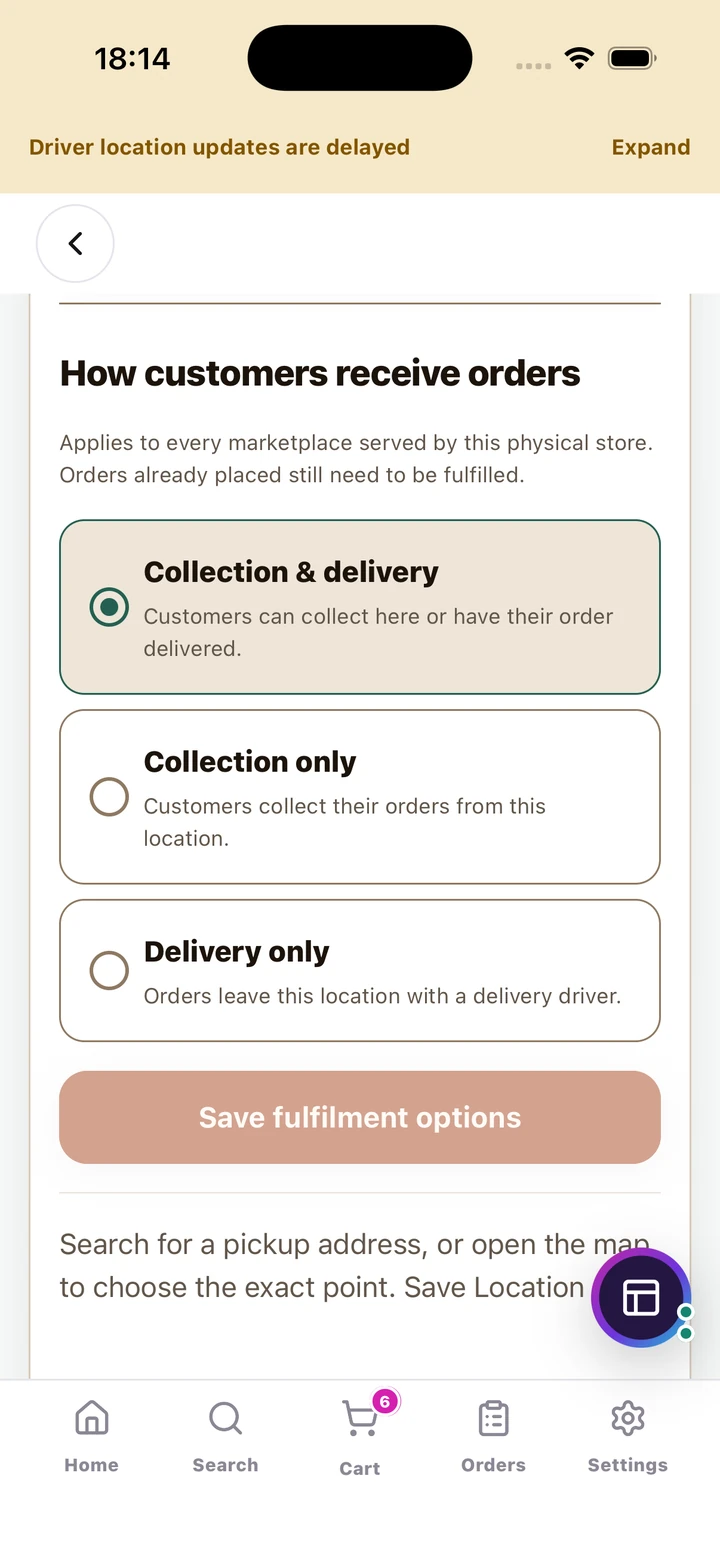
- Open the store operations/profile controls and find How customers receive orders.
- Choose Collection & delivery to offer both, Collection only for customer pickup, or Delivery only for driver handover.
- Tap Save fulfilment options and wait for confirmation. A selected option is not a saved change until the save succeeds.
- Recheck the option after refreshing. If customers cannot see the expected method, confirm the correct store, its opening state, catalogue availability and payment readiness as well.
4. Set opening hours and open for orders
#Opening your store is an operational commitment: be ready to see requests and fulfil them.
Where to open thisStore operations → opening hours and schedule; Store Home → open/closed switch
- In store operations, open the opening-hours controls. Review each day's opening and closing time and save the hours for the affected day.
- Use Automatic opening schedule if you want availability to follow the saved schedule. When it is off, availability is controlled manually by the store switch.
- Return to Store Home and inspect the open/closed status. Use the switch to open or close manually when appropriate; wait until the server confirms the new state.
- Before opening, check available stock, fulfilment options, pickup location and payout setup. Keep the device connected and the Store workspace accessible.
- When closing for the day, check outstanding requests and accepted work first. Closing stops new intake; it is not a cancellation of orders already placed.
5. Never miss a new order
#Customer collections and driver pickups are separate queues. Always check both.
Where to open thisStore Home → Customer collections and Driver pickups
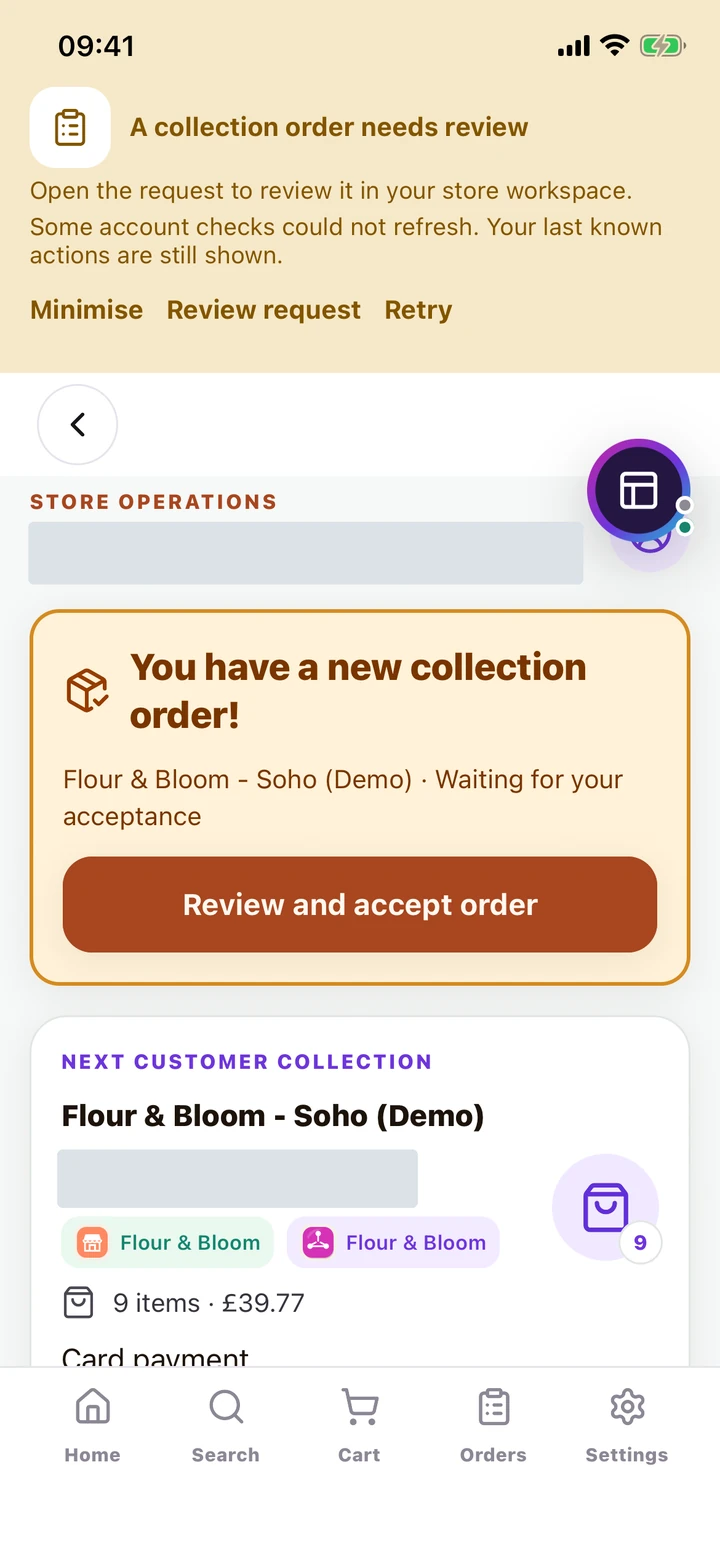
- Keep Store Home open while trading. New collection requests appear in the attention area and Customer collections tab; the queue shows work needing acceptance, preparing and ready to collect.
- Tap the new-order alert or relevant queue item to inspect the request. Confirm the marketplace, items, quantities, variations, extras, fulfilment and payment method.
- In Settings, check Push notifications for this device. If the operating system blocks notifications, use Open device settings and enable the permissions you want.
- Do not depend on a popup alone. Refresh the Store workspace and review the queue after reconnecting, resuming the app or changing account.
- If numbers or alerts appear stale, refresh the affected queue. A loading or unavailable count is not proof there are no orders. Escalate unresolved discrepancies to support with the order reference.
6. Review and accept a collection order
#Only accept work your store can actually prepare.
Where to open thisStore Home → Customer collections → the new request
- Choose Customer collections and open the new order. Review every item, selected variation, extras and quantity, along with the total and payment method (card or cash).
- If you can fulfil it, choose Accept order. Wait for the state to change to Preparing. Do not prepare a substitute product without agreeing a supported resolution with the customer.
- If you cannot fulfil the request, use the offered reject action and read the confirmation carefully. For a card authorization, the wording may include cancellation of authorization.
- If acceptance fails or the result is uncertain, refresh that order before trying again. Do not treat a spinner, popup or old alert as evidence that acceptance completed.
- If another device or team member has already handled the request, follow its latest state rather than repeating an action.
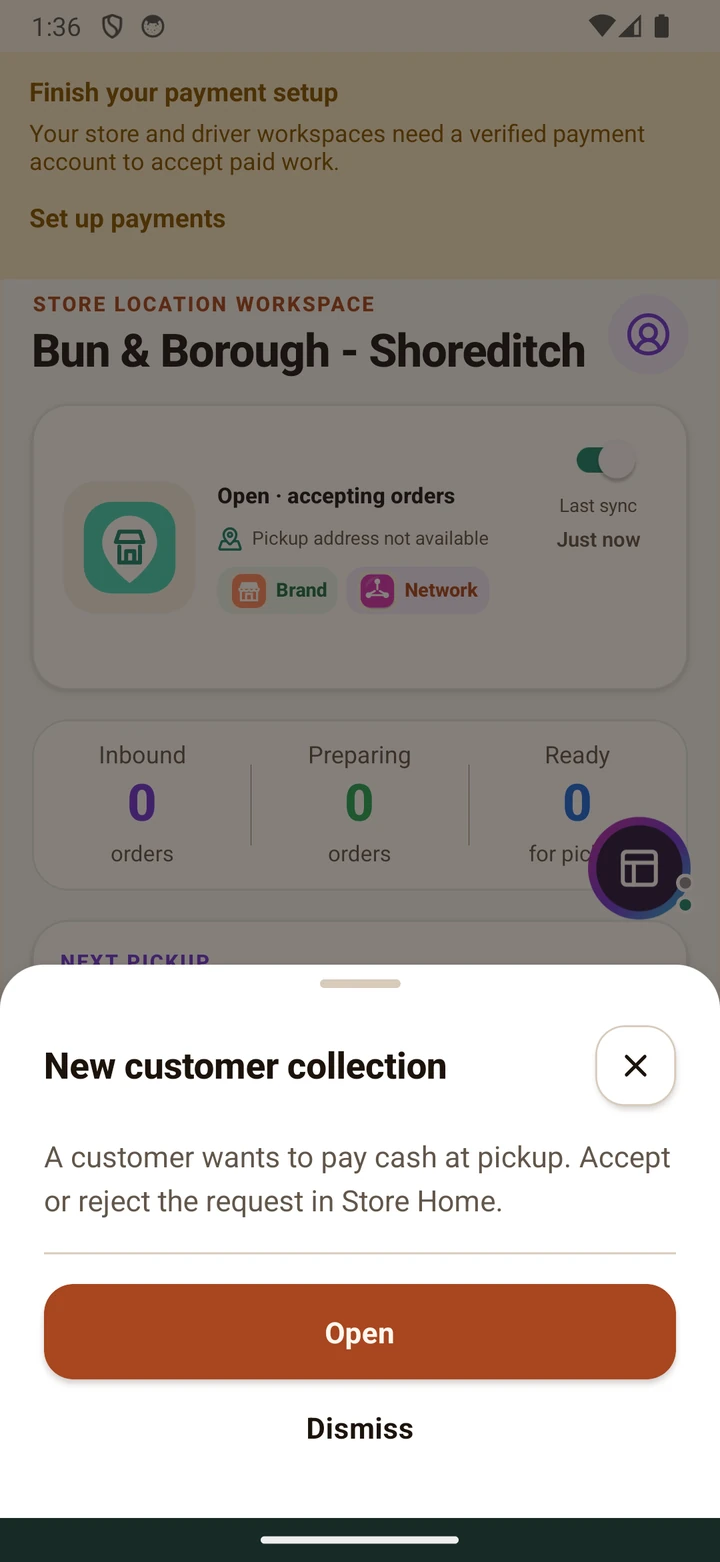
Open takes you to the request to review it. Dismiss closes the alert; it does not accept the order.
Click or tap to enlarge the full screenshot.7. Prepare and mark ready
#Use order states to tell the customer what is happening—not just to clear a queue.
Where to open thisCustomer collections → the accepted order
- Prepare the exact products and variations shown on the accepted order. Include the selected extras and check quantities before packing.
- Keep each order identifiable using its short reference. Avoid exposing customer details on publicly visible surfaces.
- When the complete collection order is actually ready, use the ready action offered on that order and wait for the Ready to collect state.
- Keep ready orders secure until the correct customer arrives. Marking ready is not proof of collection and does not replace code verification.
- If a problem occurs after acceptance, use the order's supported cancellation/help controls. Read the confirmation and current payment status; do not mark an unfulfilled order collected to remove it.
8. Verify customer collection safely
#The collection credential connects the person at your counter to the order.
Where to open thisReady collection → Verify code
- Open the ready collection and choose Verify code. Confirm that the customer and their order are present.
- Scan the customer's collection QR code, or enter the four-character collection code shown in their app. Enable camera permission if using the scanner.
- If Photo ID required appears, choose Check photo ID. Inspect the recipient's original ID in person, match the photograph and check the minimum age, then record a passing result. If ID is missing or fails, choose ID missing or check failed and keep the goods. A collection code is not proof of age.
- Submit verification once and wait for the confirmed completed/collected result. If the code is rejected, recheck the exact order and credential instead of handing over on a screenshot of a different order.
- If the network fails during verification, refresh the order to establish whether completion succeeded before submitting another attempt.
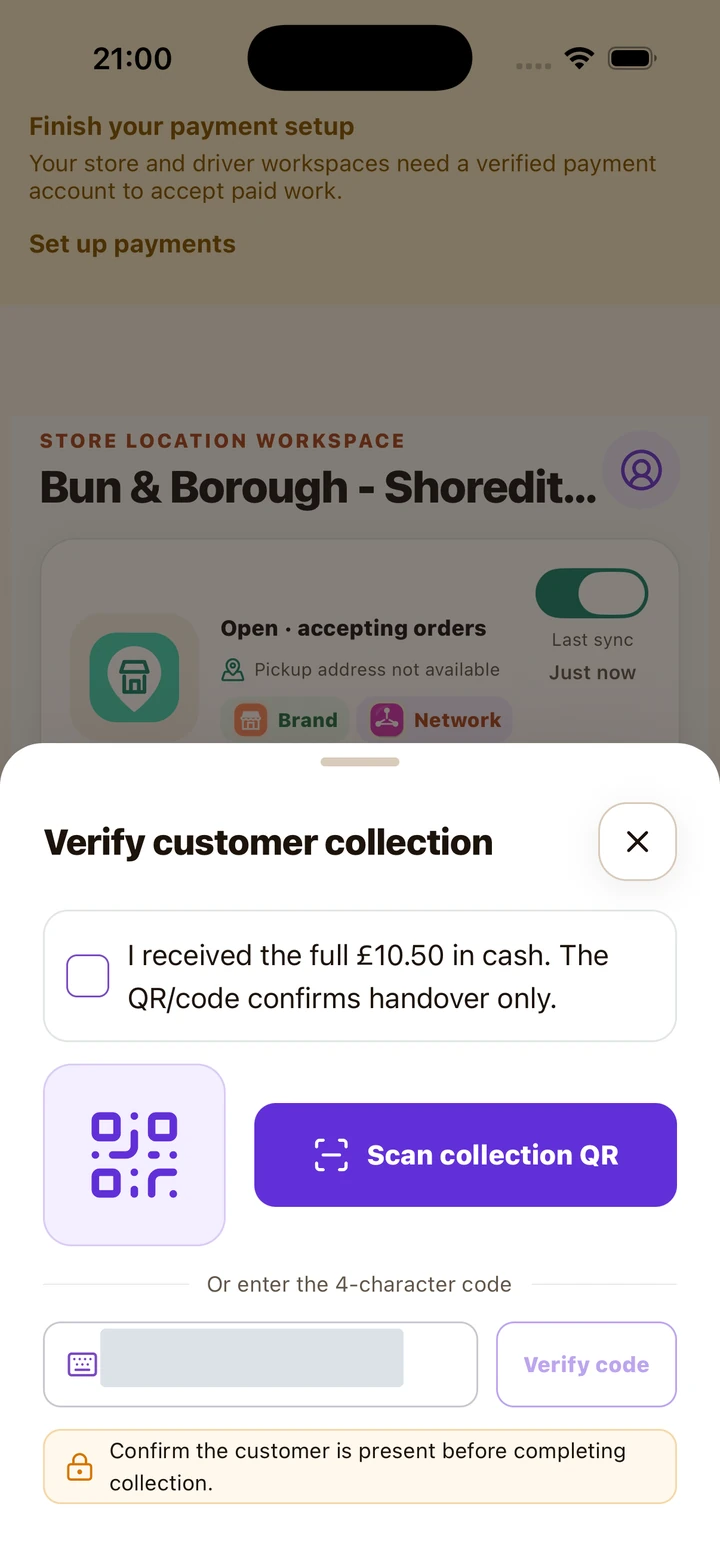
For cash orders, receive the full amount before confirming receipt. Code verification and money collection are separate checks.
Click or tap to enlarge the full screenshot.9. Handle cash collection orders
#A QR code confirms handover. It does not collect money.
Where to open thisCash collection → verification screen
- Check that the order explicitly says Cash and read the full amount due. Do not assume a saved payment card has been charged.
- Receive and check the full cash amount at the counter before completing collection.
- In the verification screen, tick the statement confirming you received the full displayed amount in cash. Do not tick it before receiving the money.
- Scan the QR code or enter the four-character code, then verify. Cash receipt confirmation and a valid collection credential are both required by the handover flow.
- If payment has not been received or the customer disputes the amount, pause the handover and resolve it through the appropriate order/help process.
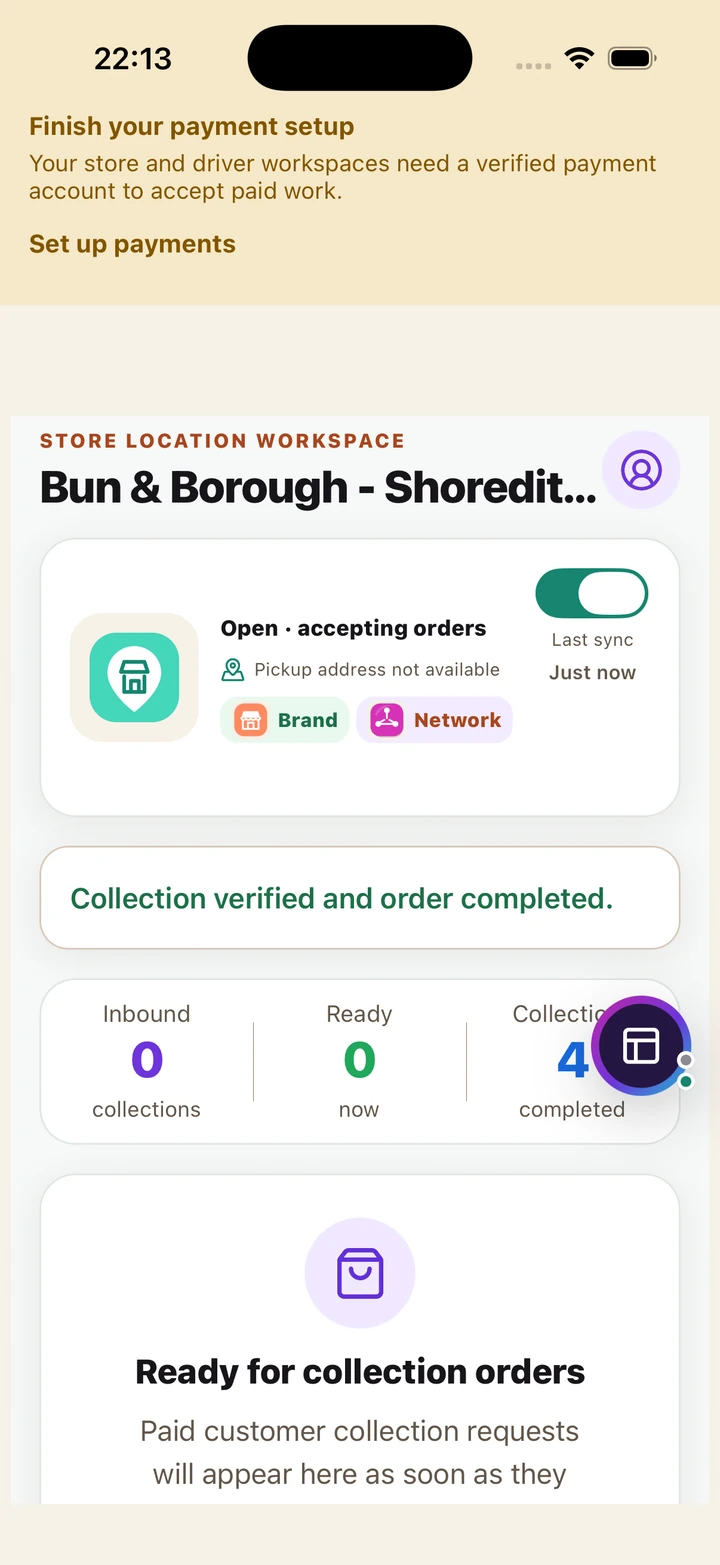
Check the confirmed collected state after verification. Do not repeat handover simply because an old notification remains.
Click or tap to enlarge the full screenshot.10. Prepare orders for driver pickup
#Use Driver pickups for orders that leave with a courier, not for customers collecting in person.
Where to open thisStore Home → Driver pickups → the order
- Choose Driver pickups in Store Home and open the relevant order. Read its current stage, items, notes, pickup details and driver information when available.
- Prepare and pack the complete order. Keep hot/cold or fragile items suitable for the delivery and ready at the saved pickup point.
- Use the order's next supported preparation/readiness action when offered. Check that the assigned driver and order match before releasing the goods.
- Use pickup confirmation only for the actual handover. The driver has their own route and pickup confirmation; a driver's arrival alert alone does not mean pickup or delivery completed.
- If no driver is assigned or an expected driver has not arrived, check the latest order status and use communication/support. Do not mark it delivered yourself to clear the screen.
11. Browse stock by marketplace and category
#Store inventory is scoped to a physical location and a Network. Check both before editing.
Where to open thisQuick menu → Work → Stock
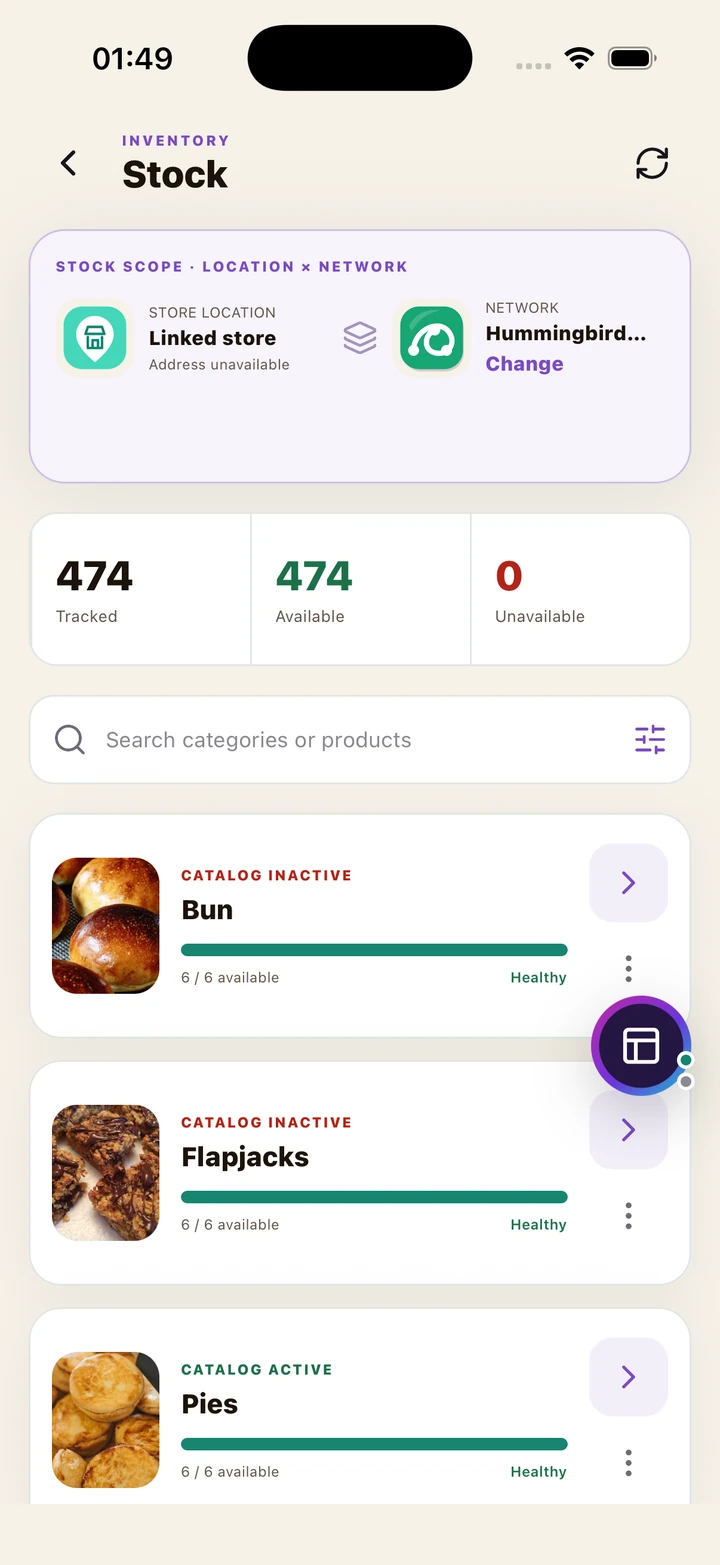
- Open the floating quick menu, choose Work, then Stock. Confirm the linked Store Location and selected Network at the top.
- Use Change to select another authorized Network. The categories and products belong to that scope; the same location can have different inventory for different marketplaces.
- Search for a category or product, or open a category card to reach its products. Use the available filters to narrow the list.
- Read Tracked, Available and Unavailable as inventory signals for the loaded scope. A category marked Catalog inactive is not made sellable merely because stock is available.
- If inventory cannot load, retry the read before making decisions. An error or blank list is not an instruction to recreate products.
12. Update availability, prices and variants
#Change local stock deliberately and verify each saved result.
Where to open thisStock → category → product or exact variant
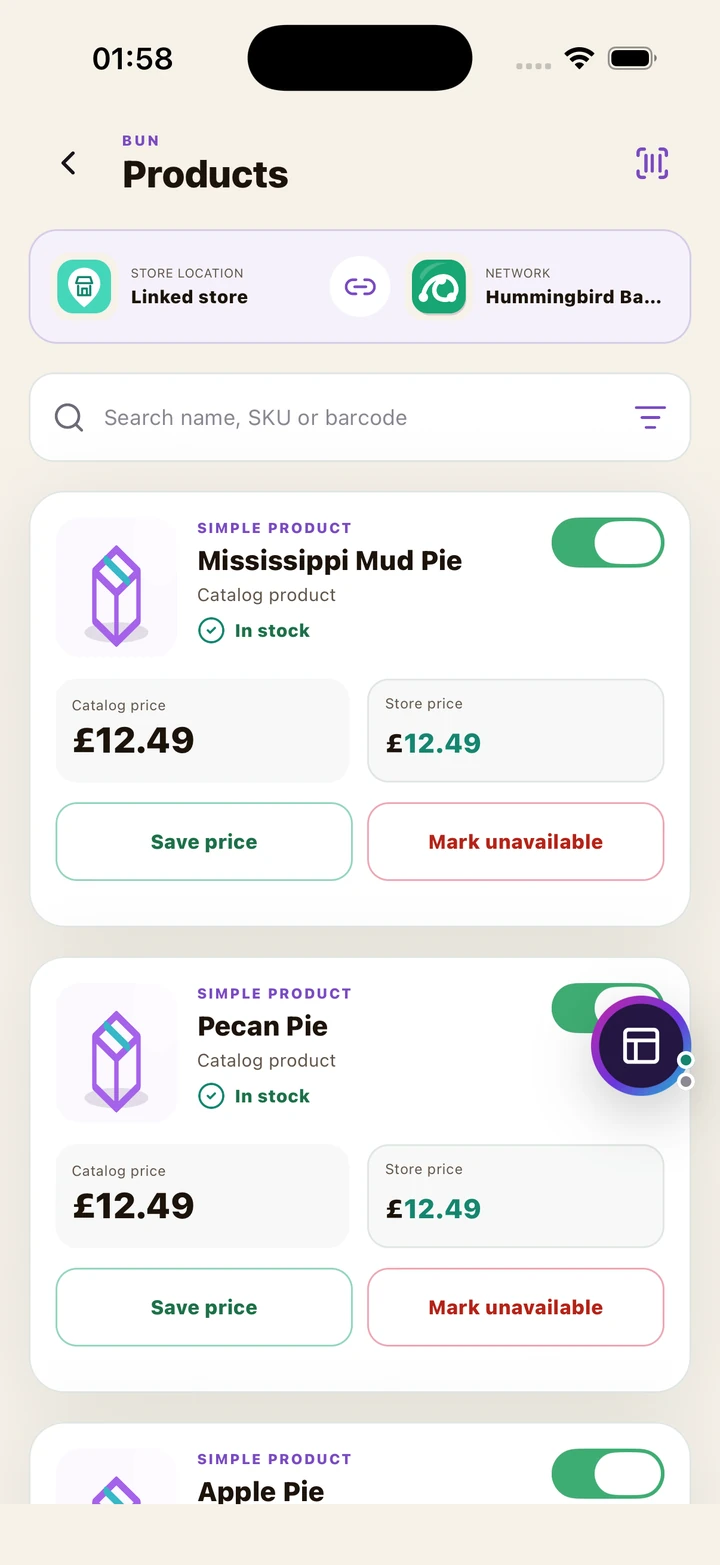
- Open a category in Stock, then search by product name, SKU or barcode if needed.
- Use the availability action to mark a product unavailable when it cannot be supplied, and available again after replenishment. Wait for success or use the item's retry message.
- Where a store-price field is available, enter a valid positive price and choose Save price. Compare the store price with the catalogue price and verify the correct currency.
- For variation-managed products, open the variant inventory editor and select the exact size/flavour/option combination. Update stock and barcode for the real variant rather than creating duplicate product rows.
- If a product definition, category, image or extras menu needs changing, ask an authorized network catalogue manager or use your separately granted catalogue tools. Store access does not automatically grant network ownership.
13. Use barcode scanning
#The scanner helps locate inventory and supported barcode requests; it does not replace checking the product.
Where to open thisWork → Barcode scanner, or the stock scanner shortcut
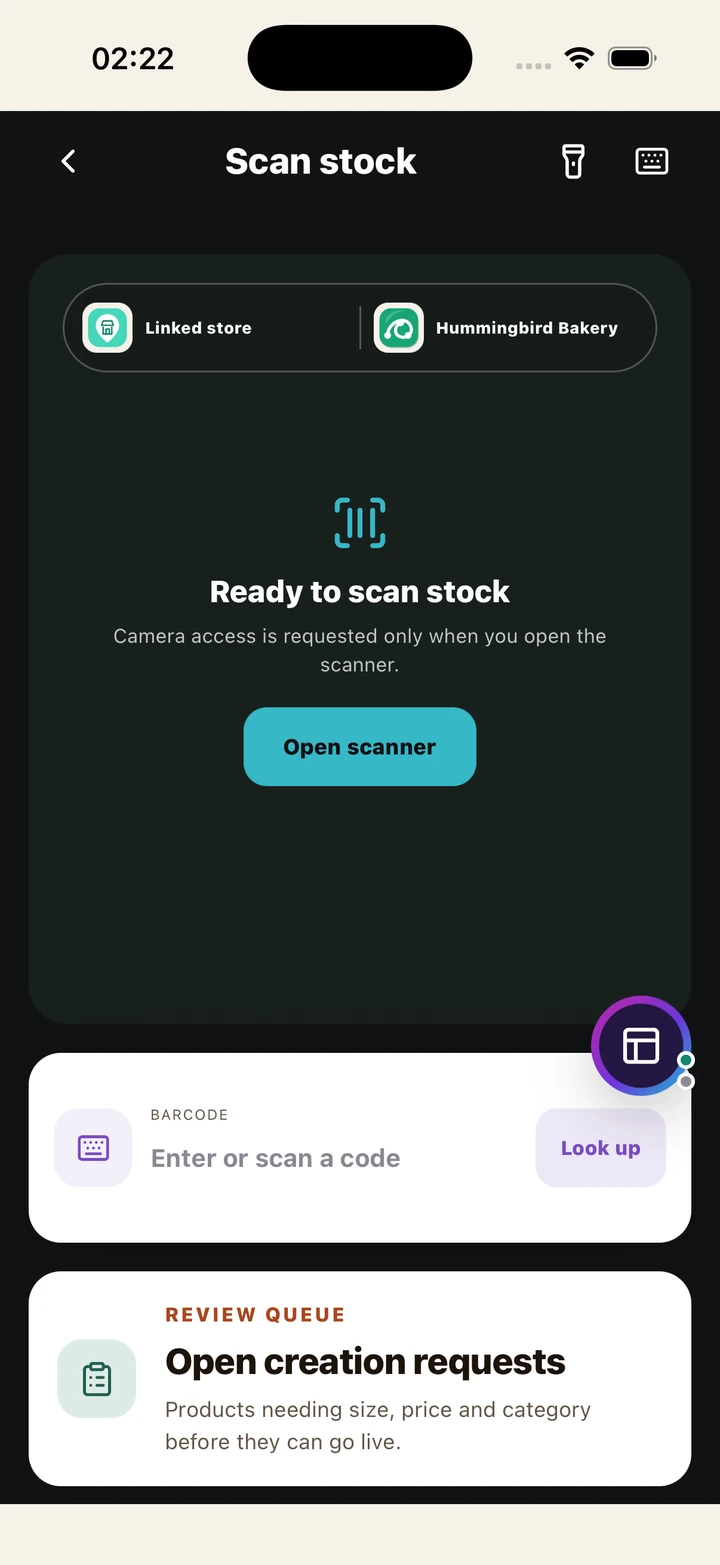
- Open Work → Barcode scanner, or the scanner shortcut offered from inventory. Confirm the current Store/Network context.
- Allow camera access when requested, then align a clear barcode in the camera area. Use the manual barcode input when camera access is unavailable or the code will not scan.
- When a match is returned, inspect the name and exact variant before editing its stock. Different sizes or pack counts can have different barcodes.
- When no match exists, follow the supported found/not-found or request workflow shown. Keep all fields accurate and do not attach an unrelated product just to obtain a match.
- If scanning or lookup fails, retry without discarding your entered data. Do not assume a service-unavailable error means the product does not exist.
14. Contact customers and get help
#Use the channel appropriate to the order and recipient.
Where to open thisSettings or quick menu → Messages; Account → Support for platform help
- Open Messages from Settings or the quick menu. Choose the verified conversation linked to the order; use conversation search when you have several participants.
- Check the recipient name and order context before sending. Keep messages specific: availability, preparation, pickup instructions or a fulfilment problem.
- Do not send passwords, card details, working collection codes or photographs of identity documents in chat.
- For platform issues, open Account → Support. Create a ticket with a short description, affected order reference and what you have already tried. Include only the information needed to investigate.
- For failed actions, keep the order and draft intact, read the inline message and use its targeted retry where safe. An uncertain payment or handover needs reconciliation, not repeated submission.
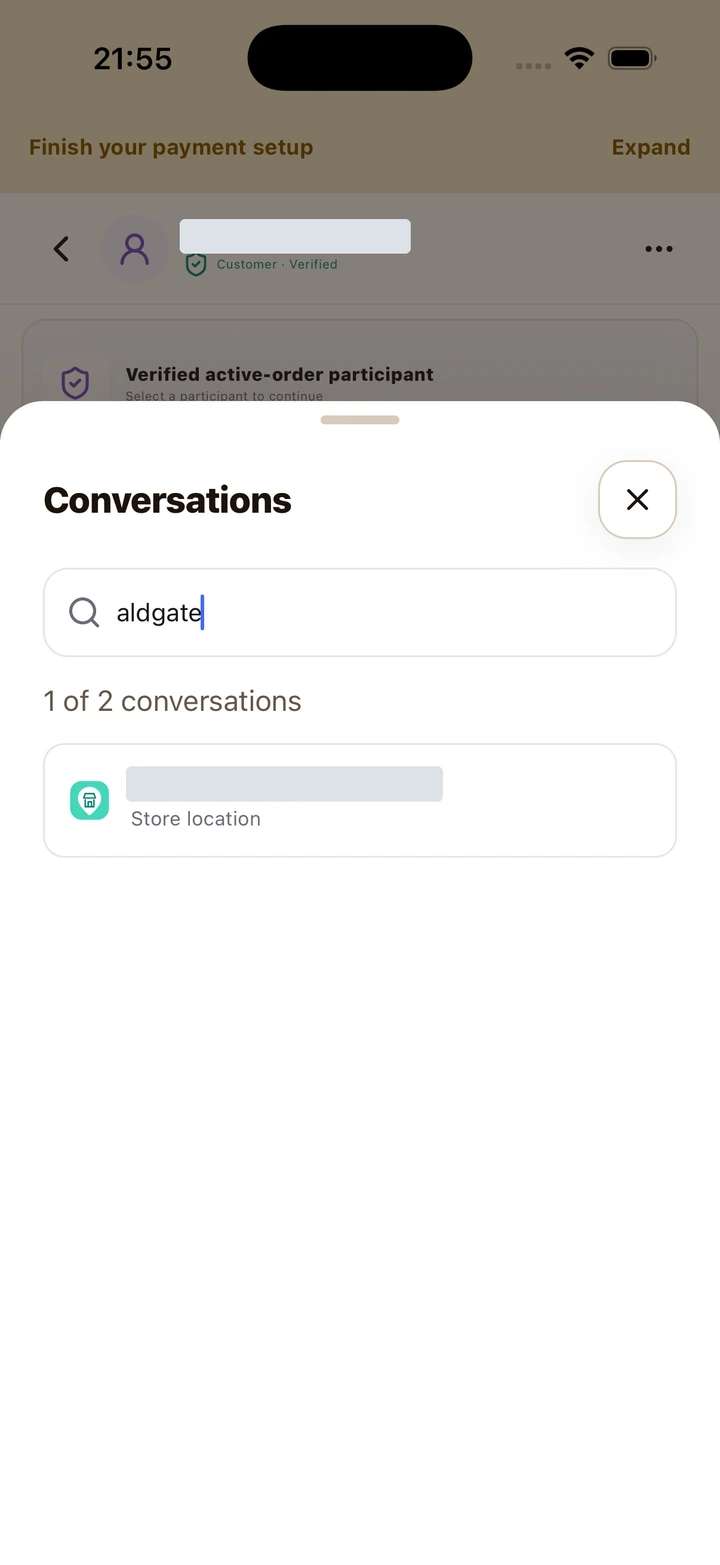
Search or switch conversation and check the role before sending anything.
Click or tap to enlarge the full screenshot.15. Set up card payments and bank payouts
#Business payout setup is separate from a customer's saved shopping cards.
Where to open thisSettings → Payments & earnings
- Open Settings → Payments & earnings, or Work → Payments & payouts. Confirm the signed-in account and payout status.
- If setup is required, choose Set up Stripe payouts or Complete Stripe onboarding. Complete the hosted provider steps with accurate business/account information.
- Return to Hopprfy and refresh the finance workspace. Check the current readiness message; submitting a provider form alone is not proof that every requirement has been satisfied.
- When enabled, use Open payout dashboard to review the connected account through its short-lived hosted link. Review outstanding provider requirements there when directed.
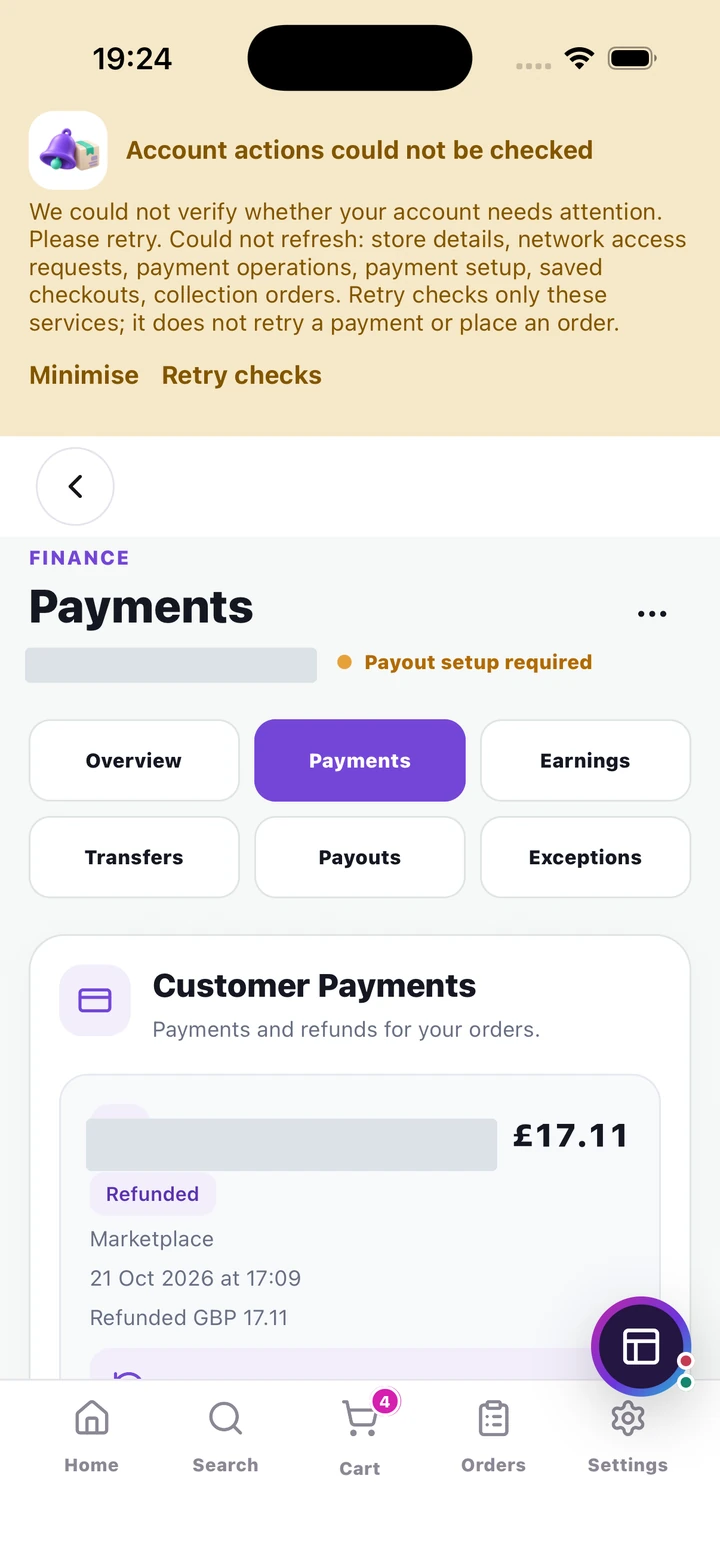
- If status could not be checked, retry the status read and use support if it persists. Do not create repeated provider accounts, change shopping cards or place test orders to try to clear an unknown status.
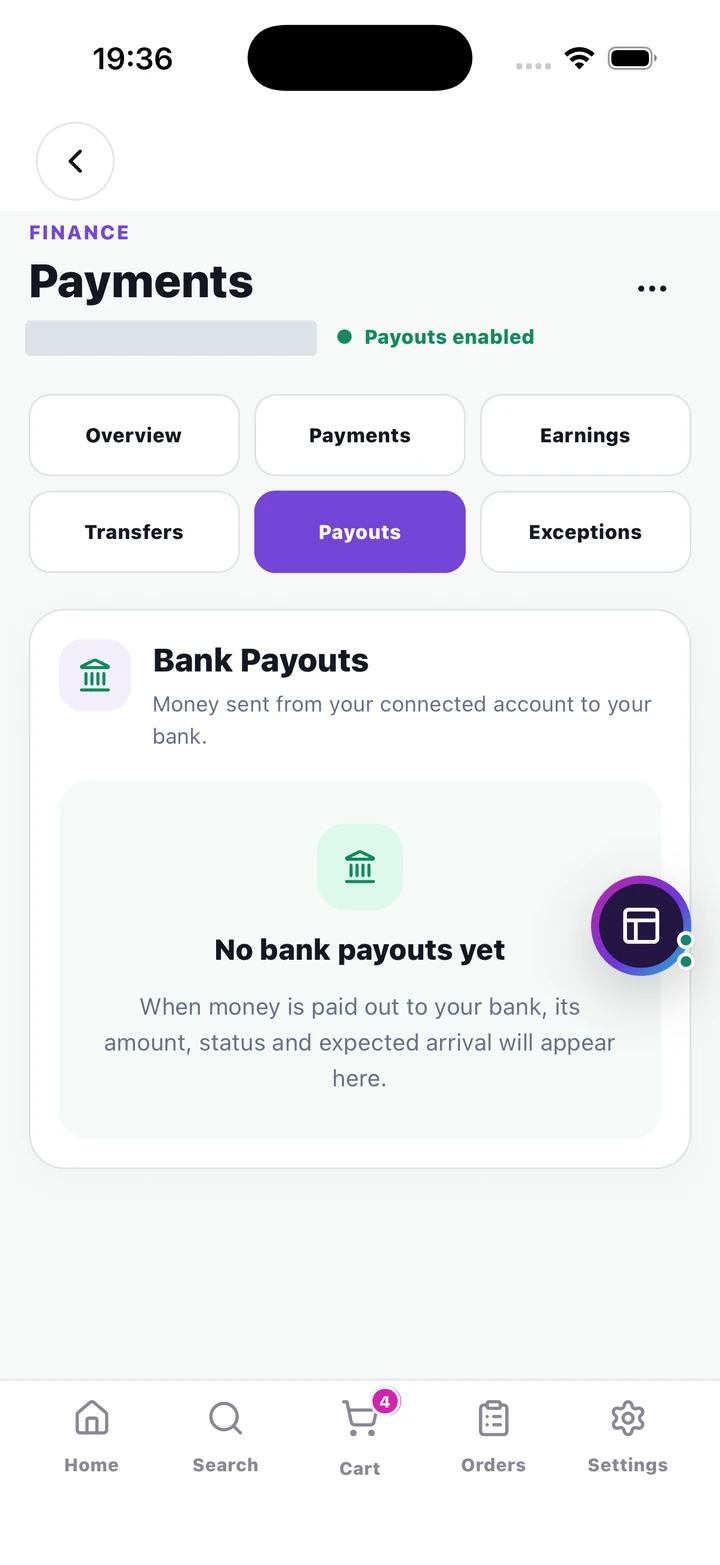
Payouts is the bank stage. An empty list alone does not tell you whether onboarding or earlier earnings stages are complete.
Click or tap to enlarge the full screenshot.16. Understand payments, earnings, transfers and payouts
#These tabs describe different money stages. They are not interchangeable balances.
Where to open thisPayments → Payments, Earnings, Transfers and Payouts tabs
- Payments shows customer payment outcomes, order references and refunds. Use View Order to inspect the related order, and View Refund for an existing refund's state when offered.
- Earnings shows allocated recipient amounts: Awaiting release, Ready for transfer, Transfer in progress and Blocked. Awaiting release is not money already in your bank.
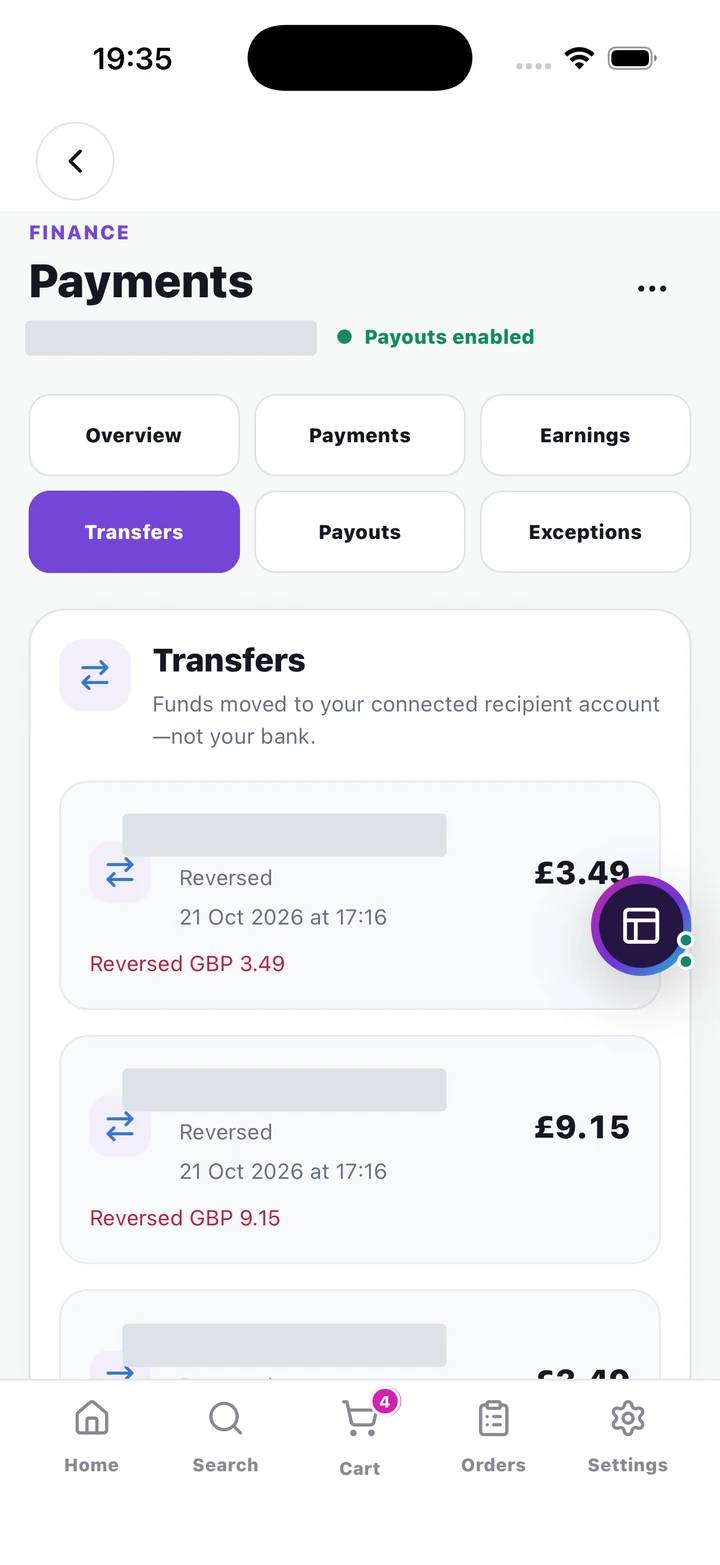
- Transfers shows movements from platform funds to the connected recipient account. A succeeded transfer is still not a bank payout. Reversed transfers are historical recovery movements; read the current related refund/recovery state.
- Payouts shows money sent from the connected account to the bank, including the amount, state and expected arrival when supplied. No bank payouts yet can be a valid empty state.
- The Overview helps compare the stages. Do not add all stages together: the same sale can pass through each one. Use each order's actual allocation rather than calculating your entitlement from a headline fee.
- A blocked amount, refund or payout issue should be investigated using the offered action or support. Platform-admin Exceptions is not a normal store control and is only visible to authorized administrators.
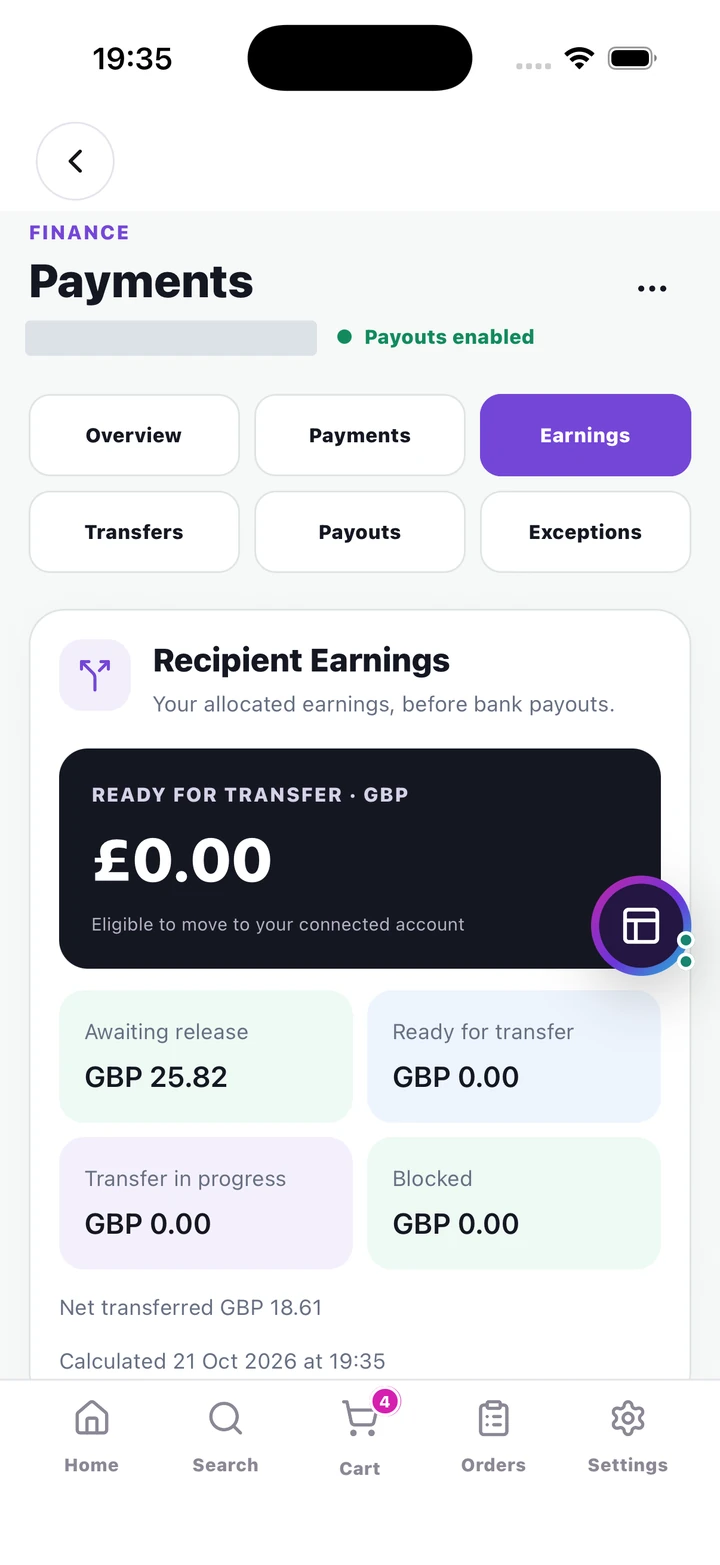
Which question does each tab answer?
- Payments
- What happened to the customer’s card payment or refund?
- Earnings
- What share is allocated to this recipient, and is it ready to move?
- Transfers
- Have funds moved to the recipient’s connected account?
- Payouts
- What happened to money moving from that account to the bank?
One sale can appear at several stages. A £5 share shown in Earnings, later transferred and then paid out is still the same £5—not £15. This example illustrates the stages, not the fee or amount you will receive.
17. Cancellations, refunds and payment problems
#Cancel an order and refund a payment only through the controls your account is authorized to use.
Where to open thisThe exact order and its payment/refund details
- Open the exact order and check whether it is awaiting acceptance, preparing, ready, handed over or already cancelled. Use only the currently offered action and read the destructive confirmation.
- A cancelled authorization is not the same as a refund of a captured card payment. Check the payment/refund state in finance instead of assuming every cancellation is a completed refund.
- Where your role exposes a Refund action, inspect the remaining refundable amount, choose the supported full/partial option and supply the requested reason. Review everything before confirming.
- If Refund is not available, contact authorized support/finance with the order reference. Do not try to obtain administrator access or repay via a second unrelated order.
- A refund can finish separately from recipient recovery. Read both states; if the result is unknown, refresh and seek help before repeating the action.
- Never ask a customer to send card details in chat. Cash repayment needs your appropriate business process; do not treat a Stripe refund as proof that cash was returned.
18. Troubleshooting and end-of-day checklist
#Start with the affected scope and current state, not a fresh order or a new account.
Where to open thisThe affected queue, product or payment → its refresh/help action
- No orders visible: confirm the signed-in store; inspect both Customer collections and Driver pickups; refresh; distinguish a failed read from an empty successful queue.
- Products not visible to customers: check store opening, fulfilment mode, nearby pickup location, Network/category/product active state, exact variant stock and payment readiness.
- Collection code rejected: confirm the customer and order, use the current QR/code, check Ready to collect and any cash-received confirmation. Do not bypass verification.
- Warnings at the top: expand the banner, read its specific action and open the relevant workspace. Minimise keeps a compact reminder; Retry refreshes a check and does not by itself repair an unresolved record.
- Connectivity trouble: preserve the draft, reconnect and refresh the affected item. If an acceptance, refund, payment or handover may already have succeeded, establish its latest status before retrying.
- Before closing: resolve new requests, complete or safely resolve accepted work, check ready orders and driver pickups, update unavailable stock, then confirm the store's closing state.
- Review earnings and payouts separately, record cash receipts using your business process and follow up on unresolved support tickets. Do not deactivate your account as an end-of-day closing method.
IN PLAIN WORDS
Which money stage am I looking at?
- Authorization
- A card amount approved or held before the supported capture step. It is not a bank payout.
- Capture / payment
- The payment stage that charges the authorized amount through the supported order workflow.
- Earnings
- Your recorded share, which can still be awaiting release or blocked.
- Transfer
- Funds moving from the platform to your connected recipient account.
- Bank payout
- Funds moving from the connected account to your bank.
- Refund and recovery
- A refund returns a captured card payment. Recipient recovery can finish separately.
YOU’RE READY
Keep this guide beside your store.
Bookmark it for your team, revisit a chapter before an unfamiliar action and check the current order state whenever something is uncertain.
Explore all guides →Back to top ↑No chapters match. Try “stock”, “collection”, “card” or “support”, or clear your search.