
START HERE
Your marketplace launch checklist
- Correct owner account and Network selected
- Public identity and commercial terms checked
- Active categories and products with usable images
- Exact variants, extras and age rules configured
- Physical stores linked, stocked and ready
- Team permissions and fee splits reviewed
1. Open your Network workspace
#Begin with the account that owns or is authorized to manage the Network.
Where to open thisAccount → Network workspace, or quick menu → authorized Work tools
- Open Settings or Account and choose the authorized Network workspace. The quick menu's Work area also offers the workspaces your account can access.
- In Networks, search for the marketplace you want to manage. Check its public name, logo and Active or Disabled status before opening it.
- Use Overview for its context and settings, Catalog for categories and products, and Splits for commercial sharing. Each action must refer to the same Network.
- If a workspace is missing, check your signed-in account and Permissions. A customer, driver or store membership alone does not give catalogue ownership.
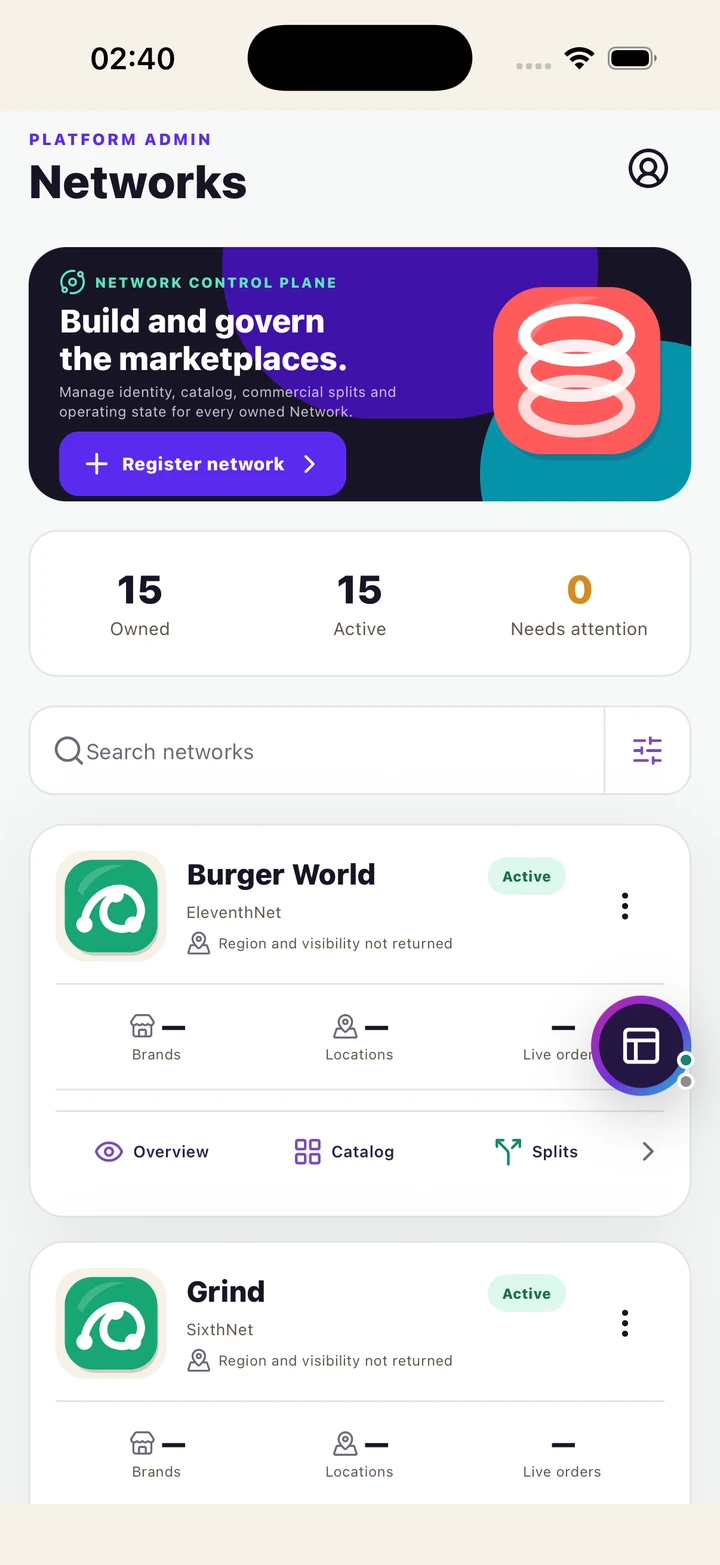
2. Register a Network
#Register only when you need a new marketplace, rather than another physical store.
Where to open thisNetworks → Register network
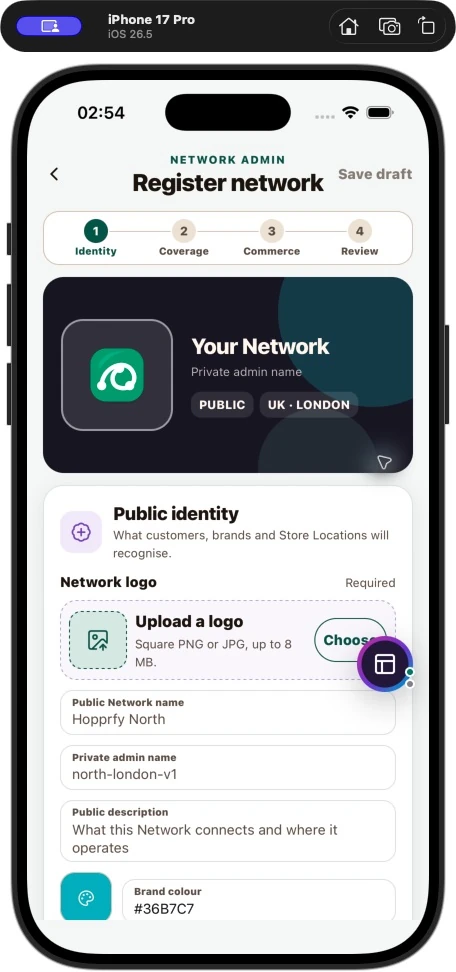
- In Networks, choose Register network. In Public identity, add the required logo, public name and description. Use the private admin name to distinguish the record internally.
- Set the brand colour and any requested logo source information. Check the preview; it should represent the real marketplace clearly.
- Continue through Coverage and access. Choose from the supported region, sub-region, fleet and Public or Private visibility options.
- In Commercial terms, choose the base currency and network commission percentage. Read the review of the complete configuration before creating it.
- Submit once and wait for success. If the result is uncertain, check Networks before submitting again so you do not create a duplicate.
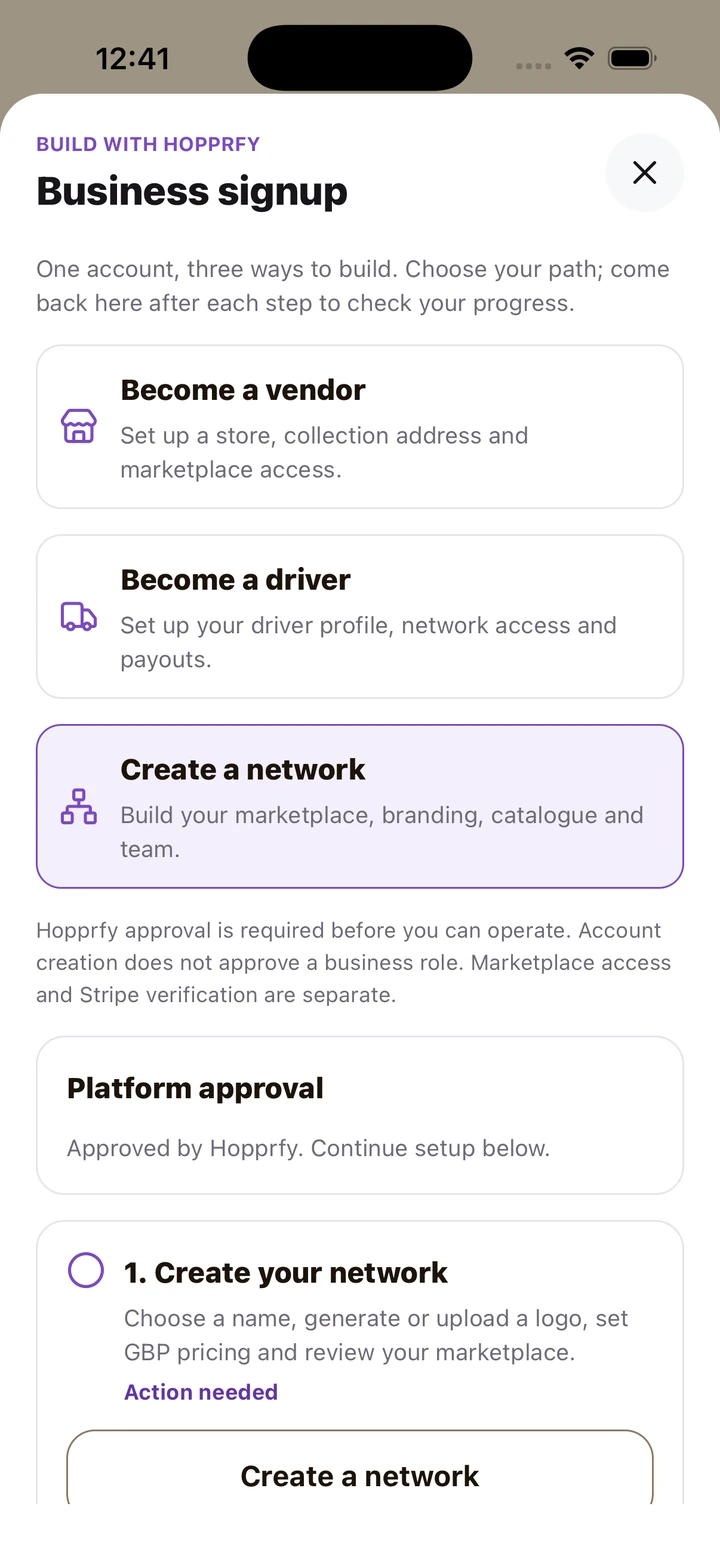
Choose Create a network for a marketplace. A vendor/physical-store application and a driver application follow different paths.
Click or tap to enlarge the full screenshot.3. Plan categories, brands and stores
#Make the catalogue easy to browse before adding a large number of products.
Where to open thisNetwork Overview and Catalog; coordinate physical-store setup with its operator
- Write a short list of useful categories based on what you sell: for example, Burgers, Sides and Drinks, or Trainers, Running and Accessories.
- Keep category names familiar and avoid duplicate categories with only spelling differences. A product should be placed where a customer would expect to find it.
- Keep the physical store separate from the marketplace identity. Arrange the correct store link/access through the supported business setup and permissions controls.
- Ask the store operator to confirm its location, fulfilment options, hours, opening state and stock. The Store guide explains those location-level tasks.
4. Create and maintain categories
#Category activity and local stock are two separate checks.
Where to open thisNetworks → the Network → Catalog
- Open Catalog on the correct Network. Search existing categories first so you can reuse the right one.
- Use Create to add a category. Enter the category details and image required by the editor, check its preview, then save.
- Use Edit on an existing category to correct its details. Check the Network name again before saving an image or description intended for a different marketplace.
- Use the offered Enable or Disable action deliberately. A disabled category can prevent its products appearing even when a store has stock.
- After saving, browse the marketplace as a customer at an address served by your store. Check that the category is active and its products are actually available.
5. Add and edit products
#Use a useful name, a clear photograph and a price that represents the item being sold.
Where to open thisCatalog → category → Products → Create or Edit
- Open the relevant category, then Products. Search by name, SKU or barcode before choosing Create.
- Enter the product name, description, base price, SKU and the supported size/unit information. Add the required product image. Explain the actual pack size or portion in plain words.
- Use Product preview to inspect the customer view. A preview can include unsaved details; finish with Create product or Save product and wait for confirmation.
- Review the product's active state and category. Ask the store operator to set local availability and any store price or exact variant stock required.
- Correct shared product definitions in this owner catalogue. Use the Store inventory tools for availability at one physical location.
6. Add sizes, colours and other variations
#Variations describe the exact item a shopper chooses.
Where to open thisProduct editor → Set up variations
- In the product editor, choose Set up variations when the item has options such as size, colour or flavour.
- Name each option and add its values. Keep the matrix manageable; the editor supports up to 100 combinations. Do not create separate product rows just to represent each size.
- Inspect every combination. Give each sellable variant a unique SKU, valid price and accurate barcode when known. Set the default and availability deliberately.
- Add an image override or shipping dimensions when useful, then save the product and variations together. A Done button inside an editor sheet is not the final product save.
- Have the store set stock for the exact variants. Test the customer selection by reading the product page and checking that the chosen combination matches its displayed price and availability.
7. Create reusable extras menus
#Create a menu once and share it with a category, individual products or both.
Where to open thisCategory or product editor → Manage extras menus
- Open the category or product editor and choose Manage extras menus. Choose Create extras menu, or Edit an existing shared menu.
- Give the menu a clear name such as Burger extras. Set the minimum and maximum selected per product. Add each extra's name, GBP price and maximum quantity.
- Save shared menu. Creating it is only the first step: switch on Assigned to this category or Assigned to this product, then choose Save extras assignments.
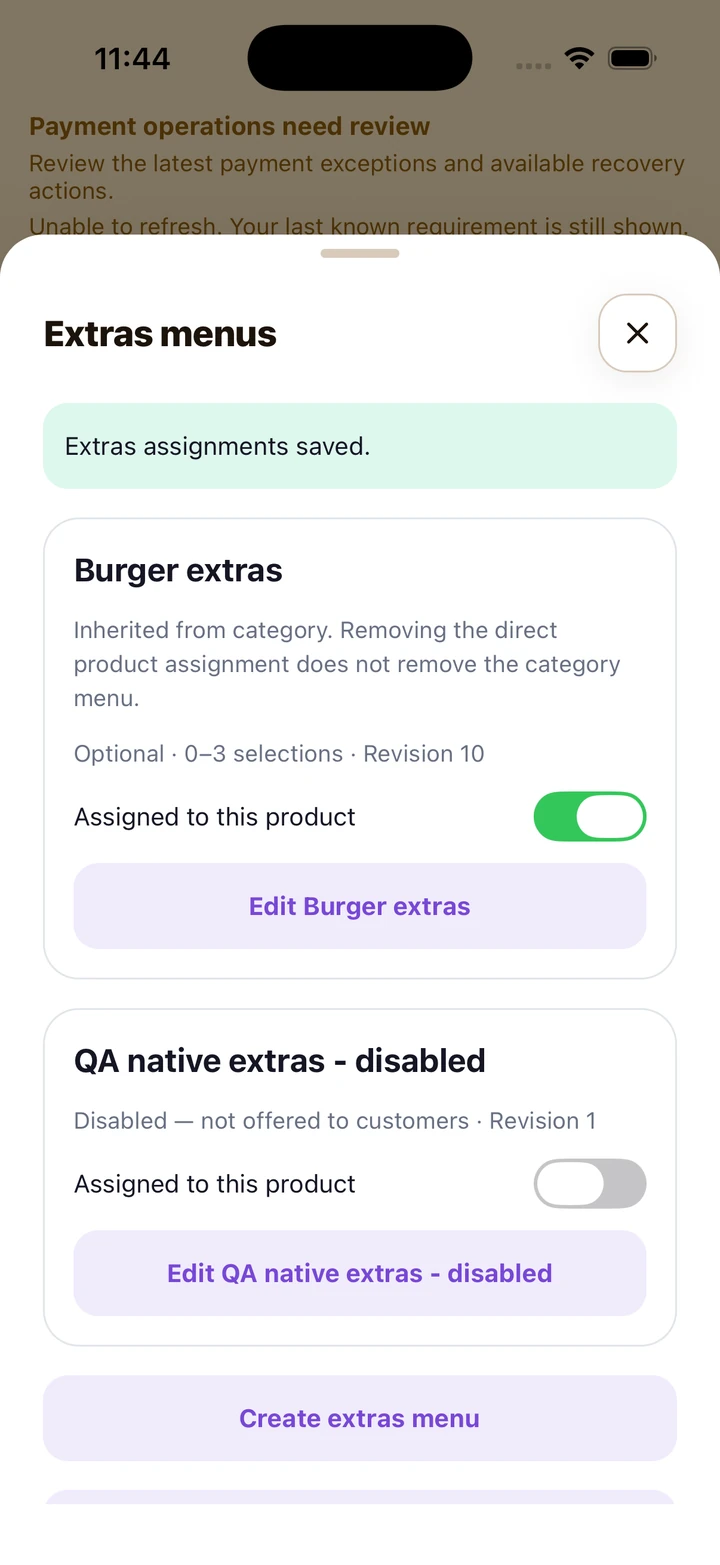
- Category assignments apply to products in that category. A product can also have direct assignments. Read the inherited label before removing a direct assignment: the category can still provide that menu.
- Open a customer product or quick Add to cart flow and inspect the offered choices. Check that required selections, quantities and the resulting price match what you intended.
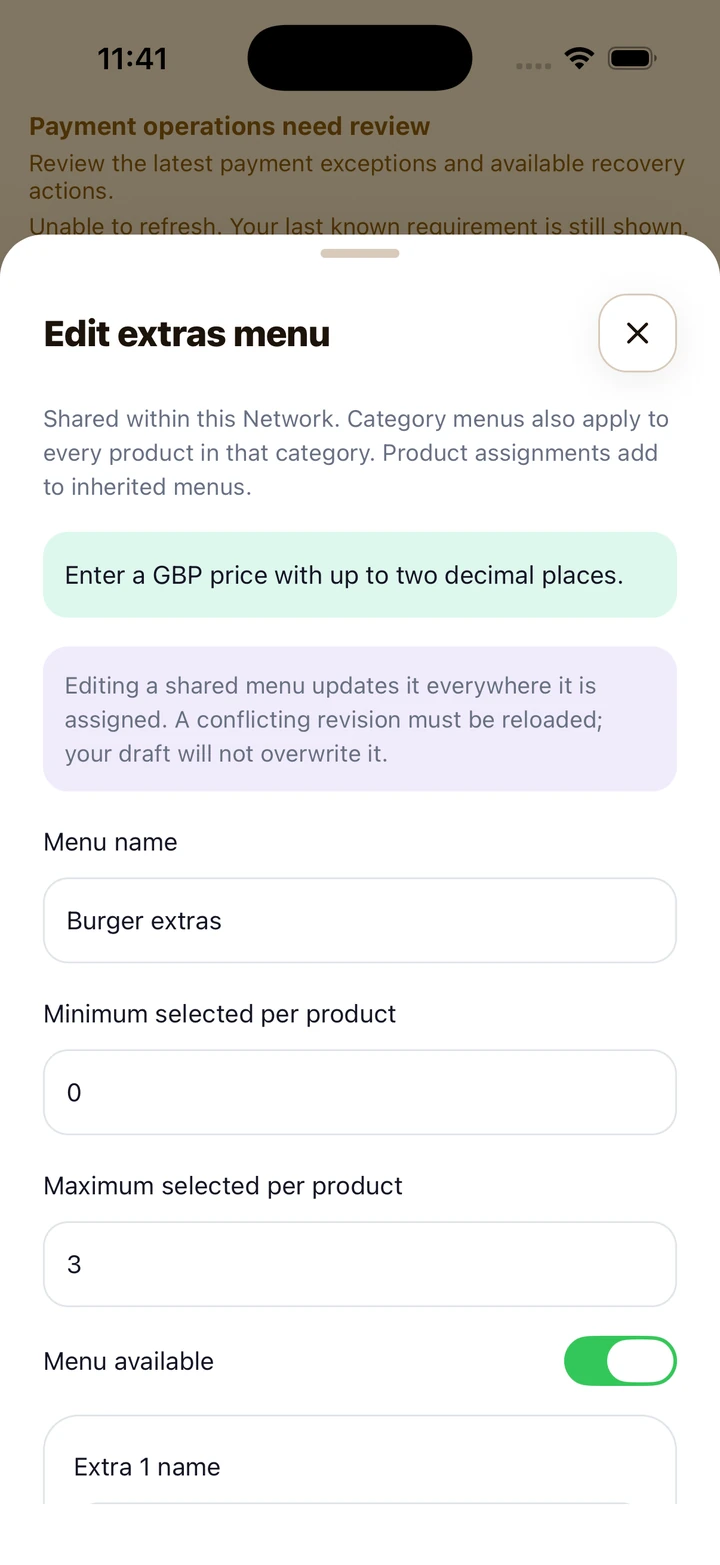
First edit and save the shared menu. The price message is an example of validation that must be corrected before saving.
Click or tap to enlarge the full screenshot.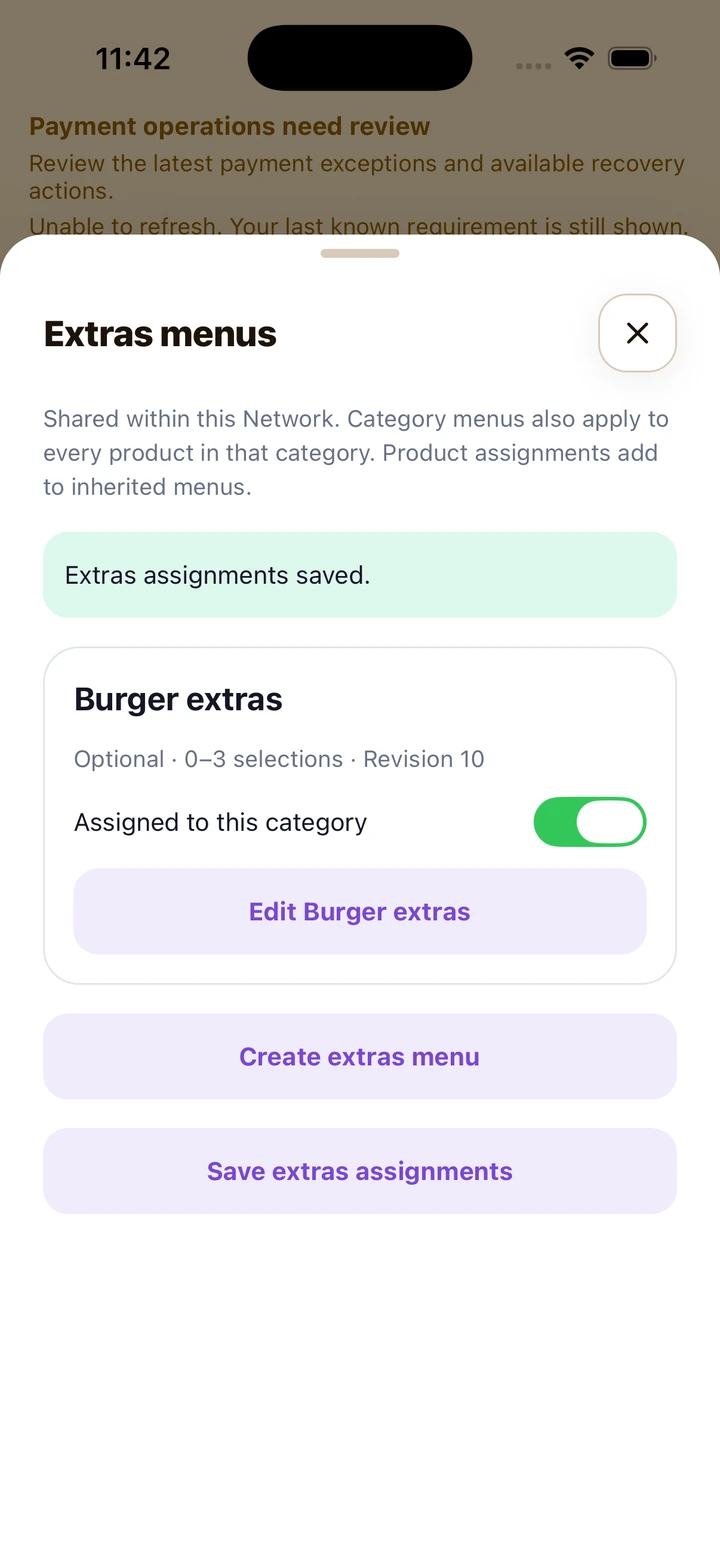
Then assign the saved menu and use Save extras assignments. Creating a menu alone does not offer it to shoppers.
Click or tap to enlarge the full screenshot.8. Check inherited and product-specific extras
#Use a direct assignment for exceptions, and category assignments for common choices.
Where to open thisProduct editor → Manage extras menus
- Open a product and Manage extras menus. Read which menus are inherited from its category and which are directly assigned.
- Assign a suitable existing menu rather than making a copy for each burger, coffee or other product.
- If a menu should stop appearing for every product in a category, change the category assignment. Removing only the direct product assignment will not remove an inherited menu.
- Save assignments and re-open the customer product to confirm the result. Keep the menu name specific enough that shoppers understand their choice.
9. Set age restrictions and ID requirements
#Use the age rule on the Network or on a specific saved product.
Where to open thisNetwork Overview, or a saved product → Age restriction & photo ID
- Open Network Overview and find Age restriction & photo ID to apply a minimum age to every product in that Network.
- For an individual item, open its saved product editor and the same age section. Turn on the requirement and enter the supported minimum age, then choose Save age restriction.
- A product can raise an inherited Network minimum, but it cannot remove the Network requirement. Confirm the saved status after refreshing.
- Explain the rule to your store and delivery team: customers must meet the checkout requirement and present original matching photo ID at handover. The handover user records the result in the app.
- If the check fails or valid ID is missing, keep the goods and follow the offered refusal/support process. Do not ask staff to bypass the handover requirement.
10. Use the in-app product and stock assistant
#The import assistant currently requires platform administrator access. This chapter describes the app; the next chapter explains the web assistant's separate review controls.
Where to open thisAuthorized platform-admin workspace → Product import
- If your account has the required access, open Product import in the app. Choose Add products, search for the Network, select the category and, when needed, the physical store for stock.
- Paste a product list with names, pack sizes, prices and quantities. Add known flavours, identifiers or source links to reduce ambiguity. The entry supports up to 50 products.
- Read the action carefully: Research & add products can save complete items while it works. It is not just a harmless preview. Your entered prices take precedence where the screen says so.
- Review the batch's item states and the assistant's questions. Reply with missing details, inspect the saved results and confirm whether requested stock counts were applied.
- If a request is interrupted, reopen the recent batch or Retry same batch. Check which items were already added before starting another batch.
11. Research and approve products on the web
#Use the web product & stock assistant when you want to review researched products before saving them. Platform administrator access is currently required.
Where to open thisWeb control centre → AI product import
- Open the web assistant using the link below and sign in. Search for and choose the exact Network. You choose the marketplace; the assistant does not choose it for you.
- Under Set your automation, decide whether to match categories automatically and propose missing categories. These categories stay within the selected Network. Choose a stock location only if you want stock updates; Catalog only means no store stock changes.
- Leave Save ready products automatically off for review before saving. Paste up to 50 products, adding known prices, pack sizes, quantities or links, then choose Research & prepare batch.
- Read the researched products and answer any required questions. Check the descriptions, photos, prices, categories and each variation. Unverified facts need your review; research is not a guarantee that a product fact is correct.
- Use the batch's search, state filter and Expand variations to inspect a long list. These filters only change what you see; they do not limit which ready products an approval will save.
- When the whole batch is correct, tick I have reviewed the entire batch and choose Approve & add products. This saves the ready batch in the selected Network, including approved new categories. Check the resulting saved-item and stock states.
- If you deliberately enable Save ready products automatically, complete items can save as research progresses. Required questions still pause affected products. Check the setting before starting, rather than assuming every run waits for approval.
- After an interruption, open Recent batches and inspect the existing run. Establish which items were saved before submitting another batch or approving again.
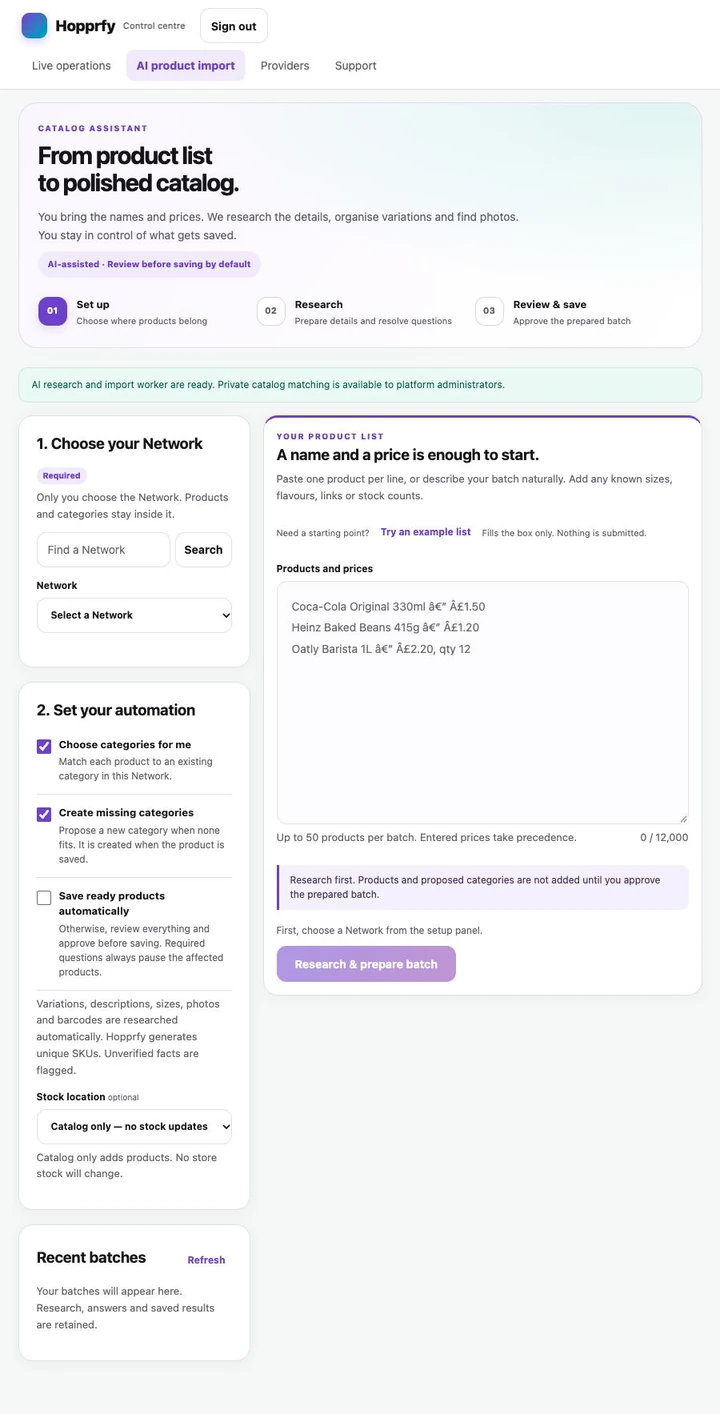
Review before saving is the default. Notice Save ready products automatically is off; choosing that option changes when completed products can be saved.
Click or tap to enlarge the full screenshot.Open the web product & stock assistant ↗Opens in a new tab. Platform administrator access is currently required; Network ownership alone does not grant access.
Next: 12. Connect Shopify and map stock locations →12. Connect Shopify and map stock locations
#Use this when your account is authorized for the in-app Shopify import tools. Catalogue sync and physical stock mapping are separate setup steps.
Where to open thisAuthorized Product import → Shopify sync
- In Product import, choose Shopify sync and confirm the target Network. Use an authorized installed Shopify app for the shop you manage.
- Enter the requested .myshopify.com address and app credentials in the connection form, then connect. Keep those credentials out of messages and public documents.
- Open Map stock locations on the connected shop. Match the relevant Shopify locations to the correct Hopprfy physical stores and save the mapping.
- Read the last sync, next sync and worker status. Sync catalog now is only usable when the sync worker is available; a connected shop alone is not proof stock has synchronized.
- Check a few product prices and quantities after a completed run. If the service reports a problem, inspect that connection/run rather than making duplicate connections.
13. Request, grant and manage access
#Give each person the access needed for their job.
Where to open thisPermissions → Requests, My access or Inbound
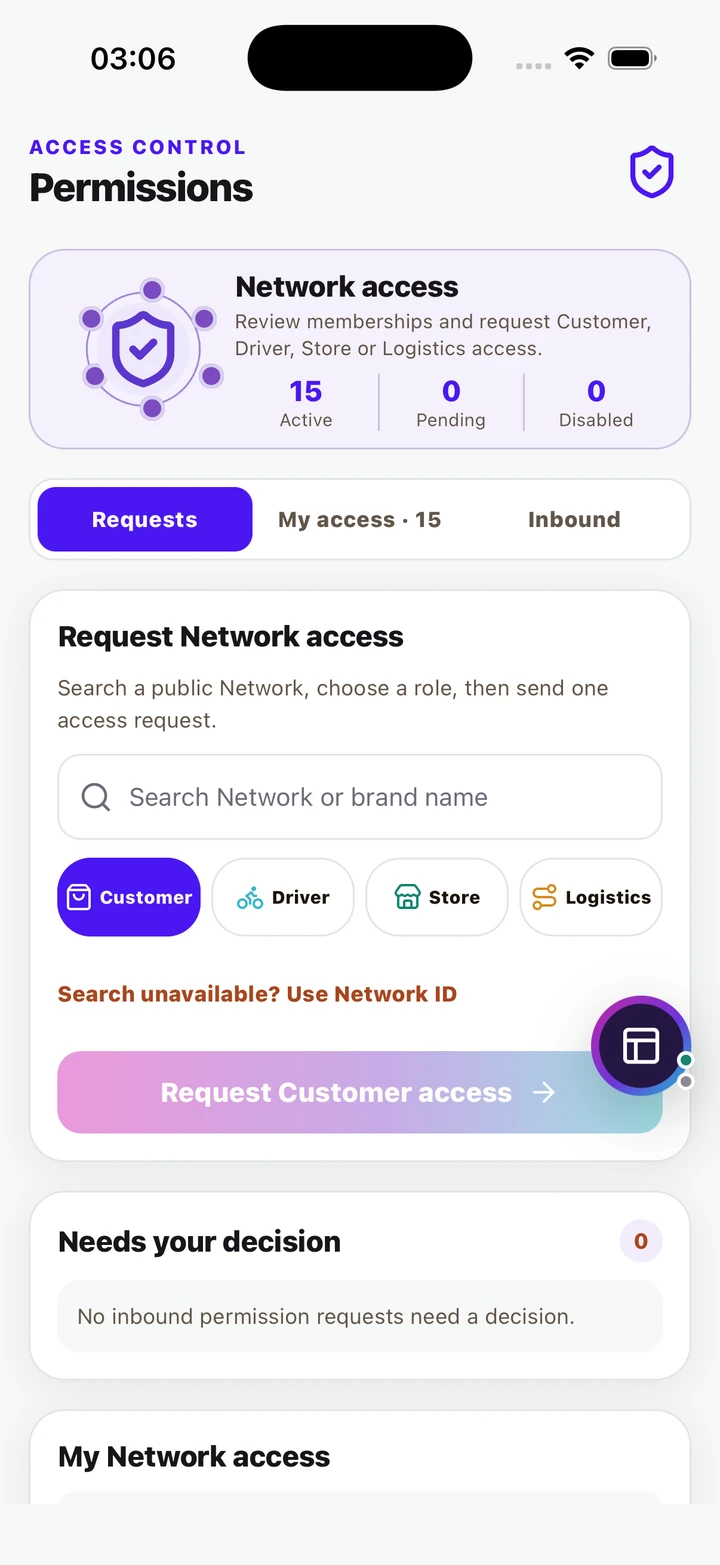
- Open Permissions. Requests is where a user searches for a Network and asks for a Customer, Driver, Store or Logistics role offered there.
- To review requests as an owner, use Inbound. Confirm the person, Network and requested role before approving or declining. Approving the wrong request can expose business functions.
- My access lists your current memberships and their states. Use only the enabled actions your account is authorized to perform; a pending request is not active access.
- Where a direct grant control is offered to an owner, choose the exact account, Network and role, then review and submit it. Confirm the recipient can see the intended workspace.
- Use Disable or Remove deliberately when access is no longer needed. Do not share the owner's password as a shortcut.
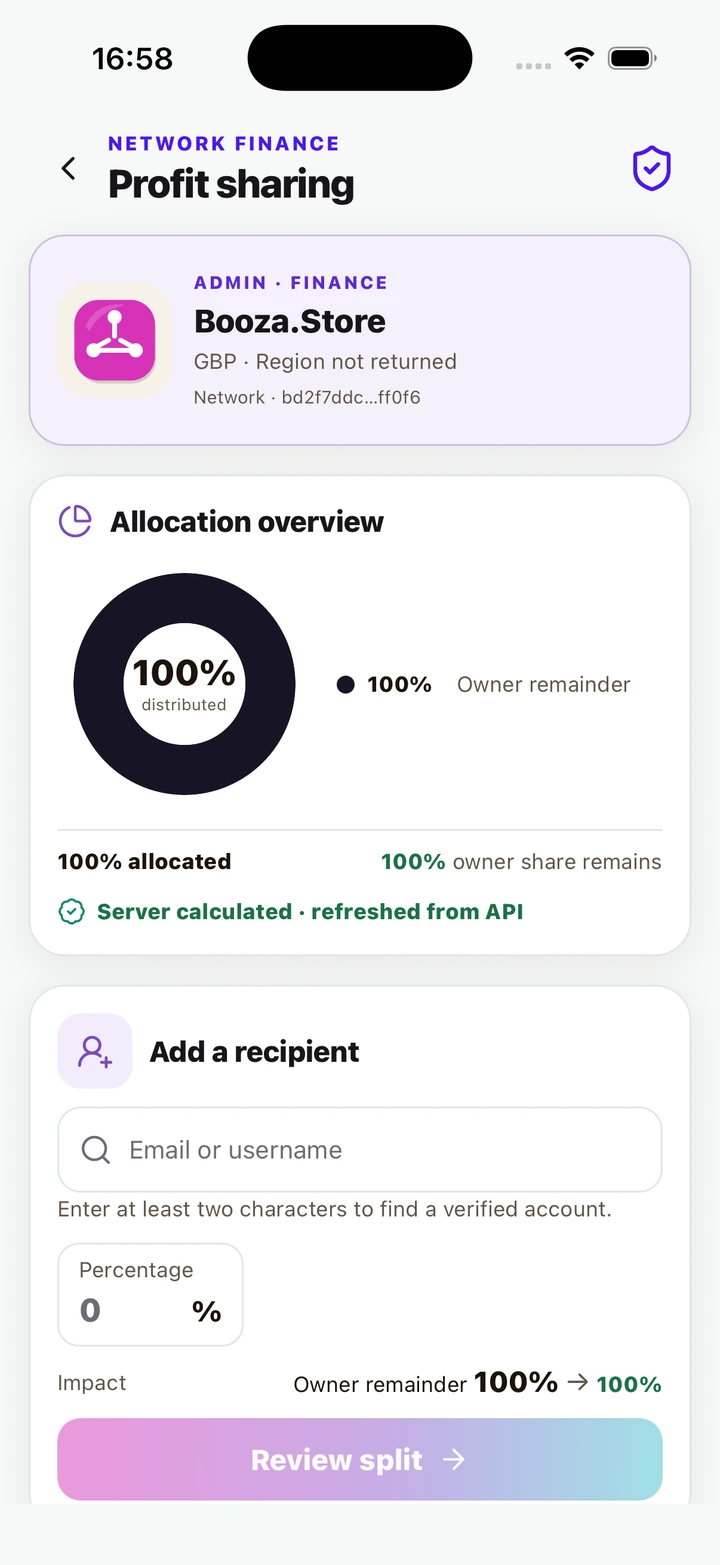
14. Share the network fee
#Profit sharing allocates the network's fee pool between its owner and recipients.
Where to open thisNetworks → the intended Network → Splits
- Open Splits on the intended Network. Read Current allocation and the protected Owner remainder before adding anyone.
- Search for the recipient's email or username and select the exact matched account. Check the identity; do not assume a similar name is the intended recipient.
- Enter a percentage greater than zero and no more than the current owner remainder. Review the impact shown before confirming Review split.
- Example: if the network fee pool is £10, a 20% recipient share is £2 of that pool. It is not 20% of the whole order total. Actual allocations follow the saved order and ledger.
- Refresh the allocation after saving. Removing an existing recipient returns its percentage to the owner remainder after confirmation; inspect the recalculated distribution.
15. Set up payouts and understand earnings
#Each recipient needs their own eligible connected payout account.
Where to open thisSettings → Payments & earnings
- Open Payments & earnings and check the signed-in recipient account. Complete the offered Stripe onboarding through the hosted form and return to refresh its readiness status.
- Use Earnings to read Awaiting release, Ready for transfer, Transfer in progress and Blocked allocations. These describe the current stage of money owed to that recipient.
- Use Transfers for movement from platform funds to the connected account, and Payouts for movement from the connected account to a bank. Do not add these stages together as separate revenue.
- Investigate blocked amounts or outstanding provider requirements through the specific action or support. A recipient added to a split still needs payout readiness.
- For refunds or recovery, inspect the actual order/payment record. A refund can complete separately from recovery of a recipient's transferred share.
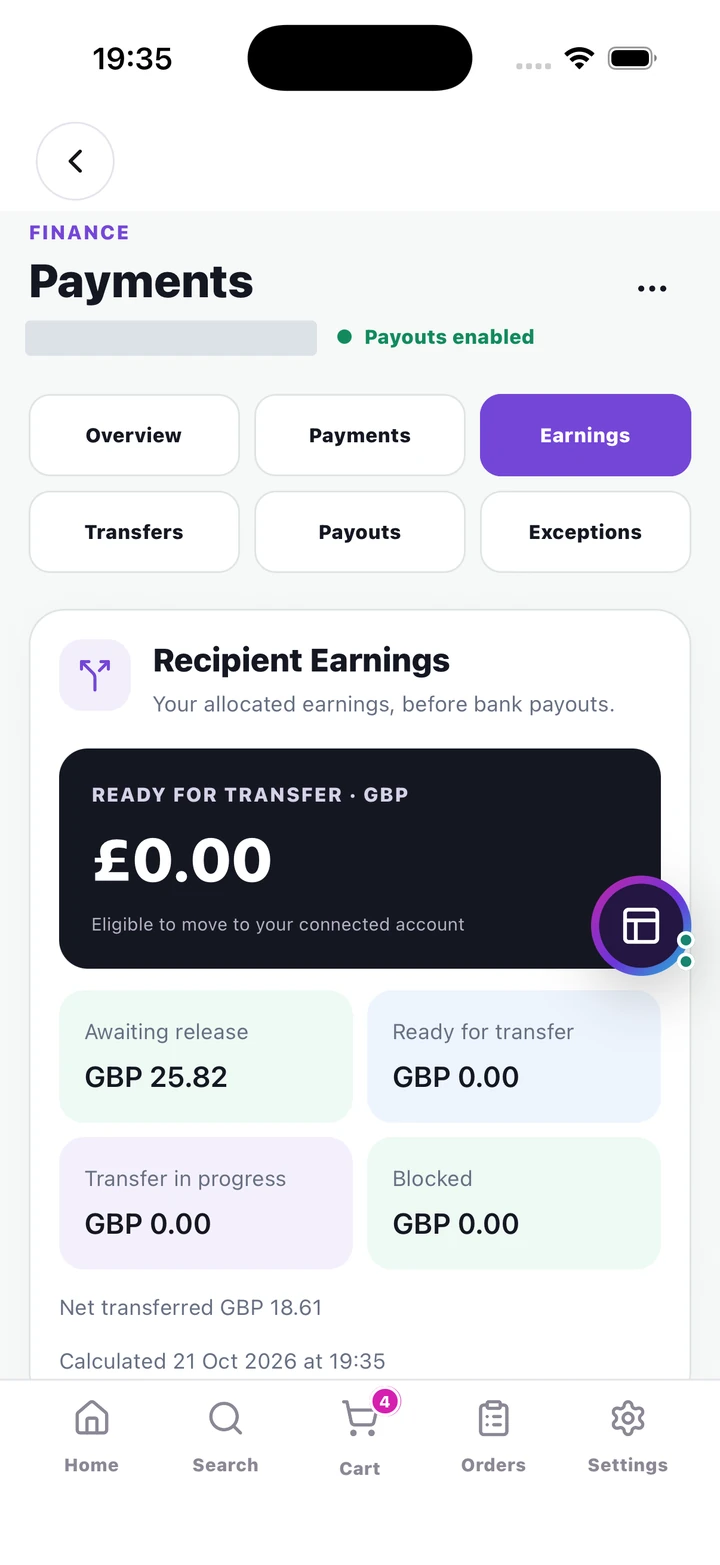
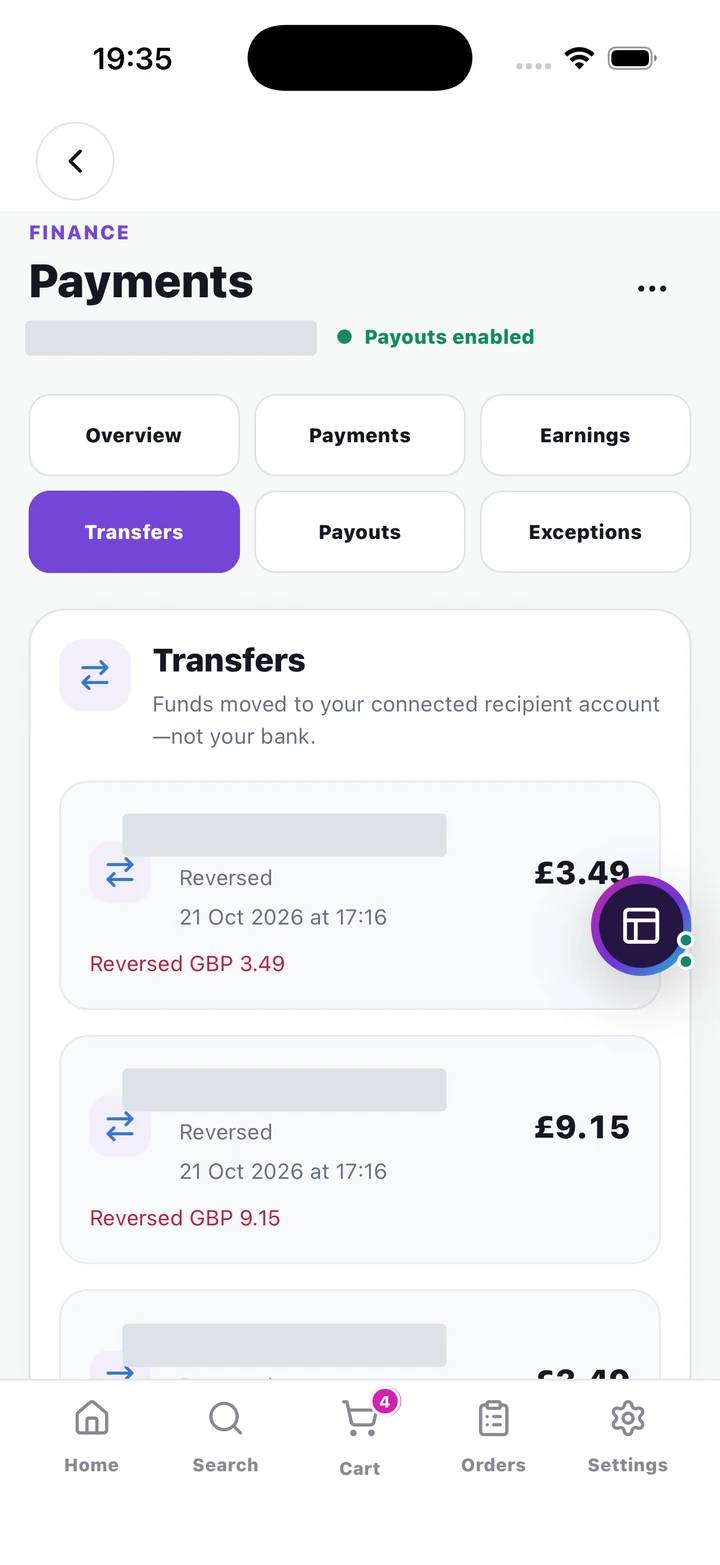
A transfer moves funds to the connected account. Use Payouts to follow movement to a bank.
Click or tap to enlarge the full screenshot.Which question does each tab answer?
- Payments
- What happened to the customer’s card payment or refund?
- Earnings
- What share is allocated to this recipient, and is it ready to move?
- Transfers
- Have funds moved to the recipient’s connected account?
- Payouts
- What happened to money moving from that account to the bank?
One sale can appear at several stages. A £5 share shown in Earnings, later transferred and then paid out is still the same £5—not £15. This example illustrates the stages, not the fee or amount you will receive.
16. Read sales and live operations
#Use the reporting view that answers the question you are asking.
Where to open thisAuthorized Sales & operations workspace → Sales or Live operations
- Open the authorized BI/reporting workspace and use Sales for the available 7, 30 or 90 day view. Check its Network scope and period before comparing figures.
- Read the trend, comparison period and store/product rankings. A zero result can be valid when no eligible completed sales fall in the selected period.
- Sales uses successful non-test order gross sales at the recorded delivery time. It is not a promise of refund-adjusted profit or the balance in your bank.
- Switch to Live operations when you need current store, driver or order activity. Use lists as well as map markers and read the latest report time.
- If a figure seems wrong, compare the same period and order states with finance/order records. Send support the scope and examples rather than changing orders to make totals match.
17. Launch checks and common problems
#Work through the full path from catalogue to customer availability.
Where to open thisCatalog, the physical Store workspace, then customer browsing at a served address
- No categories or products: check the selected Network, search filters, active category/product states and whether the request failed. A successful empty catalogue and a failed read need different fixes.
- Products exist but are not nearby: confirm a linked physical store, its saved pickup location, opening state, fulfilment options, local stock and exact variant availability.
- Missing extras: save both the shared menu and its assignment, check active state and category inheritance, then re-open the customer product.
- Missing access or split recipients: confirm the account identity and current permissions; retry the specific search and use support if a known account still cannot be found.
- Before launch, read the customer journey at a served address and ask the store team to review their order queues. Use the Store, Driver and Customer guides for the other sides of that journey.
IN PLAIN WORDS
Useful terms, explained.
- Network / marketplace
- The shared catalogue and commercial rules customers browse.
- Brand
- The identity under which products are offered. A physical store can fulfil several brands.
- Store Location
- The physical pickup and fulfilment point, with its own stock and opening state.
- Variant
- An exact option combination, such as a black trainer in size 8, with its own stock identity.
- SKU
- Your stock-keeping code for an item or exact variant. Use a different code for each distinct sellable variant.
- Network split
- A recipient's share of the network fee pool. It is not a share of the entire customer's bill.
Need another side of the story?
One order connects a customer, a store, a marketplace and sometimes a driver. Use the other role guides to understand their part.
All guides →Back to top ↑No chapters match. Try a shorter term or clear your search.