
START HERE
Before you go online
- Correct Driver account and network access
- Contact details and actual vehicle saved
- Location permissions and device connection ready
- Battery and notifications checked
- Payout setup reviewed
- Ready to collect and deliver safely
1. Find your Driver workspace
#Sign in to the account linked to your Driver profile.
Where to open thisSettings → Driver, or quick menu → Work → Driver
- Open Settings → Driver workspace, or quick menu → Work → Driver. Check that the profile shown is yours.
- If Driver is missing, review Account and Permissions. Request the correct Network role or ask the owner/support to resolve the link.
- Read the workspace's current online state, pending requests and active route. The customer Orders tab is not your driver job list.
- Refresh after returning from a long disconnection. Wait for a successful read before concluding that there are no requests or active deliveries.
2. Save your contact details and vehicle
#Your driver profile should describe the person and vehicle doing the delivery.
Where to open thisAccount → Edit profile → Driver
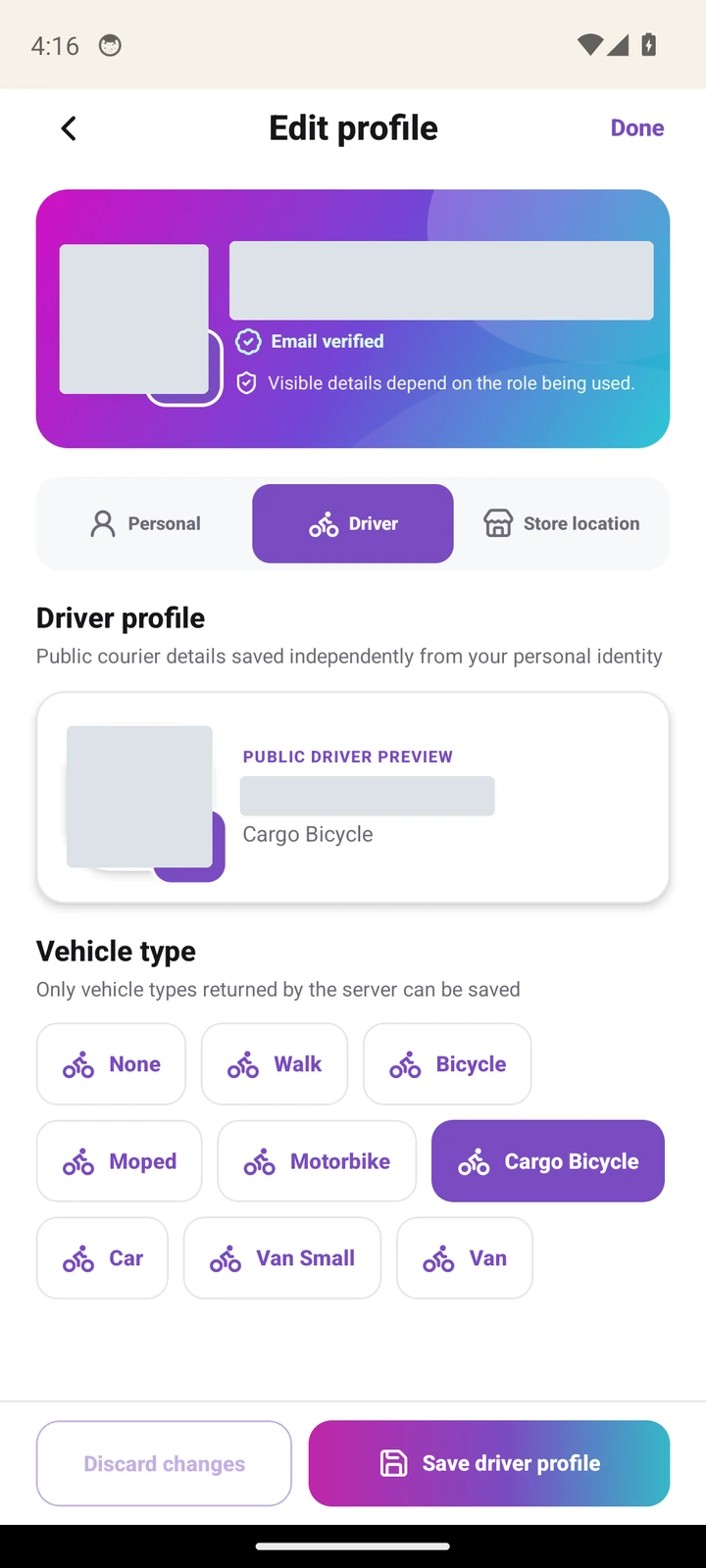
- Open Account → Edit profile and the Driver profile section available to your account.
- Review the driver contact fields and choose the actual vehicle from the supported Vehicle type options.
- Save the driver profile and wait for confirmation. Reopen it to check the saved vehicle if you are unsure whether the update succeeded.
- If choices cannot load or a vehicle is unavailable, retry the lookup or ask support. Do not select an unrelated vehicle simply to clear the form.
3. Go online and receive requests
#Going online tells Hopprfy you are ready for work.
Where to open thisDriver Home → online switch
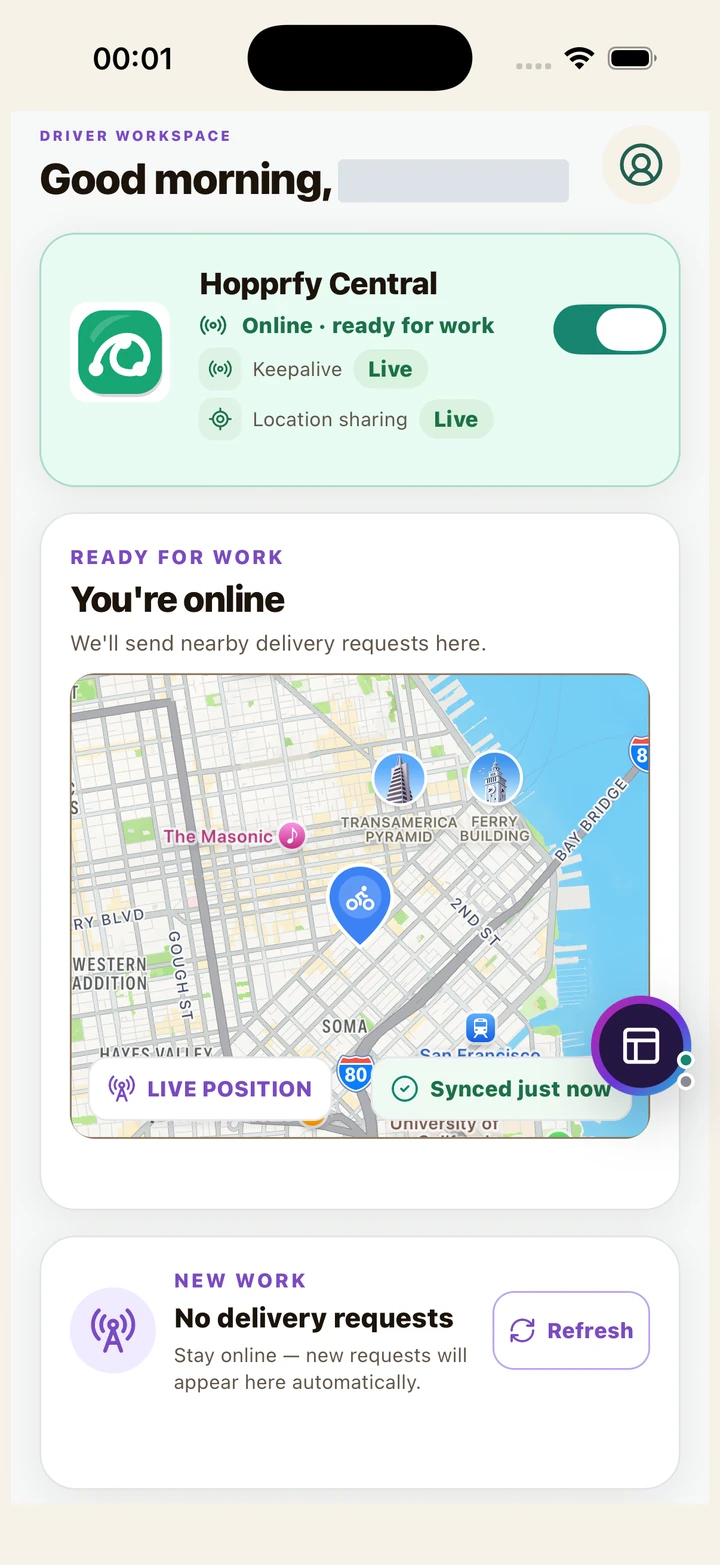
- In Driver Home, review any setup or permission message before turning on the online switch.
- Read the location disclosure and allow the requested location access. The app may direct you to device settings for background location before it can put you online.
- Wait for Online / ready for work and check that Keepalive and Location sharing are healthy. Do not assume the switch succeeded if an error remains.
- Keep the device connected and able to receive notifications. New requests appear in the workspace; check the request area after resuming the app.
- An online idle screen means no accepted active route is currently shown. It does not guarantee that work will be offered immediately.
4. Fix delayed location or connection
#Check whether the phone has a location fix and whether the server acknowledged it.
Where to open thisDriver workspace → Driver actions
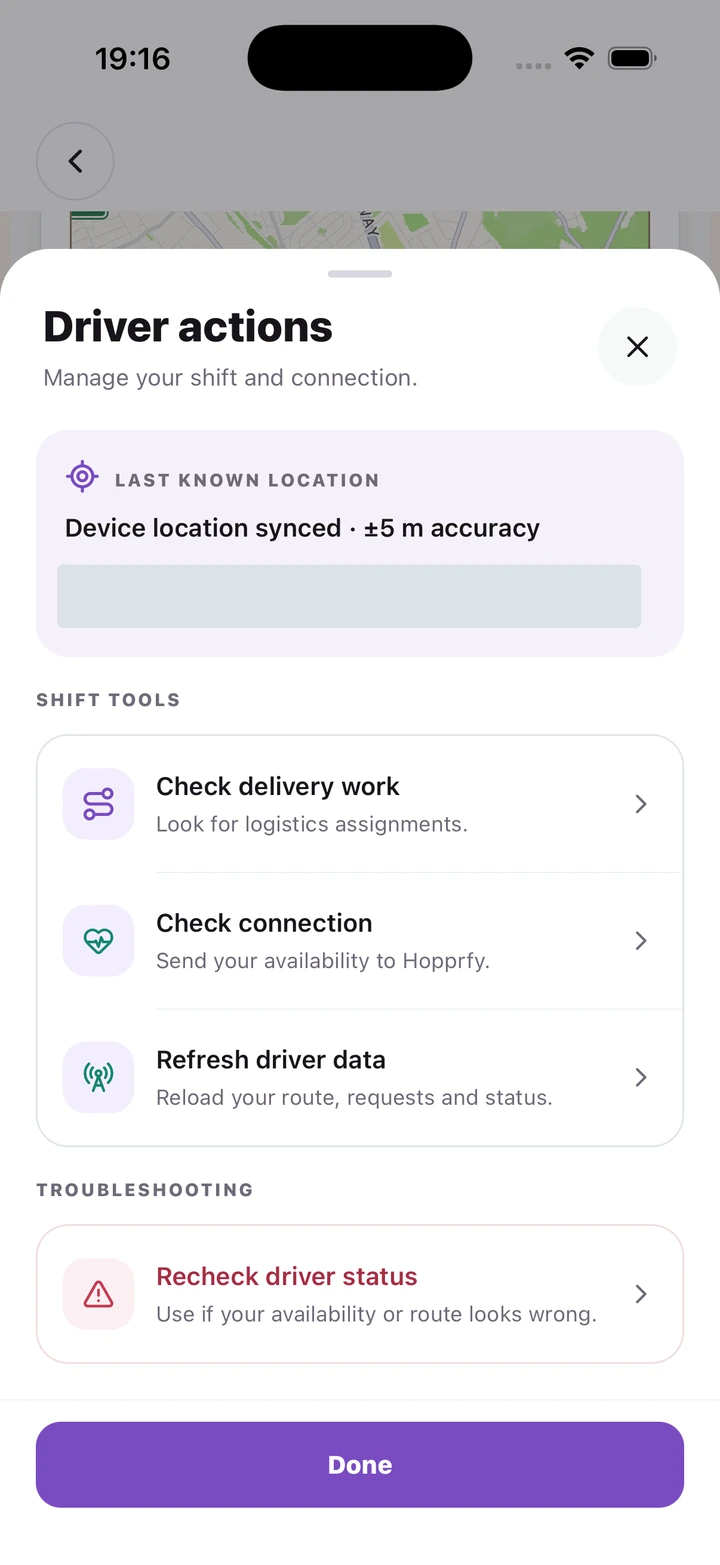
- Open Driver actions from the workspace controls. Read Last known location and the connection/location messages; a map pin can be older than your current position.
- Use Open device settings when location permission is blocked. Check the requested location access, connectivity and device power restrictions, then return to the app.
- Use Check connection to send availability and Refresh driver data to reload requests, status and route. Wait for a newer acknowledged location report.
- Use Recheck driver status only when the workspace says availability looks wrong. Read its confirmation; it is a recovery action, not a way to complete an unfinished delivery.
- If updates remain delayed, keep accepted work safe and contact support. Give the last acknowledged time and what you tried.
5. Review, accept or reject a request
#Read the job before deciding whether you can do it.
Where to open thisNew delivery alert → Review request, or Driver Home → request area
- Open a new request in Driver Home. Review pickup, destination, items and any available timing, earnings or special-handling information.
- Check whether the offer is still active. A request countdown can expire; an expired or already assigned request cannot be accepted as a new job.
- Choose Accept only when you can carry out the work. Wait for the confirmed accepted state and active route before travelling as the assigned driver.
- If you cannot do it, use Reject while it is offered. Do not accept a job just to dismiss its notification.
- If acceptance returns an uncertain result, refresh and check your active route before trying again. Work may have been accepted even if the response was interrupted.
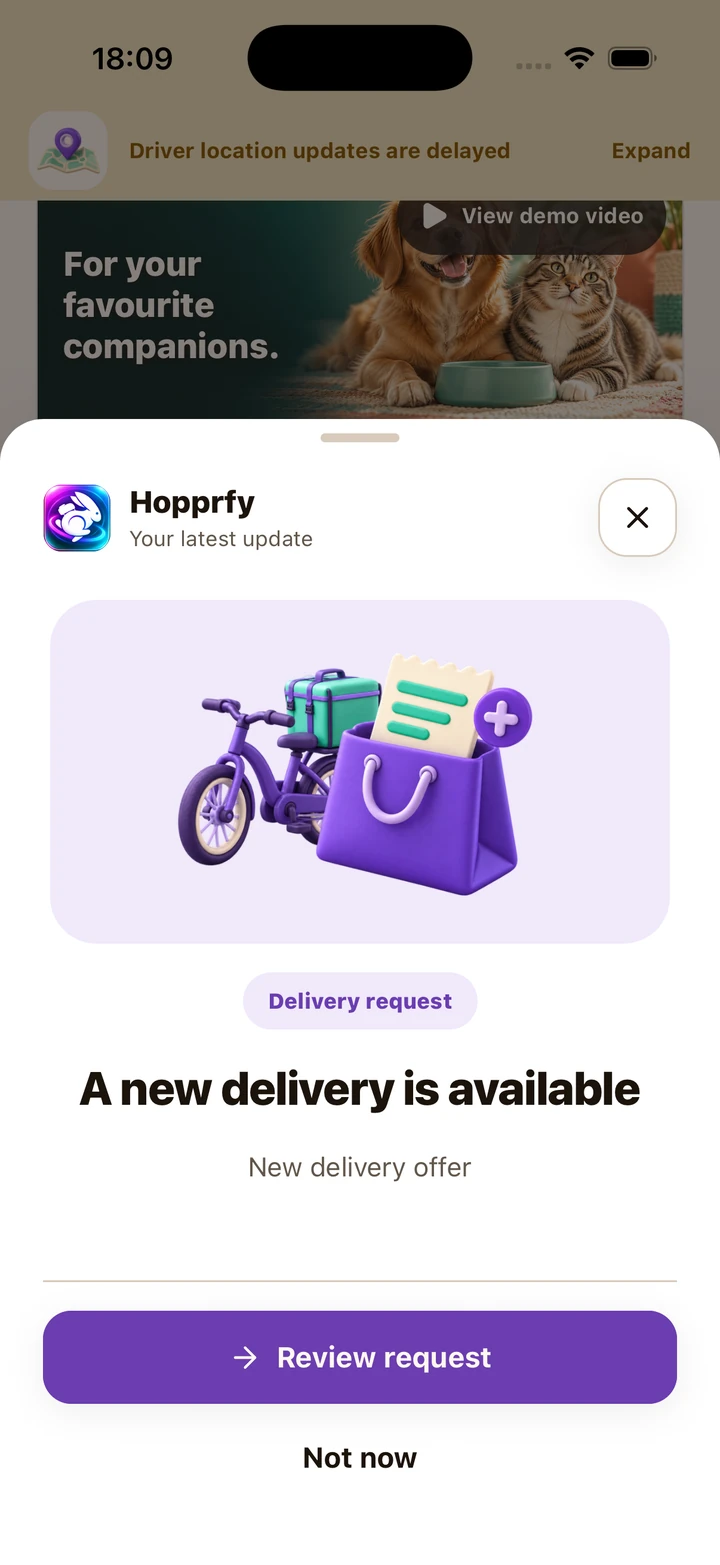
Review request opens the job. This notification itself does not mean you have accepted it.
Click or tap to enlarge the full screenshot.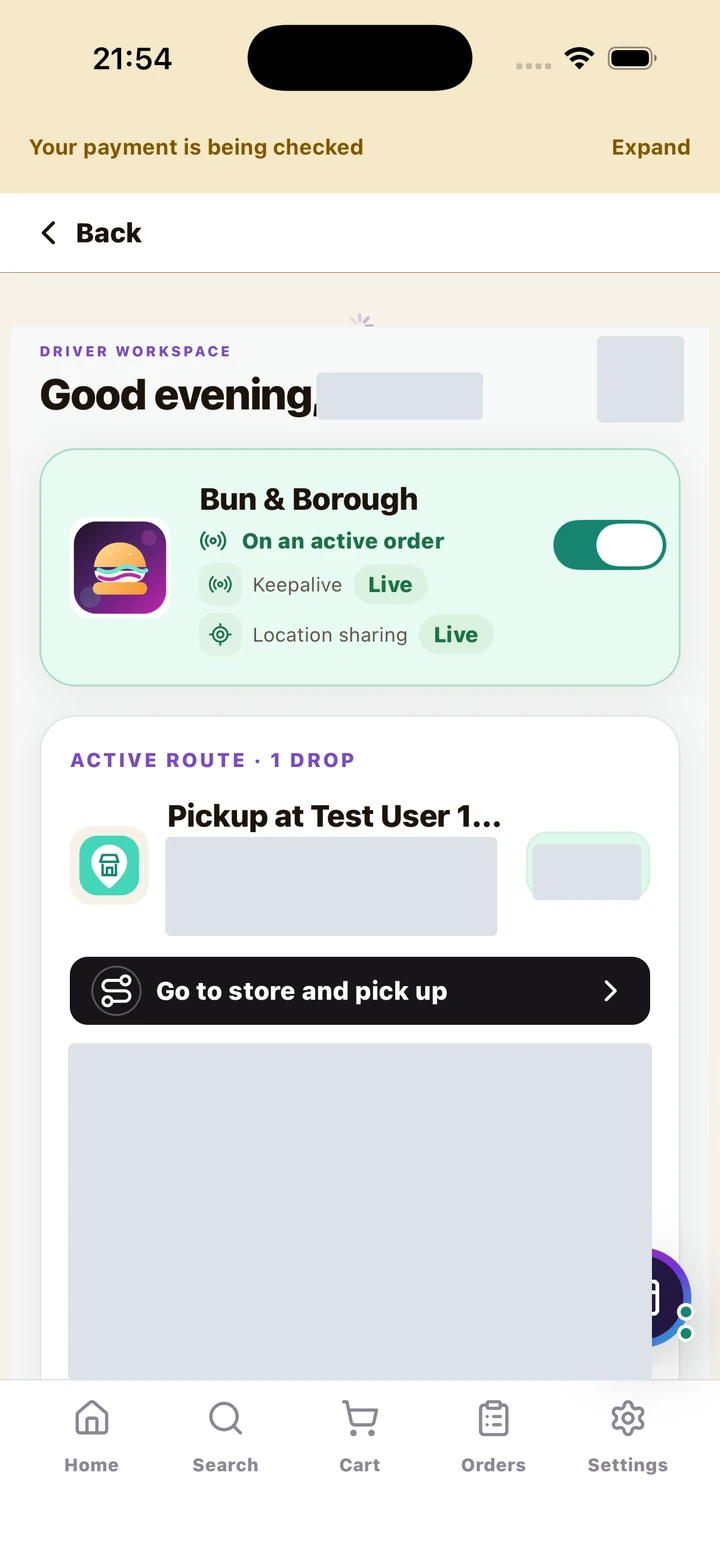
After confirmed acceptance, check On an active order and the next pickup stop. Private details and the pickup credential are hidden here.
Click or tap to enlarge the full screenshot.6. Follow the current stop sequence
#Use the route's next stop, especially when several orders are assigned.
Where to open thisDriver Home → current route → next stop and manifest
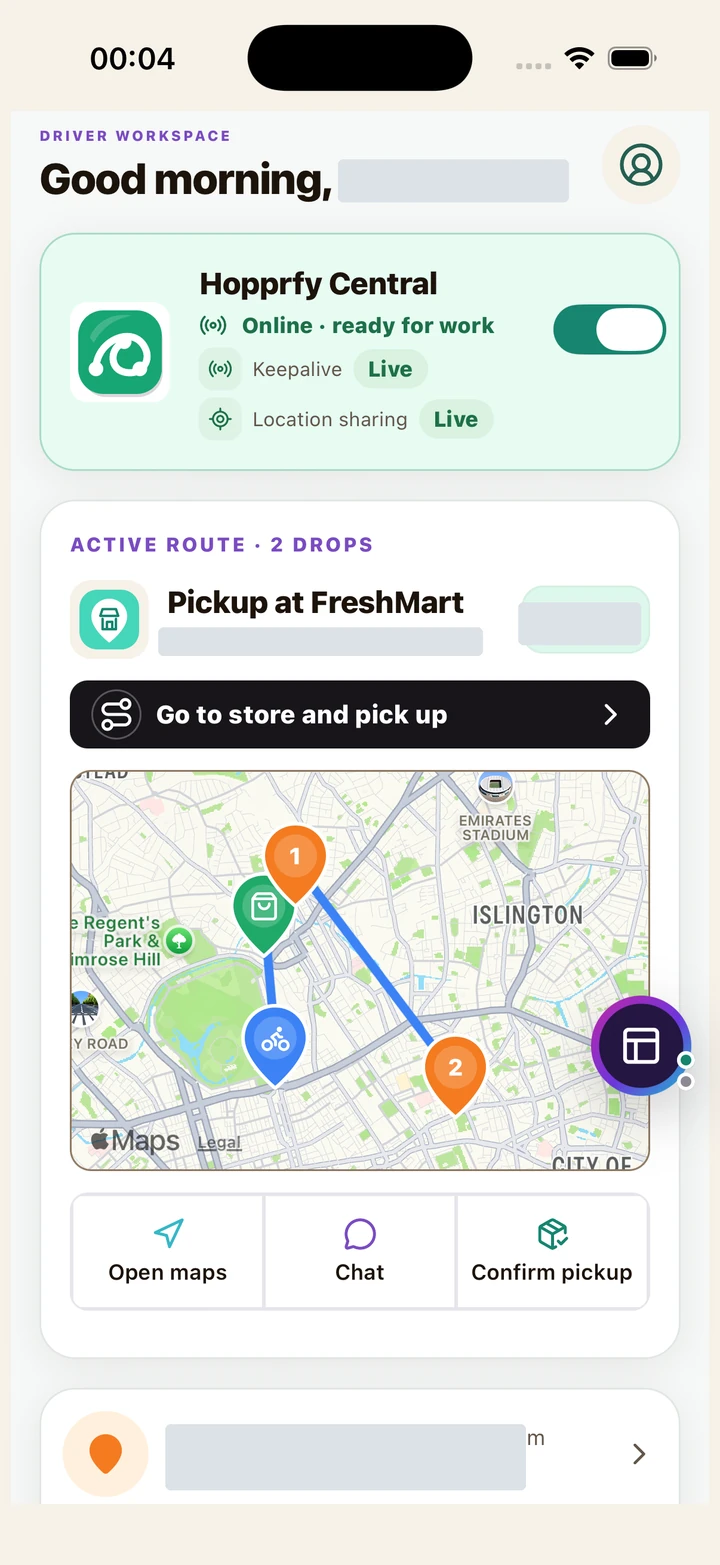
- Read the pickup/delivery stage and next destination. Open the stop's manifest to check which orders and quantities belong there.
- Use Open maps for the selected next location. Return to Hopprfy for order-state actions; navigation directions do not confirm pickup or delivery.
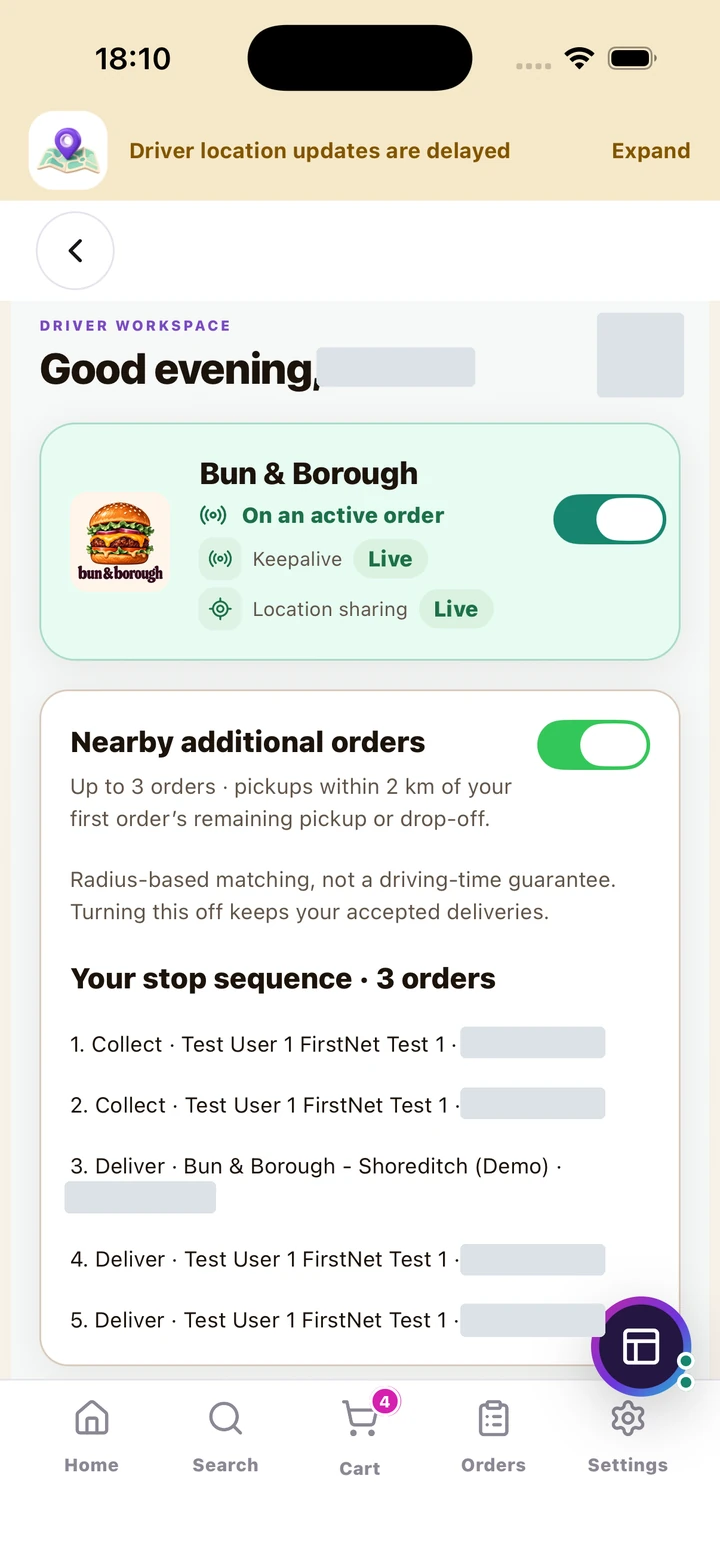
- For multiple orders, read Your stop sequence and keep each package matched to its order and store. Check whether a stop is Collect or Deliver.
- If route data looks stale, refresh before acting. Do not use a remembered address or another order's pin when the next stop has changed.
7. Arrive at the store and confirm pickup
#Notify the store when near; confirm pickup only after collecting the correct goods.
Where to open thisActive pickup stop → manifest and pickup controls
- Open the pickup stop and read the store name, physical pickup point and order manifest. Use the displayed driver pickup code when the store asks for it.
- Use the near-pickup/arrival notification action when appropriate. It tells the store you are nearby; it does not mark the goods collected.
- At the counter, match the selected orders, packages, quantities and handling notes. Keep different customers' orders identifiable.
- Once those selected goods are in your care, choose Confirm pickup and wait for the confirmed route change. On a multi-order route, inspect exactly which orders are included.
- If confirmation fails or may already have committed, refresh and use the targeted Retry pickup recovery. Do not collect another set of goods as a workaround.
8. Manage nearby additional orders
#The additional-order switch controls new offers while preserving accepted work.
Where to open thisDriver Home → Nearby additional orders
- When Nearby additional orders is offered, read the displayed maximum and matching radius. Decide whether you can handle more work.
- Turn Receive nearby additional orders on or off and wait for the setting to save.
- Review every extra offer before accepting. Check the updated stop sequence, capacity and any special handling for all accepted orders.
- Turning the setting off keeps your accepted deliveries. Complete the existing route even when you stop taking new nearby offers.
The switch controls new nearby offers; the numbered Collect/Deliver list describes accepted work.
Click or tap to enlarge the full screenshot.9. Notify the customer and complete delivery
#Arrival and handover are separate actions.
Where to open thisActive delivery destination → its order and handover controls
- Open the destination and check its address, instructions and every order assigned to that stop.
- Use the customer-nearby notification when approaching. Use order chat if you need help finding the recipient.
- At the destination, match the goods to the recipient and complete any ID requirement before handing over.
- Only choose Confirm delivery after every order included in that destination has actually been handed over. Read the confirmation and wait for the completed state or next stop.
- If there is no safe or eligible handover, use support and the available order actions. Do not mark an absent recipient's order delivered to remove it from your route.
10. Check photo ID for restricted goods
#The app shows the order's minimum age and whether a passing check has been recorded.
Where to open thisRestricted order → Photo ID required panel
- Read the Photo ID required panel before handover. Inspect the recipient's original photo ID in person and confirm both age and matching photograph.
- Choose Check photo ID, read the confirmation and record the passing result only when the check actually passes. Wait for the saved confirmation.
- If valid ID is missing, the recipient is underage or the photo does not match, choose ID missing or check failed and record the appropriate reason.
- Keep the goods and contact the store for the next step after a failed check. Never leave restricted items unattended or with an unverified recipient.
- If the ID requirement or result cannot load/save, retry that check before completing handover. Do not use a collection or pickup code as proof of age.
11. Contact people on the order
#Use the verified order conversation for the intended store or customer.
Where to open thisRoute → Chat, or Settings/quick menu → Messages
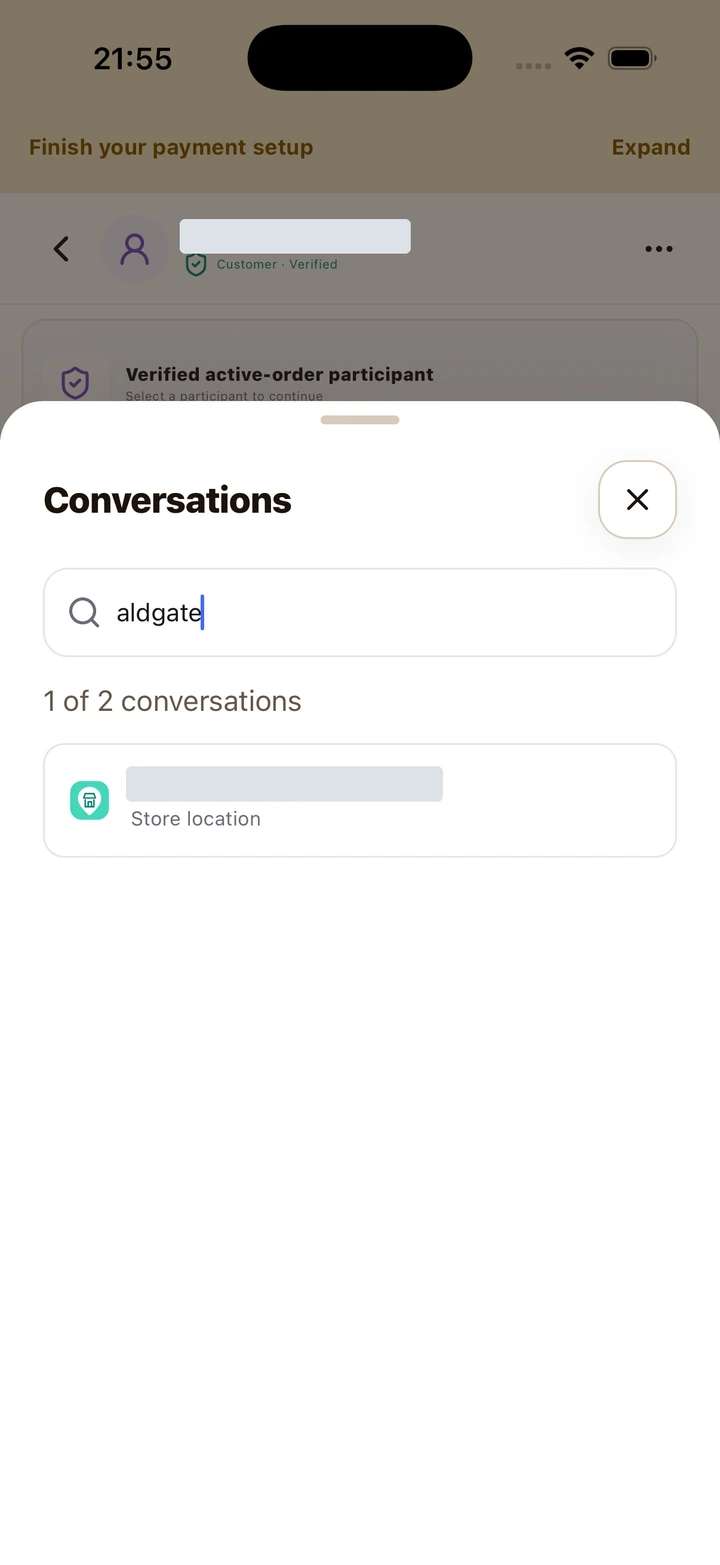
- Choose Chat from the route, or Messages in Settings/quick menu. Check the participant and order context before typing.
- Use Search or switch to find a conversation by name or role when you have several jobs.
- Send a short, practical message about arrival, access or the handover problem. Do not send passwords, card details, working codes or identity documents.
- Saved history from the last 60 days can refresh while the chat is open. Sent means saved; it is not proof of delivery or reading.
- Use Account → Support when the issue needs platform help. Provide the affected short reference and current route state.
12. Set up payouts and read your earnings
#Track each money stage separately.
Where to open thisSettings → Payments & earnings
- Open Payments & earnings from Settings or Payments & payouts from Work. Confirm the correct signed-in recipient.
- Complete the offered Stripe payout onboarding through the hosted form. Return and refresh the status; review any remaining requirements.
- Earnings shows Awaiting release, Ready for transfer, Transfer in progress and Blocked. Do not treat every allocation as money already received.
- Transfers shows funds moving to your connected account. Payouts shows bank movements. Check the state and arrival information when supplied.
- For blocked funds, a failed payout or a disputed amount, open the offered provider/dashboard action or contact support with the relevant reference.
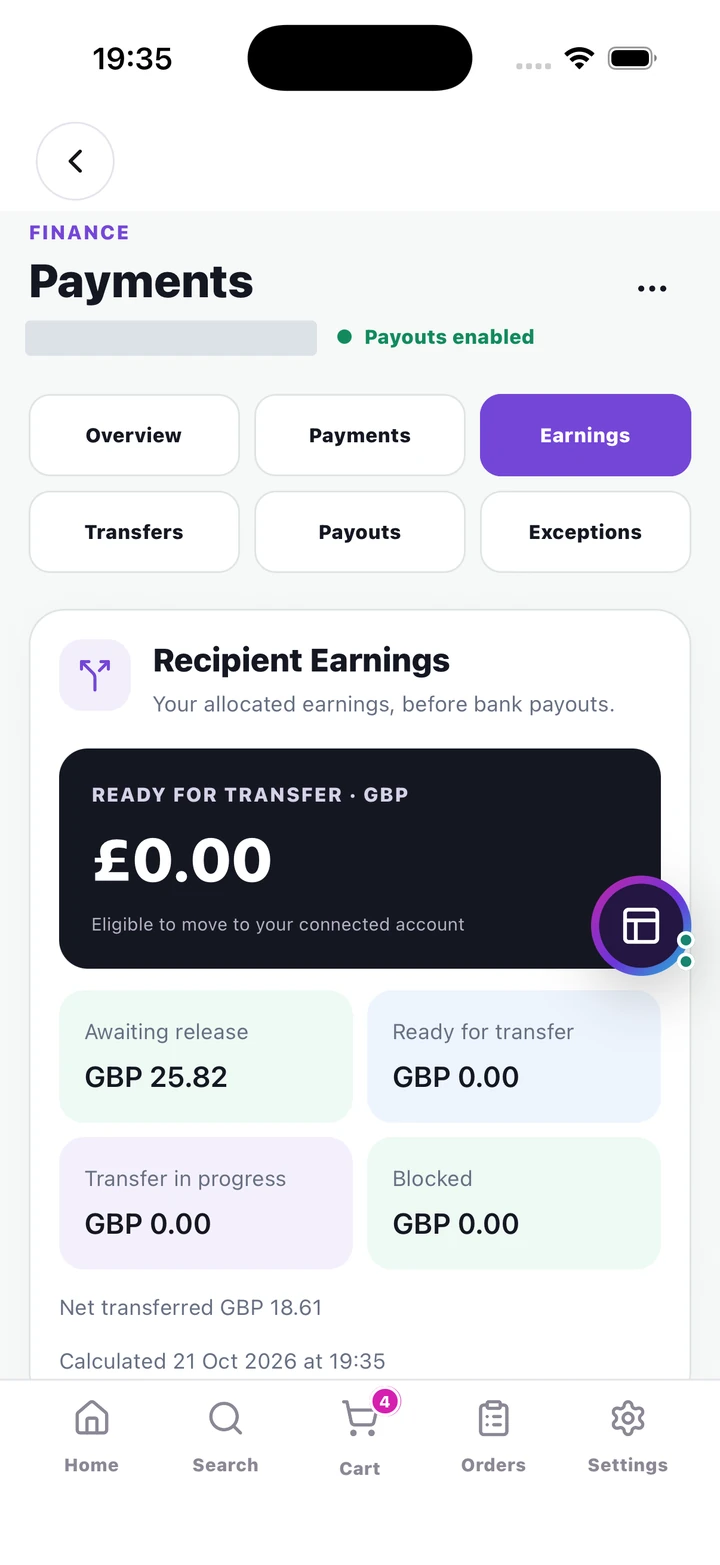
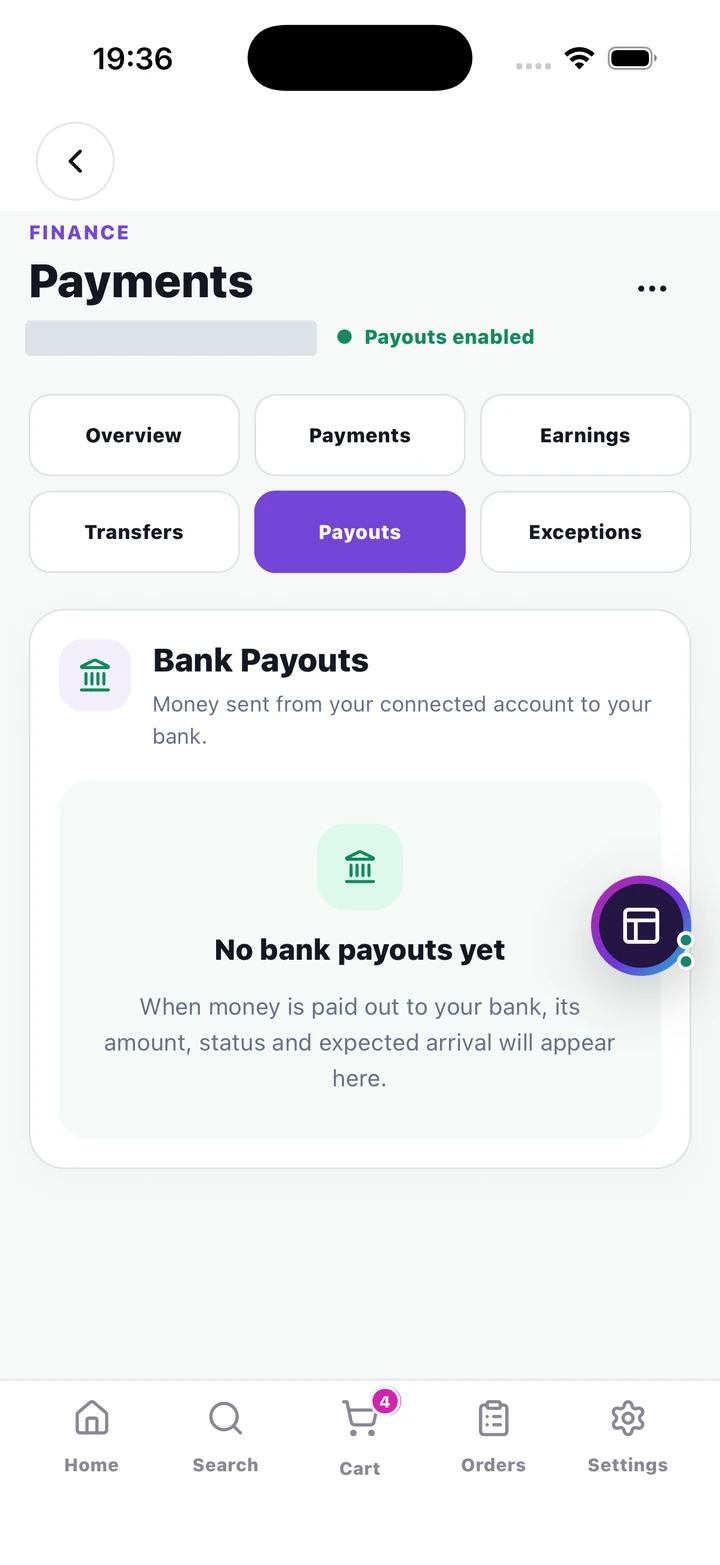
Check this bank stage separately from Earnings and Transfers.
Click or tap to enlarge the full screenshot.Which question does each tab answer?
- Payments
- What happened to the customer’s card payment or refund?
- Earnings
- What share is allocated to this recipient, and is it ready to move?
- Transfers
- Have funds moved to the recipient’s connected account?
- Payouts
- What happened to money moving from that account to the bank?
One sale can appear at several stages. A £5 share shown in Earnings, later transferred and then paid out is still the same £5—not £15. This example illustrates the stages, not the fee or amount you will receive.
13. Handle failed, missing or cancelled work
#Resolve the specific job while keeping the goods and current state clear.
Where to open thisDriver actions → Refresh driver data; exact order → available help/recovery
- If the screen shows zero jobs but you believe one is assigned, confirm your account, refresh driver data and inspect the active route and all stops. Report a persistent mismatch.
- If the store cannot provide the goods or the recipient cannot receive them, use chat/support and the supported cancellation or refusal action offered for that job.
- Read cancellation confirmations carefully. A destination cancellation is not proof that customer refunds, recipient recovery or every other job have completed.
- If an action is uncertain, re-read its exact target before retrying. Avoid repeating pickup or delivery actions against another stop.
- For a problem requiring support, include the current stage, affected reference and last successful action. Keep account credentials and personal recipient details private.
14. Finish your shift
#Close the shift after checking accepted work.
Where to open thisDriver Home → accepted route, intake setting and Go offline
- Review the active route and outstanding requests. Finish or safely resolve accepted deliveries and any goods still in your care.
- Turn off additional-order intake if you need to finish the existing route without taking more work.
- Use Go offline when ready and wait for the server-confirmed state. Do not assume closing the app or losing signal took you offline.
- Review earnings, follow up on unresolved support issues and check any saved payout requirements. Sign out only after confirming the intended account state.
IN PLAIN WORDS
Useful terms, explained.
- Request / offer
- Work offered to you. It becomes your accepted job only after the app confirms acceptance.
- Keepalive
- A connection check telling the service your driver session is still available.
- Pickup
- Taking the correct goods from the store into your care.
- Destination
- A stop on the route. It may contain more than one order.
- Payout
- Money moving from your connected account to your bank, after the earlier earnings and transfer stages.
Need another side of the story?
One order connects a customer, a store, a marketplace and sometimes a driver. Use the other role guides to understand their part.
All guides →Back to top ↑No chapters match. Try a shorter term or clear your search.