
START HERE
Before your first order
- Sign in to your own account
- Choose the correct delivery area
- Check exact items, variants and extras
- Choose a supported delivery or collection method
- Review the full total and payment choice
- Keep the order reference and follow its status
1. Sign in and find your way around
#Your account keeps your orders, saved addresses and conversations together.
Where to open thisSign in, then the Home, Search, Cart, Orders and Settings tabs
- Use Sign up if you need an account, or Sign in with your existing details. Use Password reset when needed rather than creating another account to reach old orders.
- Home is for nearby discovery; Search finds products; Cart holds your baskets; Orders follows placed work; Settings opens account and other tools.
- The floating quick menu offers common shopping and authorized work tools. The rounded back arrow returns to the previous screen; closing a sheet returns to the page beneath it.
- Check the account shown in Settings before looking for a missing order. Orders and messages belong to the account that placed them.
Home discovers, Search finds, Cart holds baskets, Orders follows placed work and Settings opens account tools.
Click or tap to enlarge the full screenshot.2. Choose and save an address
#Nearby products and delivery quotes depend on the destination you select.
Where to open thisHome → location control, or Settings/Account → Address book
- On Home, choose the location/address control. Search for the address and select the correct result; typing text alone does not necessarily select a destination.
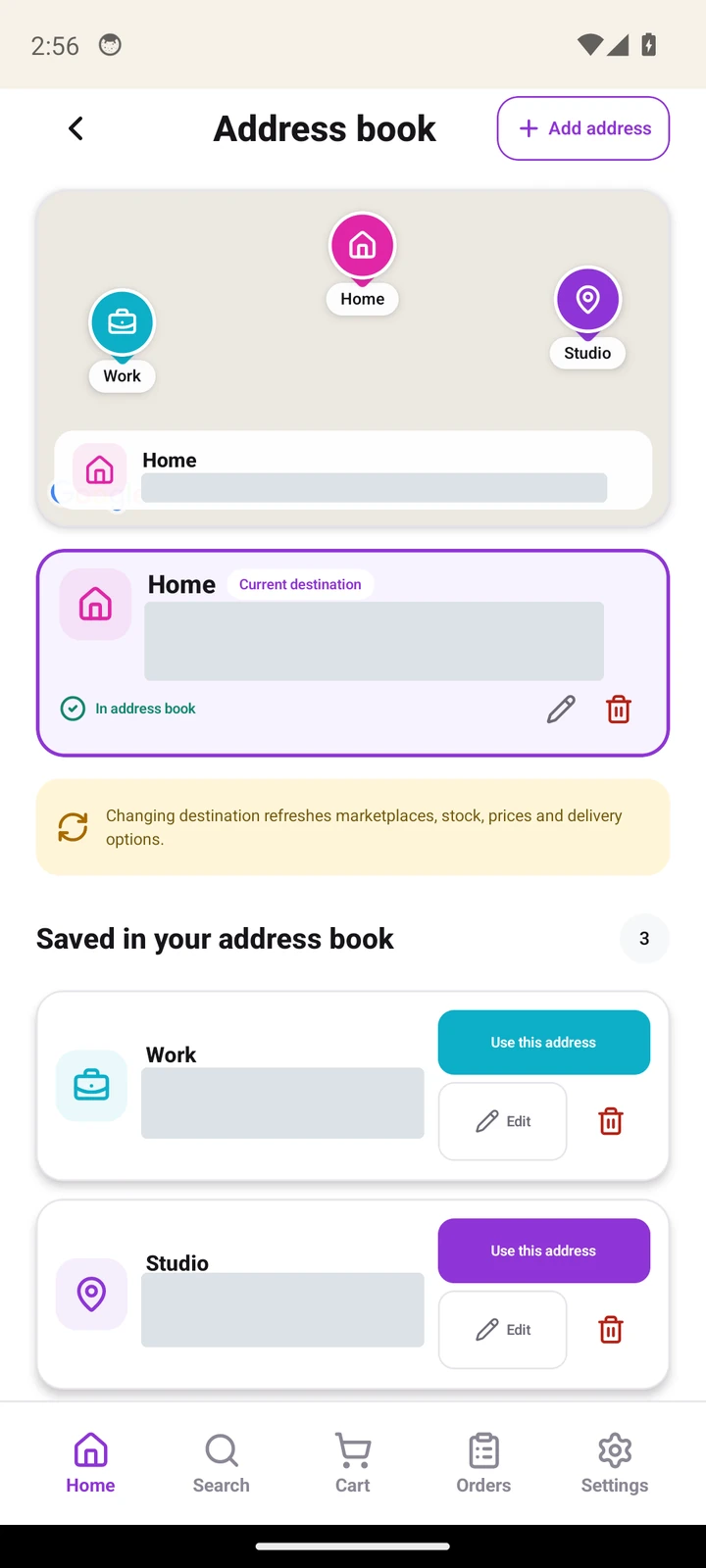
- Use Address book to add, edit or choose a saved address. Check house/building details, map position and the requested contact information before saving.
- Use the offered delivery-selection action if you want the address for this shop. Saving an address and selecting it for delivery can be different choices.
- After changing the destination, recheck available marketplaces, stock and delivery price. A previous quote may no longer apply.
- For an order already placed, open its details and use the supported contact/help process. Editing Address book does not redirect an accepted order.
3. Pick or preview a marketplace
#Preview lets you explore without fully opening another marketplace.
Where to open thisHome → Pick a marketplace
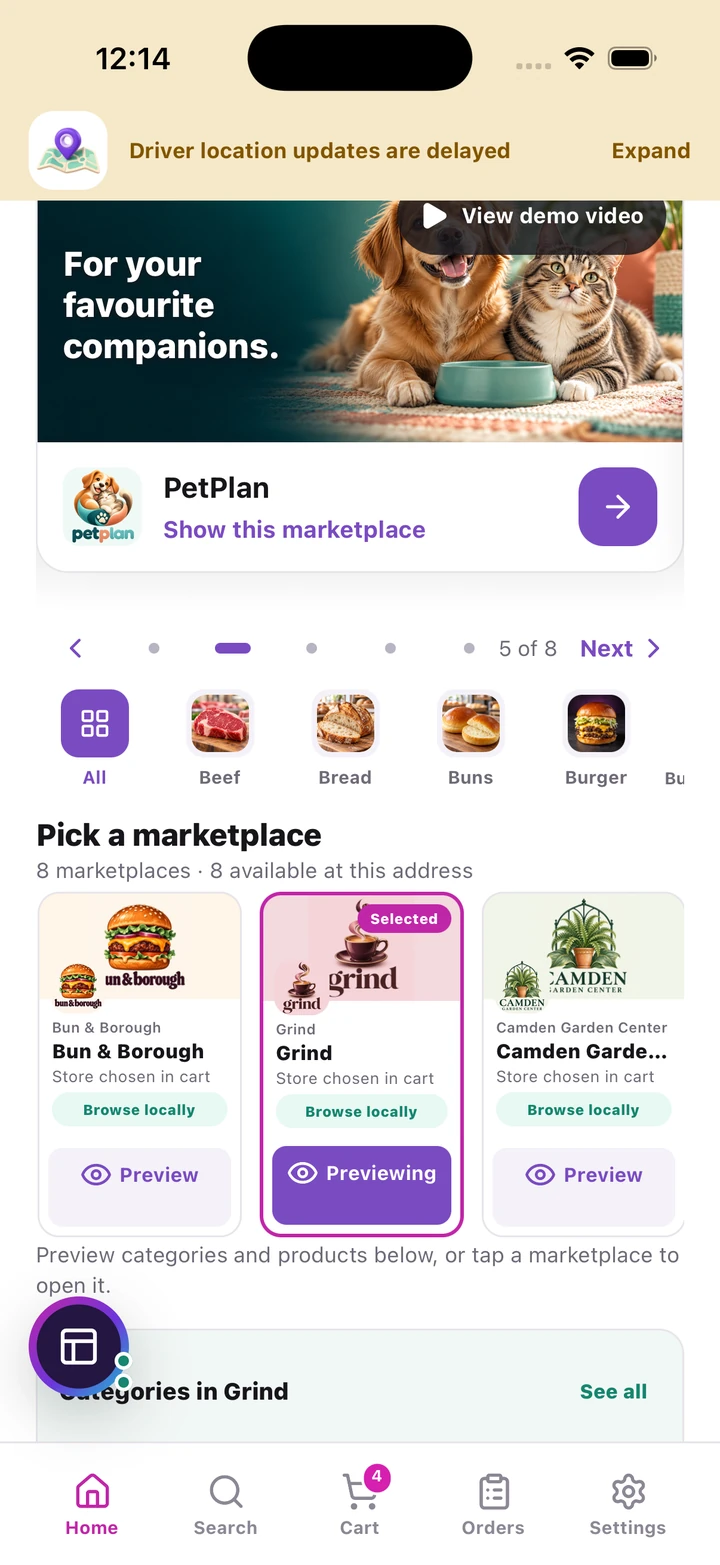
- In Home's Pick a marketplace rail, scroll horizontally to see the available choices for your selected area.
- Choose Preview on a card to show that marketplace's categories and products below the rail. The Previewing label identifies the currently previewed marketplace.
- Tap the marketplace itself to open its full browsing experience when you want to explore further.
- Use See all for categories or View all for products. Check the marketplace name when switching so you know which catalogue you are shopping.
- If nothing is available, check the selected location and retry the relevant section. Coverage, store opening and local stock can change what is shown.
4. Search, sort and filter products
#Start broad, then narrow the results using the options available on that list.
Where to open thisSearch, or a marketplace/category → Search & filter
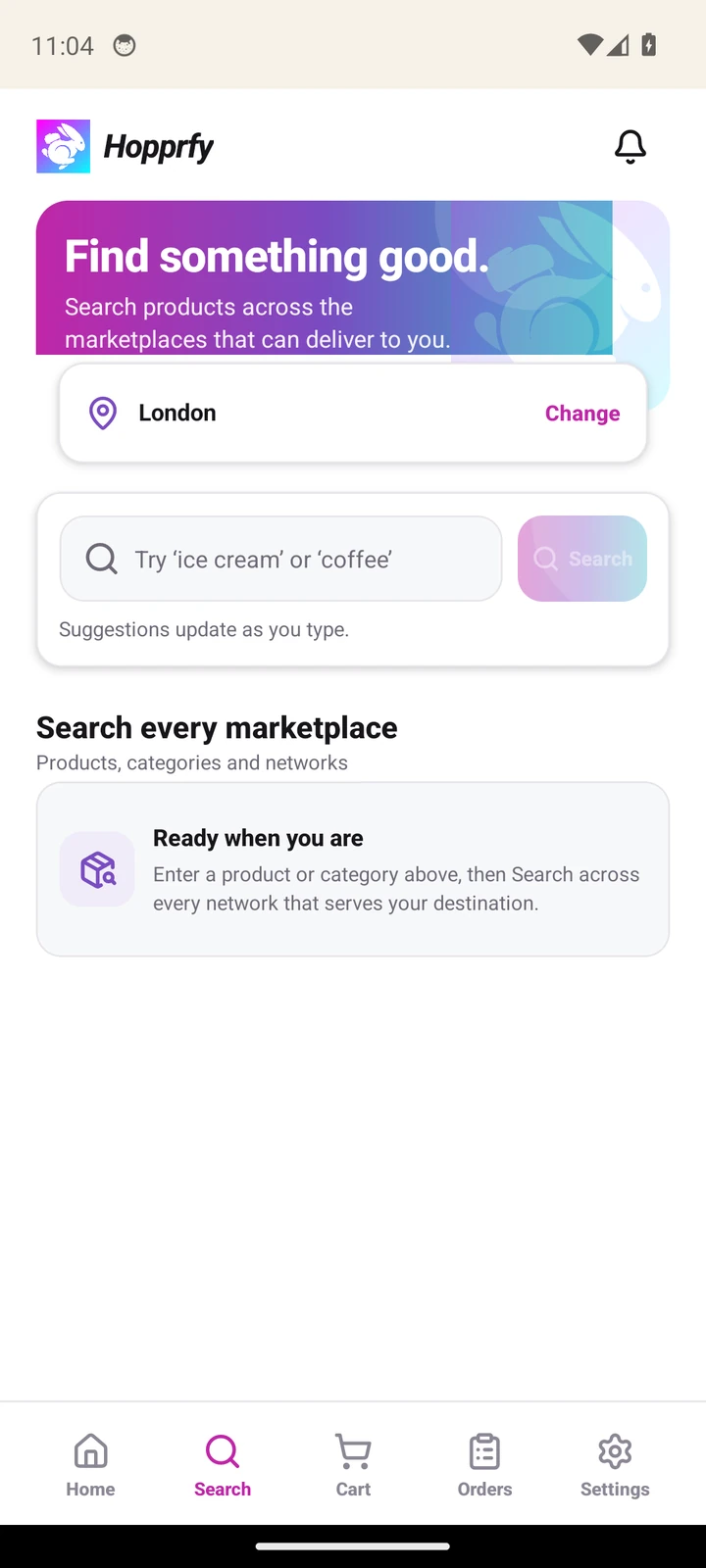
- Open Search, or use Search & filter within a marketplace or category. Enter a product name, brand or useful item description and submit.
- Check whether the screen searches one category, one marketplace or multiple marketplaces. If results are empty, clear filters and try a shorter term.
- Use the sort control to change the order of results, such as the offered price ordering. Use Available only when you want to hide items that cannot currently be supplied.
- Open the filter controls and set a price range using the minimum/maximum fields or slider where offered. Review other available category or product filters, then apply the choices.
- To broaden the search, clear the active filters or widen the price range. Check exact variant and extra prices on the product page before deciding.
5. Read a product and choose its exact option
#Check what you are buying, not just the photograph.
Where to open thisProduct card → product detail
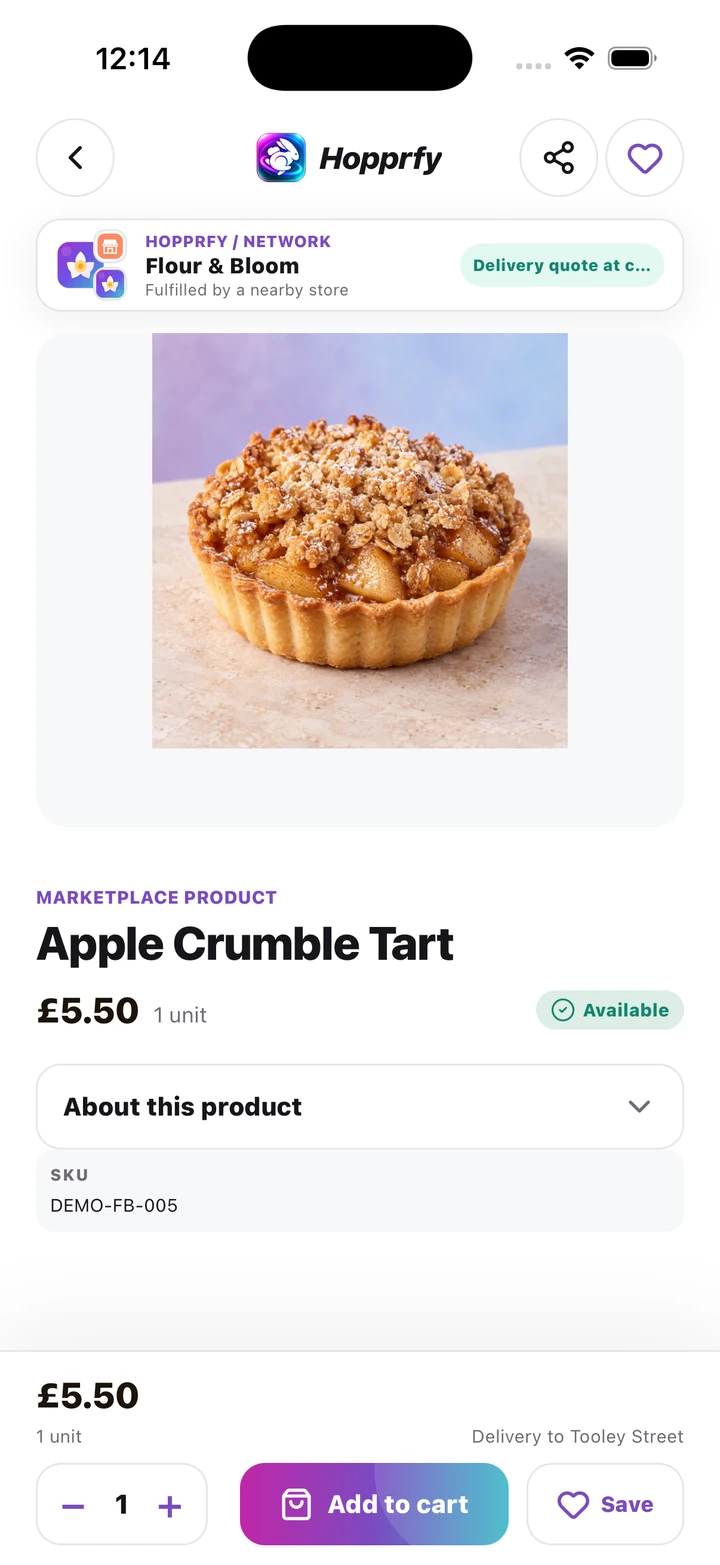
- Open a product and read the name, description, pack/portion size, marketplace and availability.
- If it has variations, select the exact size, colour, flavour or other combination. Check the price and availability for that selection.
- Choose the quantity and any required extras before adding. An unavailable combination may need another option; do not assume a different size will be supplied automatically.
- Use Add to cart when the selection is complete. Check the confirmation or basket to see the exact item added.
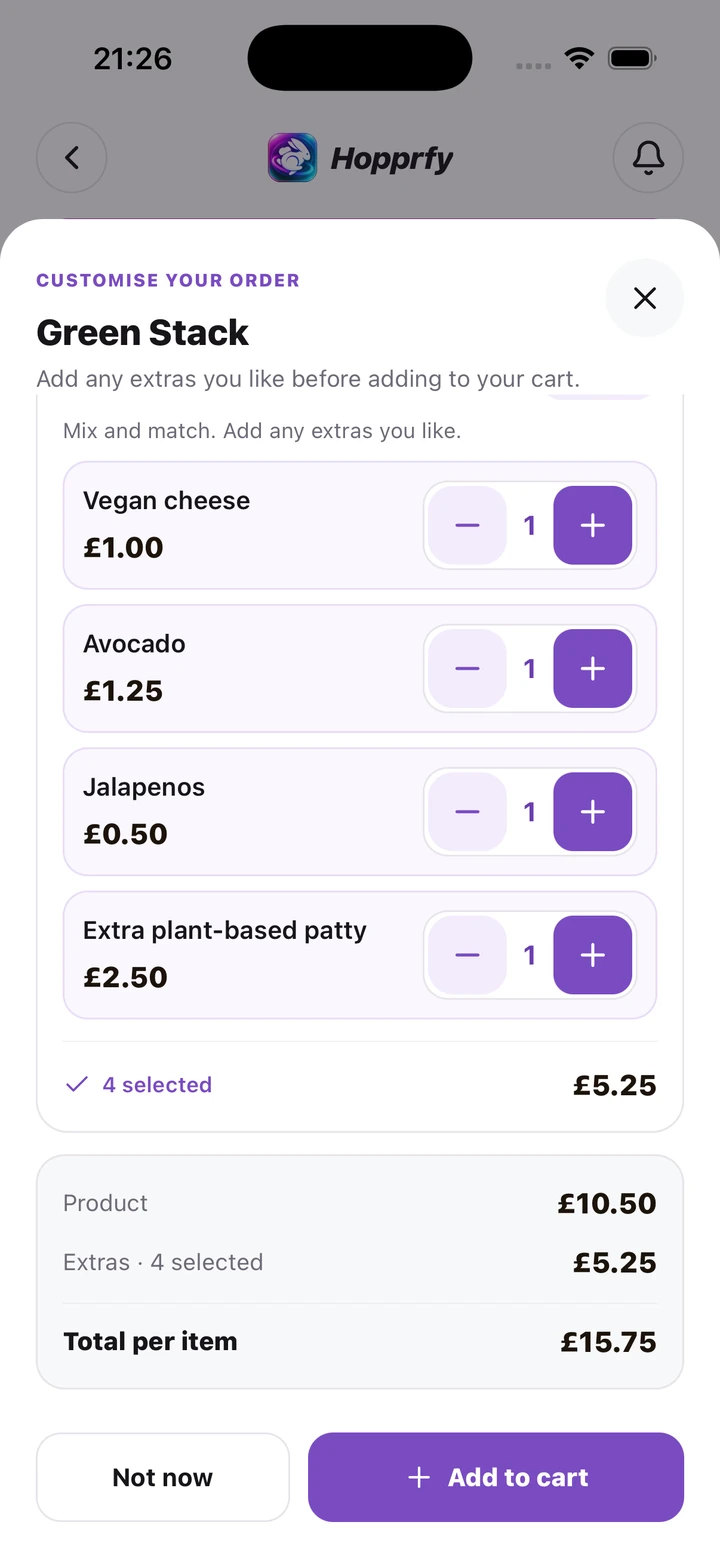
6. Add extras from a product or quick-add popup
#Customise the item before it enters your basket.
Where to open thisAdd to cart → extras popup, or product detail → extras
- Use Add to cart on a product card or open the product detail. If extras apply, read the popup/menu rather than immediately dismissing it.
- Select the additions you want, such as cheese or onions, and adjust supported quantities. Follow each menu's minimum/maximum selection rule.
- Review the extras price and item total before confirming. Some menus are required; others can be left unselected.
- Check the selected extras on the basket line. Where Edit choices is offered, reopen it to change that configuration and save the revised line.
- The same product with different choices can be separate basket lines. Read each line before increasing quantity or removing one.
7. Review baskets and choose fulfilment
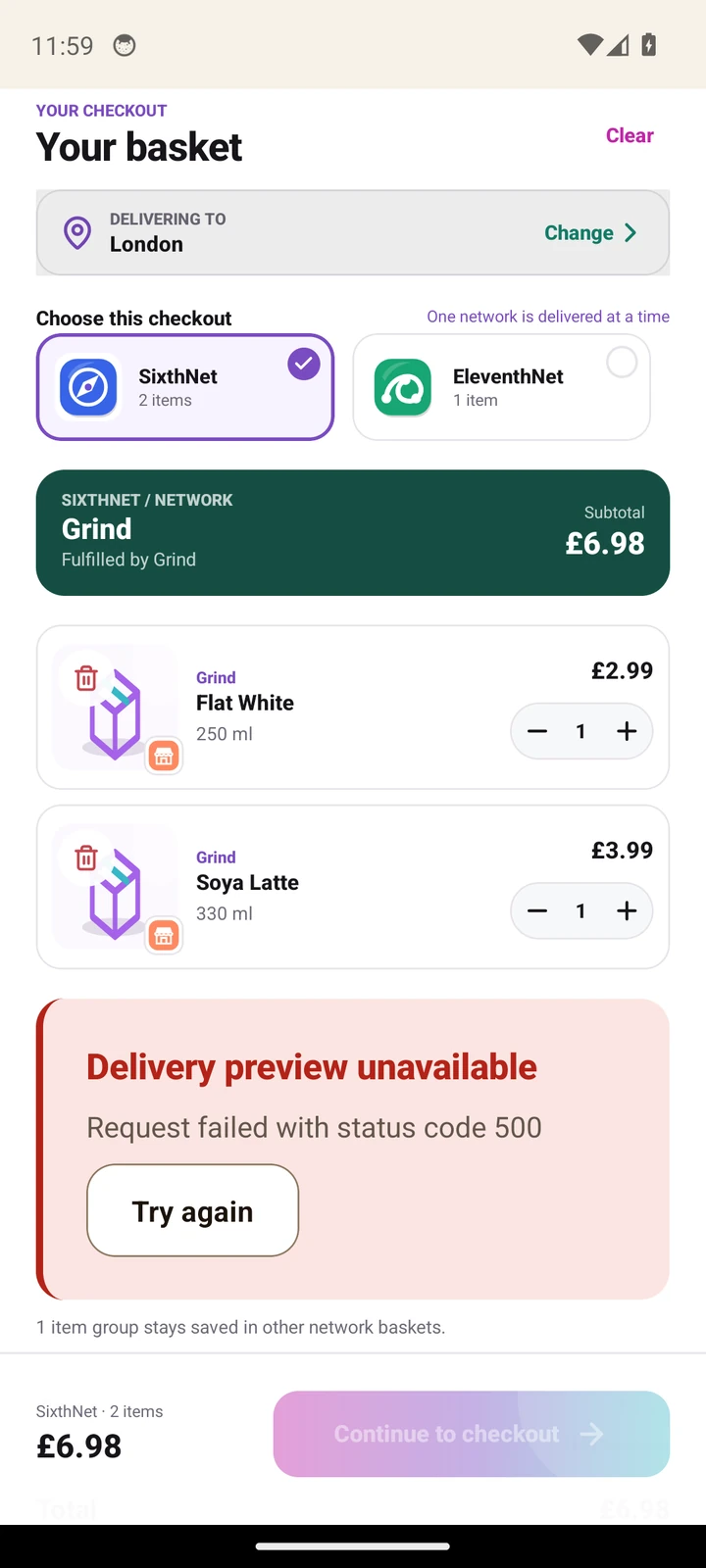
#You can keep more than one basket, but check out one marketplace at a time.
Where to open thisCart → choose the marketplace basket
- Open Cart and choose the marketplace basket you want to order now. Confirm the selected basket rather than assuming every item will be checked out together.
- Check each item, variant, extras and quantity. Use the line controls to change quantity, edit choices where offered or remove the line.
- Choose a supported Collection or Delivery option and review the physical store and address. A store may offer one method or both.
- For delivery, inspect the current quote/readiness result. If delivery is unavailable, read the reason and try the offered address, store or retry action before continuing.
- Review items, delivery and other charges separately. Then continue to checkout for the final confirmation.
8. Check out with a card
#Review the final scope, total and fulfilment before authorizing.
Where to open thisSelected basket → Continue to checkout → secure payment sheet
- In Checkout, confirm the marketplace, store, items, destination or collection point, contact details and any delivery notes.
- Read the full price breakdown and current payment-readiness messages. Resolve a blocking message using its specific action.
- Choose the card/payment method and complete the secure payment sheet, including any bank verification requested.
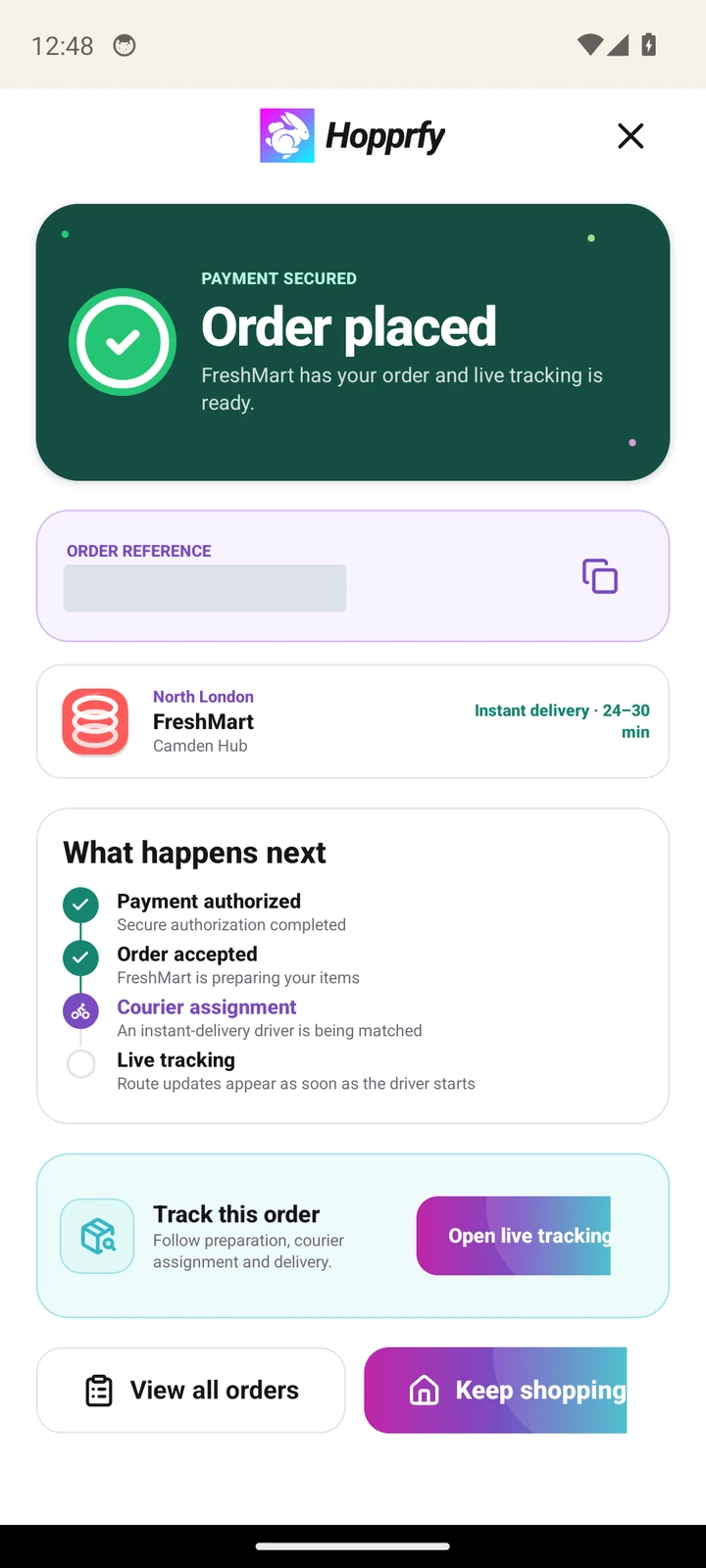
- Submit the authorization once and wait for the result. A bank hold or sheet success alone is not the final evidence that an order was placed.
- Look for the order confirmation/reference and open Orders to follow its next stage. Use the saved-checkout recovery if payment is still being checked.
9. Manage saved payment methods
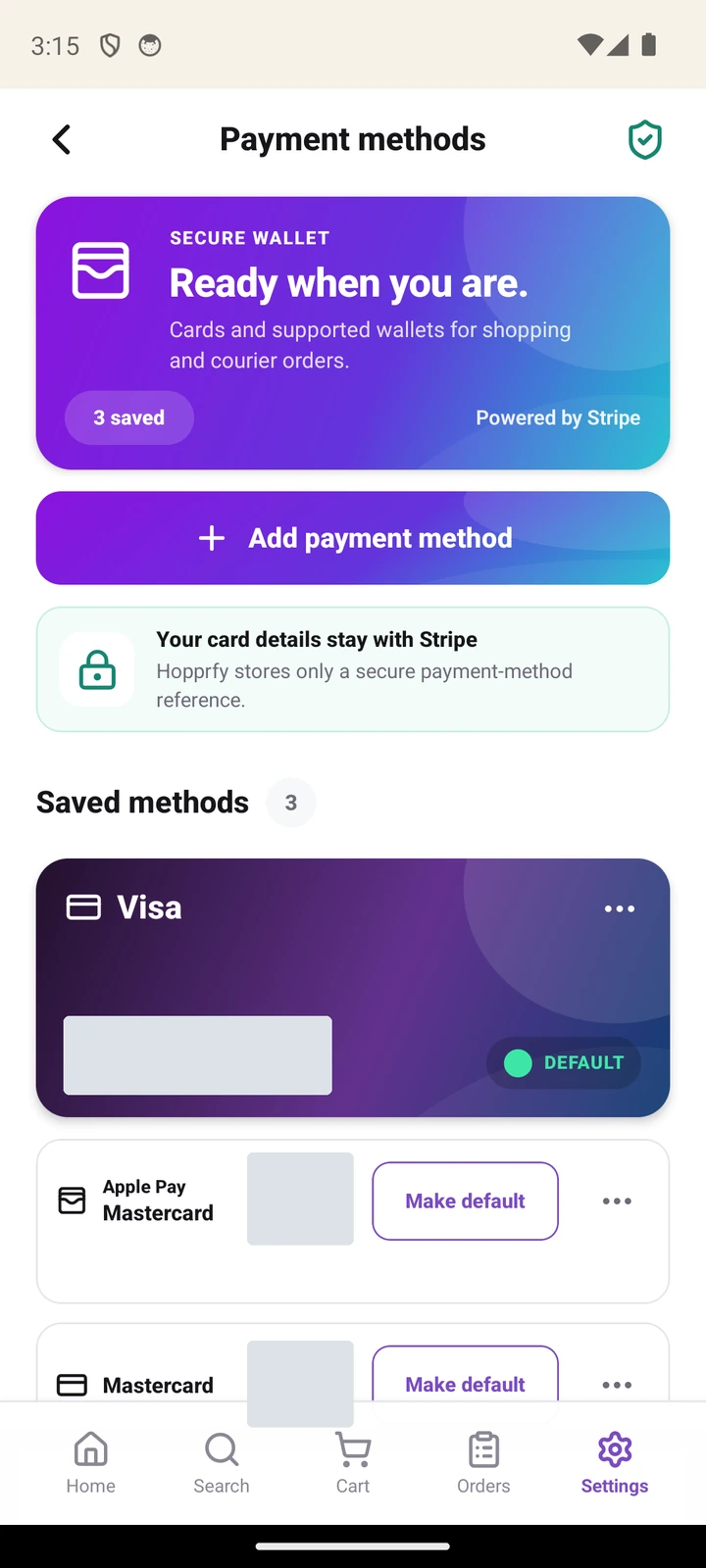
#Shopping cards are separate from business payout accounts.
Where to open thisAccount/Settings → Payment methods
- Open Payment methods from Account/Settings. Review the saved cards and their labels without posting those details publicly.
- Use Add payment method to open the secure provider form. Enter the details there and complete any required verification.
- Use Make default where offered if you want a different saved method selected for future use. Always recheck the actual choice at checkout.
- Use a card's menu to remove it when the supported action is available. Removing a card does not cancel existing orders or refund a payment.
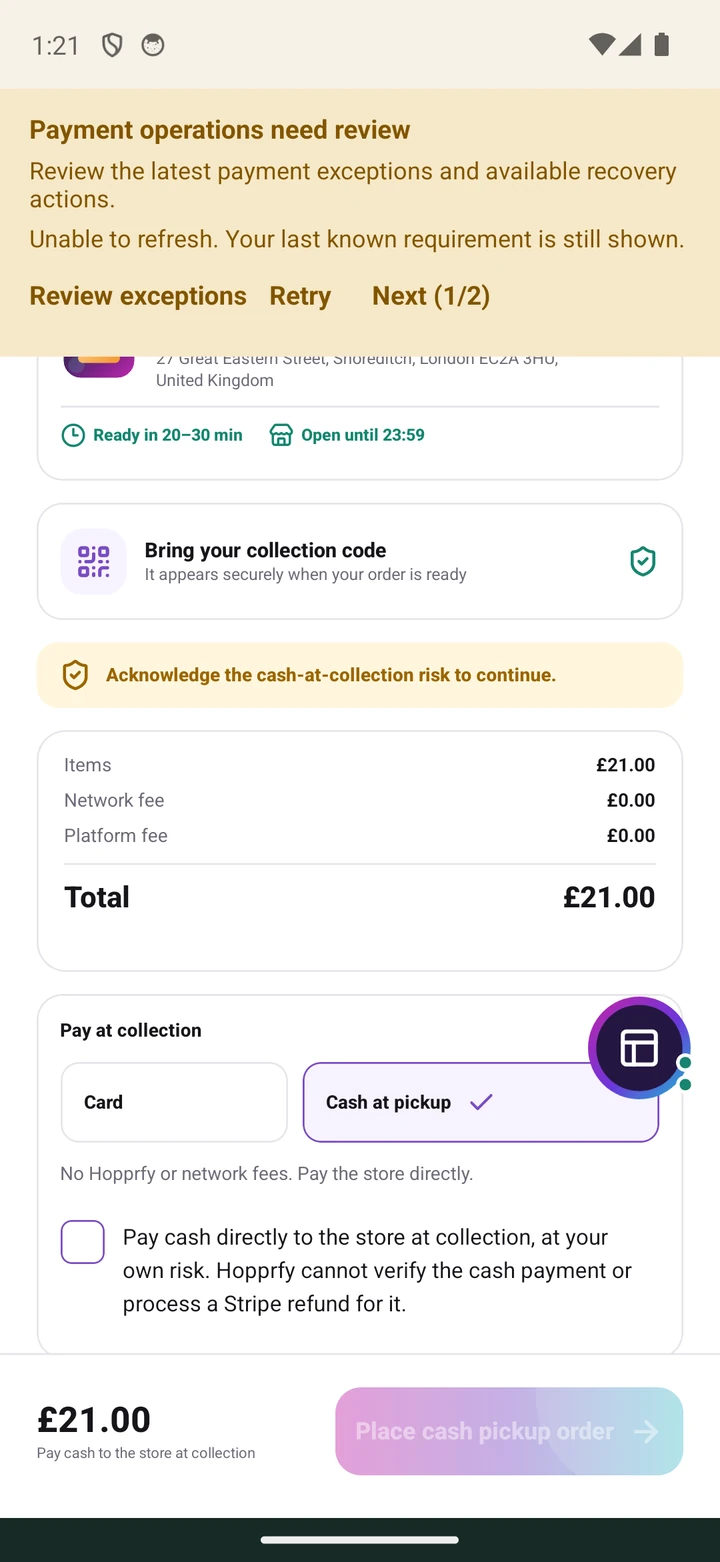
10. Pay cash at collection when offered
#Cash collection is only available when the checkout explicitly offers it.
Where to open thisCollection checkout → Pay at collection → Cash at pickup, when offered
- Choose Collection, then read Pay at collection. Select Cash at pickup if it is available for this order.
- Read and acknowledge the cash-payment statement. Review the exact total and collection store before placing the pickup order.
- Wait for the store to accept and prepare it. Bring the full displayed amount and the collection credential when the order is ready.
- At the counter, pay the store directly and let staff verify the collection. Your saved card is not automatically a cash payment.
- If an amount or repayment is disputed, use the store/support process. A card refund status does not show that physical cash was returned.
11. Follow and collect a pickup order
#Wait for ready, then use the correct order's collection credential.
Where to open thisOrders → pickup order → current collection status
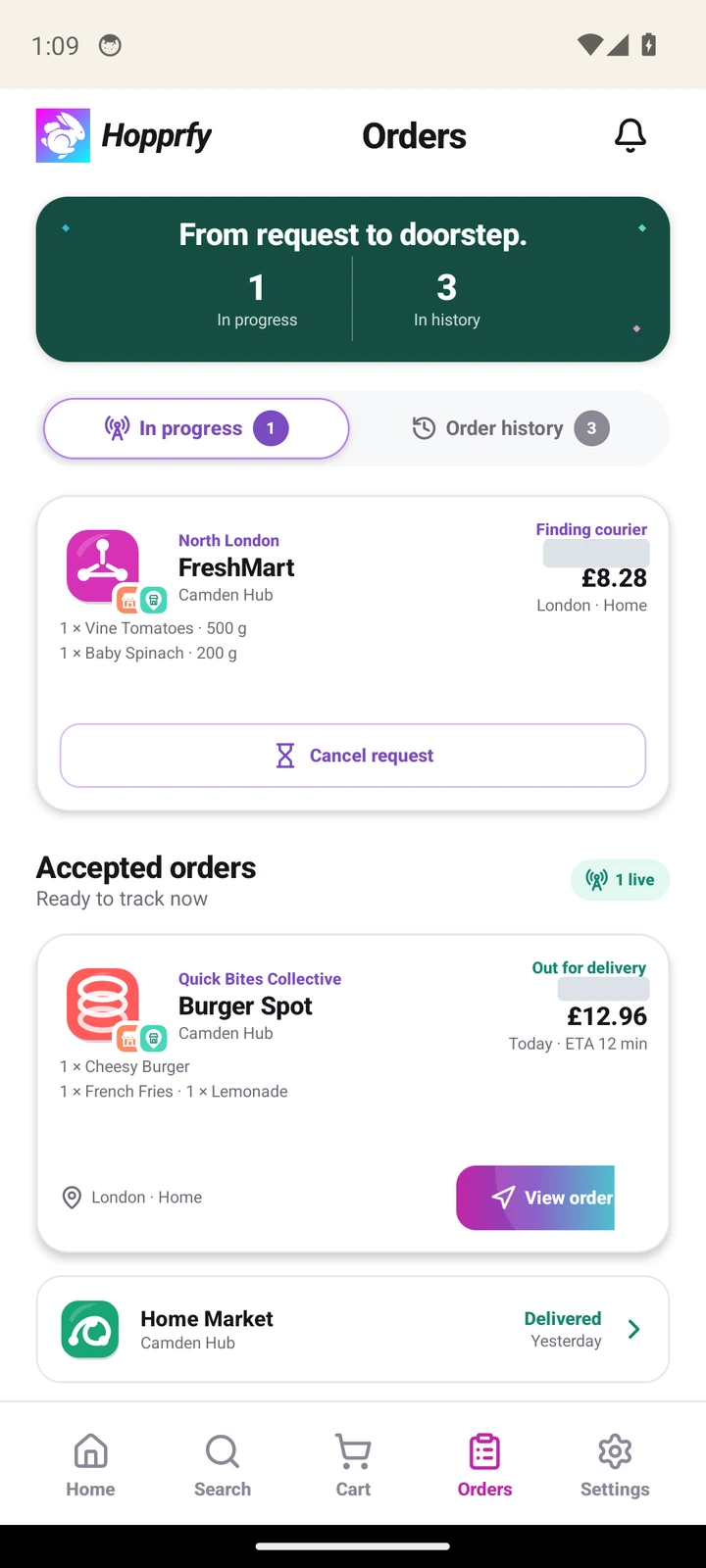
- Open Orders and the pickup request. Read whether it needs acceptance, is preparing or is Ready to collect.
- Check the store's physical pickup point and instructions before travelling. Use order chat if you need clarification.
- When ready and at the counter, show the collection QR code or four-character code from that exact order. Keep it private until the actual handover.
- Bring original photo ID when the order requires it. For cash, pay the full amount before staff complete verification.
- Check that the handed-over items match the order and that its collected state updates. If the code fails, recheck the order and ask staff to refresh.
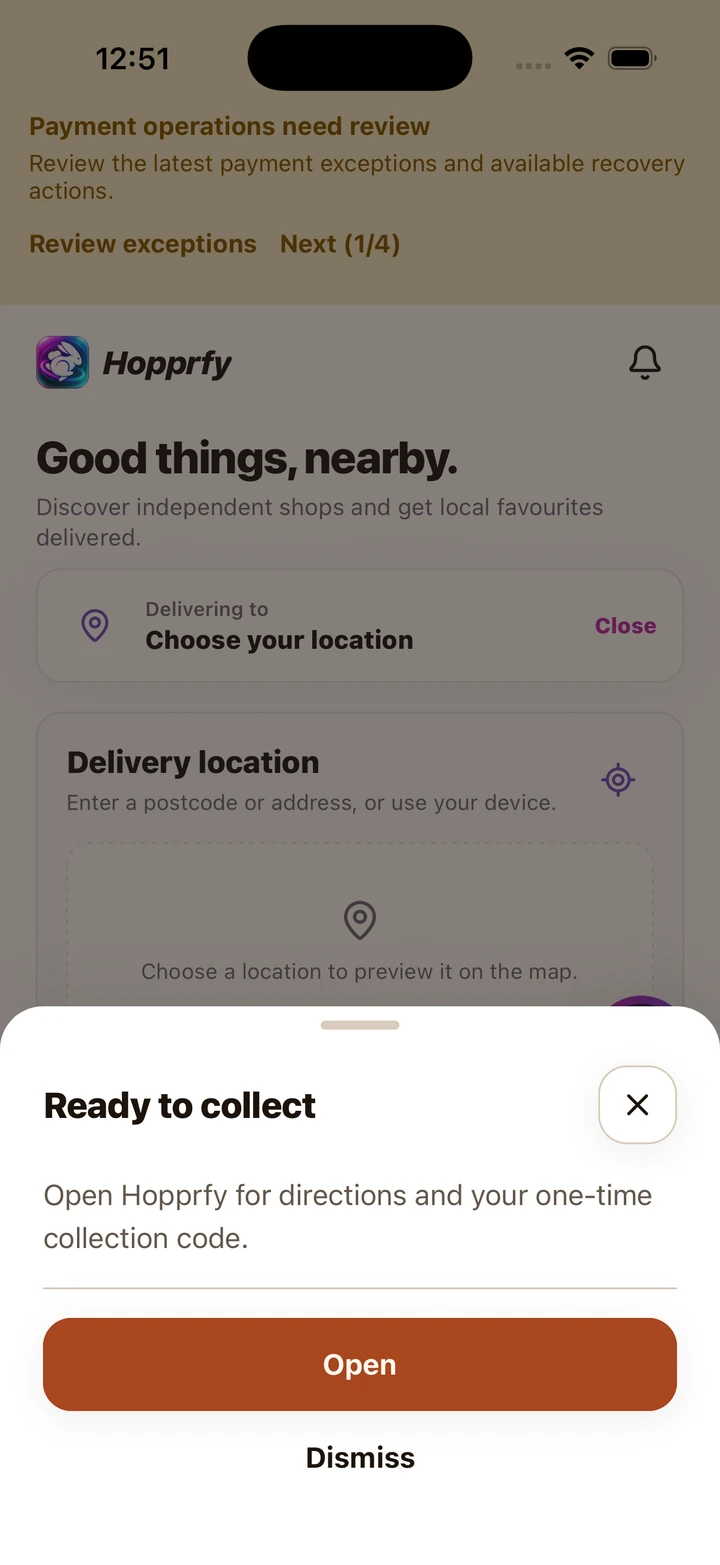
Open the ready order for directions and its current collection credential. The notification itself is not a pickup code.
Click or tap to enlarge the full screenshot.12. Follow delivery and contact your driver
#Tracking shows the current order stage and the available delivery information.
Where to open thisOrders → accepted order → tracking
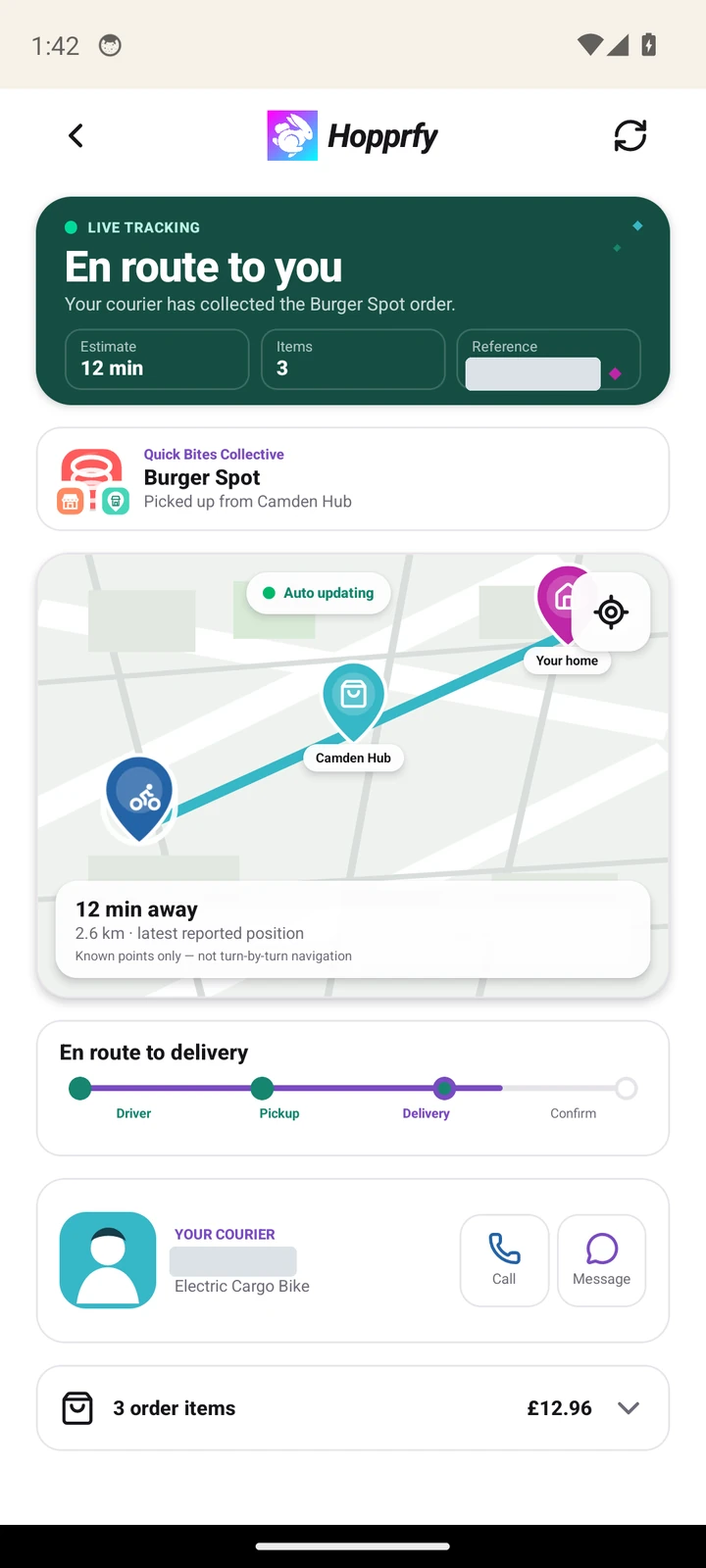
- Open Orders, select the accepted order and choose its tracking action. Check the current stage and delivery address.
- Use the timeline to distinguish finding a driver, pickup, heading to you and completed handover. An estimated time can change.
- Read the driver's latest information and use the offered contact/chat controls when needed. A map or provider tracking link may update at a different rate from the order state.
- Be available at the delivery point and have any required original photo ID ready. Follow the confirmation action offered after actual receipt.
- If tracking cannot load, use the specific retry and check Orders. Do not place another order just because a map is unavailable.
13. Find messages and switch conversations
#Messages is available from Settings and the quick menu, as well as order contact actions.
Where to open thisSettings/quick menu → Messages, or an order → Chat
- Open Messages or the chat action on your order. Check the participant and role so you contact the intended store or driver.
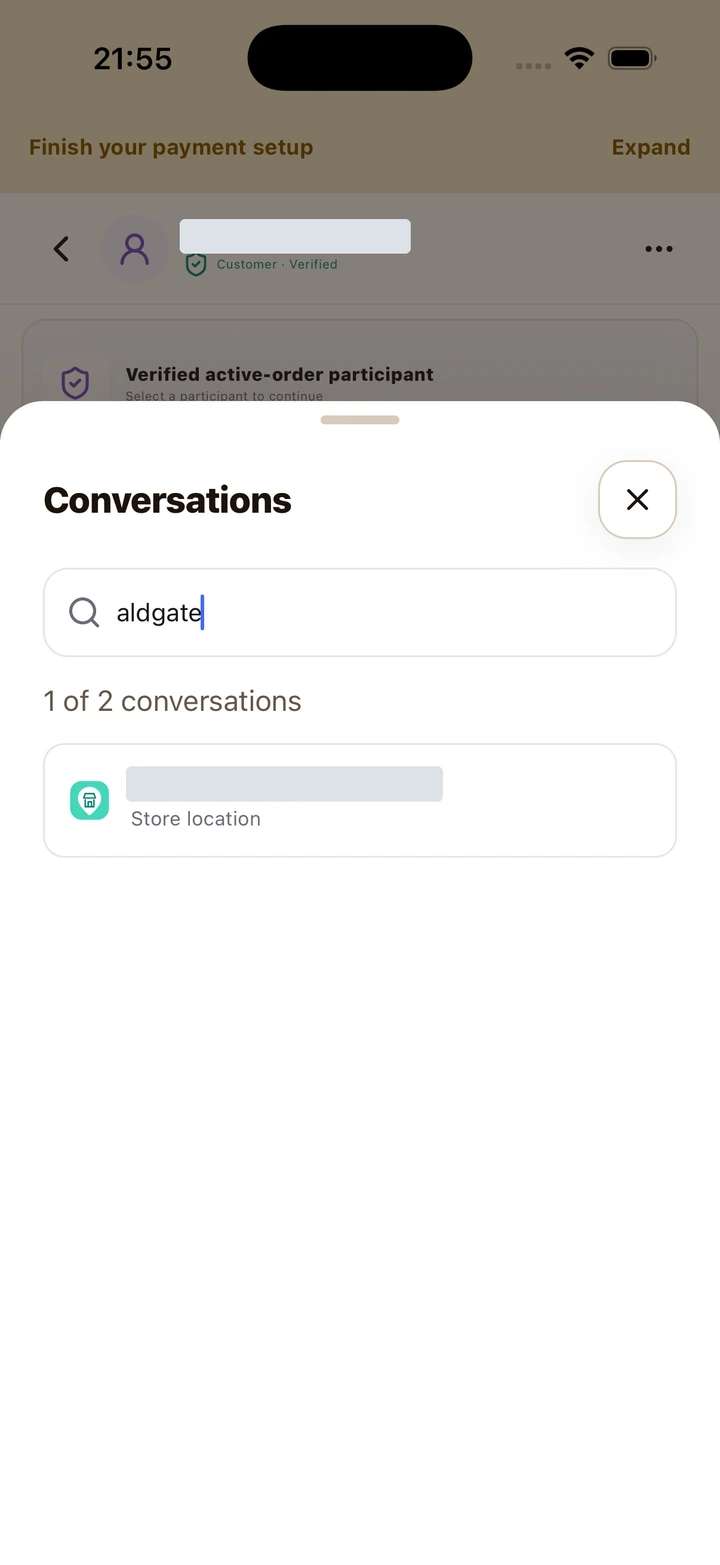
- Use Search or switch to browse conversations and search by name or role. Select a result to open that conversation.
- Type a short message and send once. Saved messages from the last 60 days refresh while the screen is open; Sent means saved, not delivered or read.
- If sending fails, use the offered retry and recheck the conversation before repeating it. A closed conversation cannot be used for new order actions.
- For a platform issue rather than an order participant question, open Account → Support. Never send card details, passwords, working collection codes or ID photos.
14. Recover a payment or request that looks stuck
#Check the saved attempt before starting another checkout.
Where to open thisPayment warning → View checkout or the saved payment action
- Expand the warning and choose its specific View checkout or payment action. The current shopping basket can remain separate from the saved attempt.
- Refresh the saved payment/request status and check Orders for a confirmation. A pending or uncertain response does not mean nothing happened.
- Use the offered Resume, Retry or Cancel pending action only after reading the current state and confirmation. Keep the same recovery attempt where the app directs you.
- Do not repeatedly submit a new payment, change cards or recreate the basket to try to clear a status. If the app cannot establish the outcome, contact support with the saved reference.
- If your bank shows a pending authorization, compare the app's state before treating it as a completed captured charge or completed refund.
15. Cancellations, refunds and order history
#Use the action available for the exact order and stage.
Where to open thisOrders → exact request/order, or Order history
- Open Orders and select the pending request or accepted order. Use Order history to inspect previous completed or cancelled work.
- If cancellation is offered, read what it will cancel and confirm only when intended. Accepted work may require the store or support to resolve it.
- Check the payment state afterwards. Releasing an authorization and refunding a captured payment are different outcomes.
- For an existing refund, inspect its status where offered or ask support. The store marking an order cancelled does not by itself prove a card refund has finished.
- Describe missing/damaged items through the appropriate order/support channel. Give the short reference and the problem without sharing full payment credentials.
16. Send a package
#Package delivery has its own pickup, destination and quote.
Where to open thisQuick menu/shopping tools → Send a package
- Open Send a package from its shopping/quick-menu entry. Choose the supported package type and read the size/weight description.
- Choose Change beside Pickup and select the actual collection address. Choose Change beside Deliver to and select the recipient's destination separately.
- Complete the requested contact, contents and delivery information. Recheck both points; your shopping delivery address is not automatically the intended package pickup.
- Get a delivery quote, read the total and expiry, then review before the offered payment/booking step. Refresh an expired quote when asked.
- Follow the resulting order and make the package available for pickup. Do not send unsuitable or restricted goods outside the service's supported conditions.
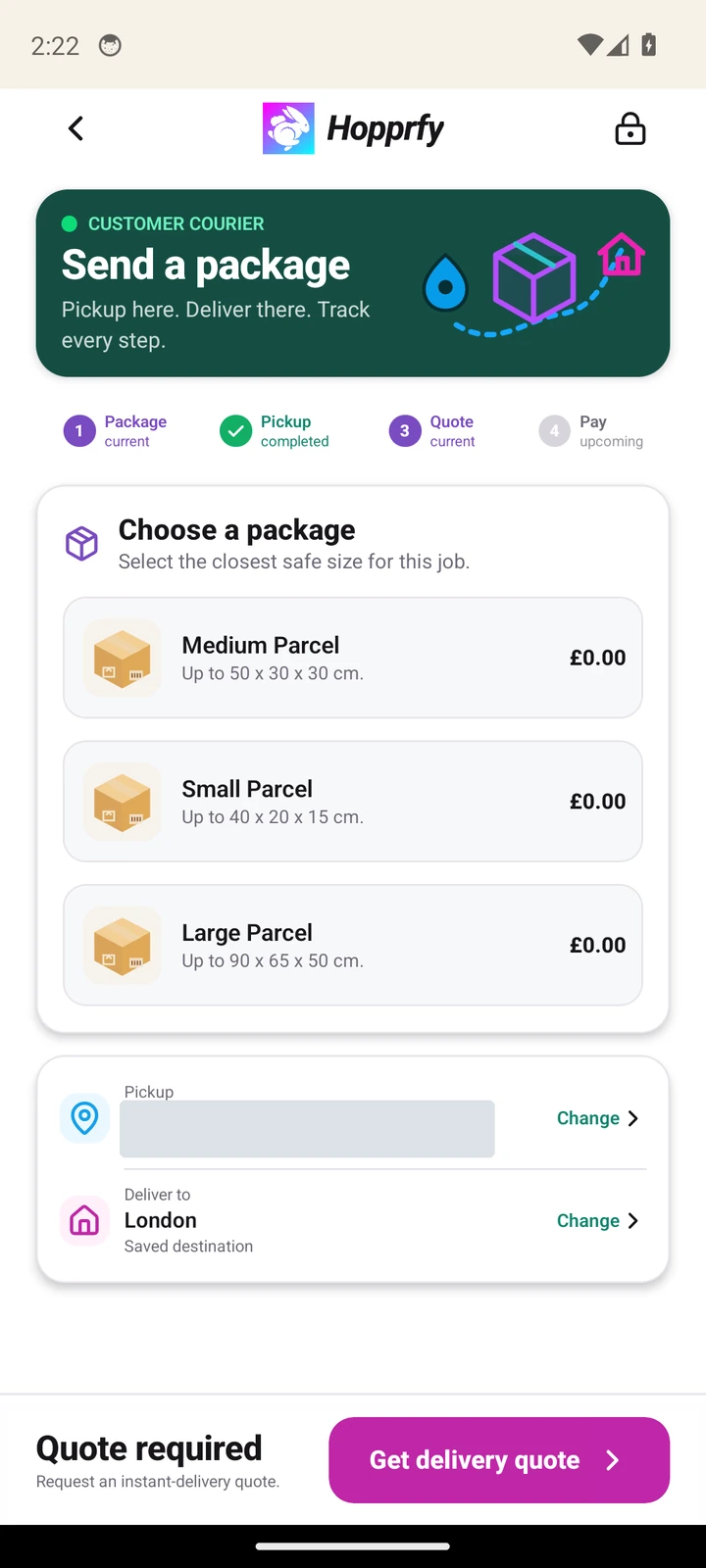
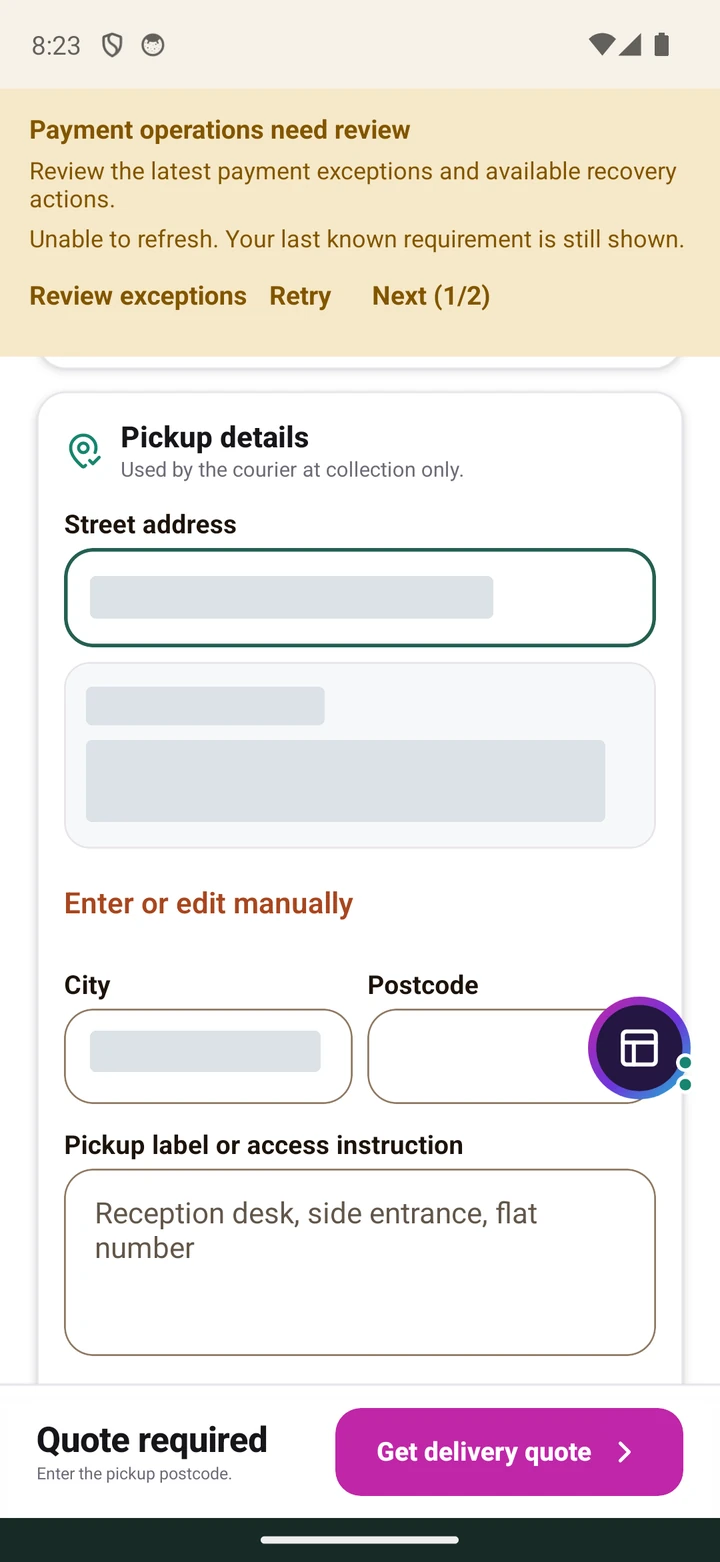
Select an actual search result, or finish manual entry. Pickup and Deliver to are separate address choices.
Click or tap to enlarge the full screenshot.17. Post a resale item where supported
#Use the dedicated resale flow when your account and marketplace offer it.
Where to open thisPost a resale item, when offered for your account and marketplace
- Open Post a resale item and choose the supported resale Network and category. Read the required item and pickup fields.
- Enter accurate details, condition, price and any barcode, and add clear photographs of the actual item you are offering.
- Check pickup, size/transport information and the customer preview before submitting. Keep personal information out of the public description and photographs.
- Wait for the saved result and review the listing. If resale is unavailable for your account or area, use the offered explanation or support rather than posting under an unrelated category.
18. Settings, privacy, help and account controls
#Use the account tools for preferences and help without losing track of active work.
Where to open thisSettings → Account, Privacy & legal or Support
- In Settings, review notification permissions for this device. Use the provided device-settings link if the operating system blocks alerts.
- Open Account → Edit profile to update supported contact details. Use the password controls for account security and confirm each save.
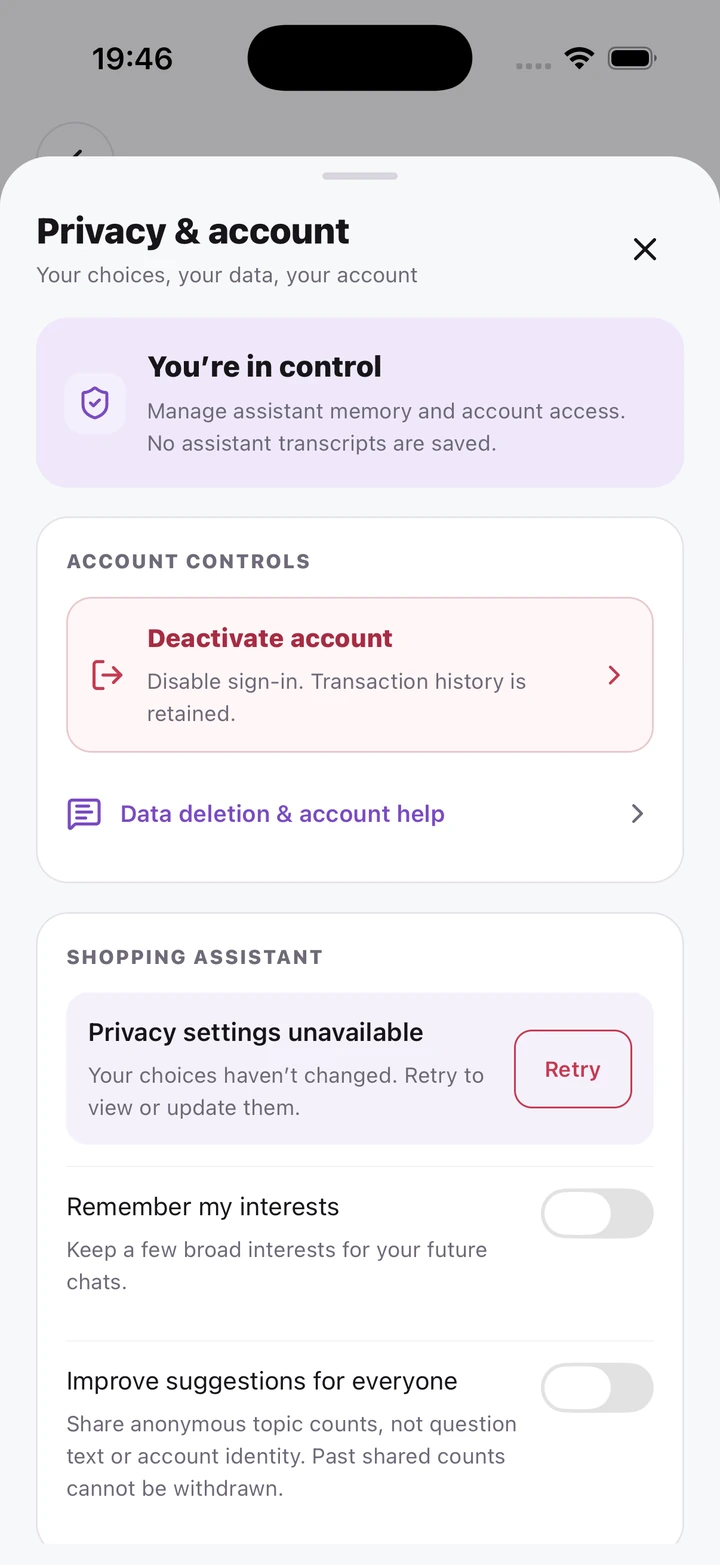
- Open Privacy & account to review shopping-assistant memory choices and the privacy/terms links. If a preference cannot load, retry before assuming it was saved.
- Use Support for platform help. If available, use the shopping assistant to help find items, then verify its suggestions on the actual product and checkout screens.
- Deactivate account is a separate confirmed account action. It disables sign-in and retains transaction history; it does not automatically cancel active work or permanently erase data. Read Data deletion & account help for further assistance.
IN PLAIN WORDS
Useful terms, explained.
- Marketplace / Network
- A shared catalogue such as a local food or retail marketplace.
- Basket
- Items grouped for one marketplace checkout. Other baskets can stay in your cart.
- Authorization
- A card payment amount approved or held before the order's supported capture step.
- Collection code
- The credential shown for handing over a ready collection order. Keep it private.
- Refund
- A return of a captured card payment. It has its own status and is different from releasing an authorization.
Need another side of the story?
One order connects a customer, a store, a marketplace and sometimes a driver. Use the other role guides to understand their part.
All guides →Back to top ↑No chapters match. Try a shorter term or clear your search.